EasyManua.ls Logo

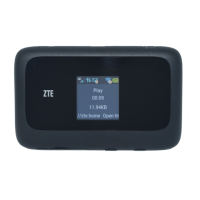
Zte 4G Mobile Hotspot - User Manual

Zte 4G Mobile Hotspot
56 pages
Print Icon
To Next Page IconTo Next Page
Loading...
Confidential and Proprietary Information of ZTE CORPORATION 1
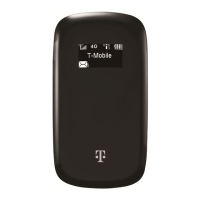
T-Mobile 4G Mobile Hotspot
User Guide

Questions and Answers

  • H
    Heather SinghJul 26, 2025
    Why does my Zte 4G Mobile Hotspot Wireless Router data connection keep failing?
    • J
      jdeleonJul 27, 2025
      A data connection failure on your Zte Wireless Router can occur for several reasons: you may be in an area without 3G/4G coverage, the network might be busy, or the APN in the user configuration file could be incorrect. The 4G Mobile Hotspot data might be corrupted, or the selected network type may not match your SIM card. To resolve this, move to an area with good signal, try again later, check the APN settings under Setting > Broadband Settings > APN Setting, retry your data request, and ensure the network type selected matches your SIM card (e.g., GSM SIM card should not be set to WCDMA).
  • C
    Cody LoweJul 31, 2025
    How to fix Zte 4G Mobile Hotspot when connected to internet but cannot open website page?
    • S
      Sabrina CarpenterAug 1, 2025
      If your Zte Wireless Router is connected to the internet but cannot open any website pages, it could be due to several reasons. The APN in the configuration files might be incorrect. The IE browser may be causing problems, or your operating system may be infected by a virus. You might have also connected to an APN which cannot connect to the Internet. To resolve this, verify that the APN in the configuration files is correct, upgrade or reinstall the IE browser, use anti-virus software to check and remove any viruses, and ensure you are using the correct APN from your operator.
  • L
    luis38Aug 5, 2025
    What to do if my Zte Wireless Router has no signal after restart?
    • J
      Jessica WhiteAug 5, 2025
      If your Zte Wireless Router has no signal after restarting, even with the SIM inserted, it could be due to a few reasons. You might be in an area with no 3G/4G network coverage, the SIM card may not be inserted properly, or the position of the 4G Mobile Hotspot is affecting signal reception. Try moving to a location with better signal, remove and reinsert the SIM card correctly, and adjust the position or angle of the 4G Mobile Hotspot.
  • J
    Jacqueline RodgersAug 10, 2025
    Why does my Zte Wireless Router fail to send messages?
    • K
      Kevin FritzAug 10, 2025
      A Zte Wireless Router may fail to send messages if the SMS center number is incorrect or if the network is busy, or you are in an area with no signal. While your 4G Mobile Hotspot is preconfigured, you should contact your operator if the SMS center number is missing or incorrect. Also, try again later or move to an area with a stronger signal.
  • C
    Christopher RobertsAug 15, 2025
    How to manually install Zte 4G Mobile Hotspot driver if it doesn't install properly after installation?
    • R
      Robert BrockAug 15, 2025
      If the system doesn't install the driver program properly after installing your Zte Wireless Router, it may be due to system configuration issues with the auto-run software. You can manually install the driver program. The driver program can be found in the path of My Computer > Mobile Hotspot > AutoRun.exe.
  • M
    markmcdanielAug 20, 2025
    How to run the Zte Wireless Router installation program if it doesn't start automatically?
    • T
      Tina WilsonAug 20, 2025
      If the system cannot run the installation program automatically for your Zte Wireless Router, it may be because the system configuration is having difficulty with the auto-run software. The 4G Mobile Hotspot will appear as a virtual CDROM on the PC’s start menu. Click on the icon and start the Autorun.exe. If you have previously installed a version of the program, please uninstall it first.

Summary

LEGAL INFORMATION

Chapter 1: Getting Started

Device Overview and Initial Setup

Describes device appearance, LCD indicators, and essential hardware installation steps.

Chapter 2: Working Modes

USB Connectivity and Software Management

Covers USB connection, software installation, and uninstallation for Windows and macOS.

Wi-Fi Mode Operation

Details connecting and using the hotspot wirelessly via Wi-Fi.

Chapter 3: Operation and Function

Connection and Internet Access

Covers preparation, establishing device connections, and accessing the internet.

Admin Page Access and Basic Operations

Guides on accessing the admin interface, login, home screen, and changing SSID/password.

Advanced Configuration

Broadband and Wi-Fi Settings

Configure network (APN) and Wi-Fi (SSID, security, WPS) parameters.

Firewall and Advanced Device Settings

Setup firewall rules, port forwarding, system security, and advanced device options.

Text Message Features

Message Management and Composition

Instructions for viewing messages, composing new messages, and configuring message settings.

Connection and Operation Management

Connection Modes and Disconnection

Explains connection modes, disconnection procedures, and sleep mode functions.

Chapter 4: Troubleshooting

Chapter 5: Technical Parameters

Chapter 6: Glossary

Chapter 7: Safety, Usage, and Legal Information

Safety and Usage Precautions

Details general safety, device usage, battery handling, and operational warnings.

Warranty and Legal Disclaimers

Outlines limited warranty, liability, FCC compliance, and RF exposure information.

Zte 4G Mobile Hotspot Specifications

General IconGeneral
ModelMF920V
Network Technology4G LTE, 3G UMTS, 2G GSM
Wi-Fi Standard802.11 b/g/n
Maximum Wi-Fi Speed150 Mbps
Battery Capacity2000 mAh
InterfaceMicro USB
4G LTE BandsB1/B3/B7/B8/B20/B40
3G UMTS BandsB1/B8
2G GSM Bands900/1800 MHz

Related product manuals