EasyManua.ls Logo

ZyXEL Communications G-570U - User Manual

ZyXEL Communications G-570U
162 pages
Print Icon
To Next Page IconTo Next Page
Loading...
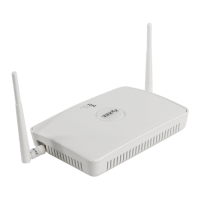
ZyXEL G-570U
IEEE 802.11a/b/g Wireless Access Point / Bridge
Users Guide
Version 1.00
Edition 1
07/2006

Table of Contents

Other manuals for ZyXEL Communications G-570U

Questions and Answers

  • J
    Judith RodriguezAug 16, 2025
    What to do if I cannot ping any computer on the LAN using ZyXEL Communications Wireless Access Point?
    • D
      David StephensAug 16, 2025
      If the ETHN LED on the front panel is off, check the Ethernet cable connections between your ZyXEL Communications Wireless Access Point and the Ethernet device. Also, check the Ethernet cable connections between the Ethernet device and the LAN computers. Look for faulty Ethernet cables. Ensure the LAN computer’s Ethernet adapter is properly installed and working. Verify that the IP address and the subnet mask of the Wireless Access Point, the Ethernet device, and the LAN computers are on the same subnet.
  • K
    Katelyn ByrdAug 20, 2025
    What to do if I cannot access the ZyXEL Communications Wireless Access Point from the LAN?
    • J
      Jasmin JonesAug 20, 2025
      If the ETHN LED on the front panel is off, check the Ethernet cable connection between your ZyXEL Communications Wireless Access Point and the Ethernet device connected to the ETHERNET port. Check for faulty Ethernet cables. Make sure your computer’s Ethernet adapter is installed and working properly. Check the IP address of the Ethernet device. Verify that the IP address and the subnet mask of the Wireless Access Point, the Ethernet device and your computer are on the same subnet.
  • M
    Michael CastilloAug 25, 2025
    What to do if I cannot ping any computer on the WLAN using ZyXEL Communications Wireless Access Point?
    • S
      stephanie57Aug 25, 2025
      To resolve this, ensure the wireless adapter on the wireless station is functioning correctly. Verify that both the ZyXEL Communications Wireless Access Point and your wireless station are configured with the same ESSID, channel, and security settings.
  • M
    Miguel KramerAug 27, 2025
    What to do if I cannot access the ZyXEL Communications Wireless Access Point from the WLAN?
    • J
      Jessica DiazAug 27, 2025
      To fix this, ensure the wireless adapter on the wireless station is working correctly. Check that both the ZyXEL Communications Wireless Access Point and your wireless station are using the same ESSID, channel and security settings.
  • K
    Kenneth MedinaAug 31, 2025
    What to do if I cannot connect to an access point when setting up OTIST on ZyXEL Communications Wireless Access Point?
    • C
      chrishessAug 31, 2025
      If the LEDs continue to flash, the ZyXEL Communications Wireless Access Point has not made a connection. Make sure that OTIST is set up correctly on both the AP and the Wireless Access Point. All settings must be the same on both devices. Ensure that the AP and the Wireless Access Point are not receiving radio signal interference and are within range. Move the devices closer together and away from any sources of interference, such as microwave ovens, Bluetooth devices and other radio transmitters. Restart OTIST on both devices.
  • D
    David SpencerSep 3, 2025
    Why does ZyXEL Communications Wireless Access Point reboot automatically sometimes?
    • S
      Shawn BaileySep 4, 2025
      The supplied power to the ZyXEL Communications Wireless Access Point is too low. Check that the Wireless Access Point is receiving enough power. Make sure the power source is working properly.
  • K
    Katie RamseySep 8, 2025
    How to fix the issue when none of the LEDs turn on after plugging in the power adapter in ZyXEL Communications Wireless Access Point?
    • J
      Julia MannSep 8, 2025
      Make sure you are using the supplied power adapter and that it is plugged in to an appropriate power source. Check that the power source is turned on. If the problem persists, you may have a hardware problem. In this case, you should contact your local vendor.
  • T
    Tiffany VegaNov 11, 2025
    How to fix 'Cannot access the web configurator' on ZyXEL Communications Wireless Access Point?
    • L
      larsonericNov 12, 2025
      To resolve this, ensure your computer and the ZyXEL Communications Wireless Access Point's IP addresses are on the same subnet for LAN access. If you've altered the Wireless Access Point's IP address, input the new one as the URL. If you're unsure of the Wireless Access Point’s IP address, enter the device name of your Wireless Access Point as the URL. If you just changed the Wireless Access Point’s IP address, in Windows, use nbtstat -R at the command prompt to delete all entries in your computer’s cache of machine names. Open a new browser window. You may also need to clear your Internet browser’s cache. In Internet Explorer, click Tools and then Internet Options to open the Internet Options screen. In the General tab, click Delete Files. In the pop-up window, select the Delete all offli...

Summary

Certifications

FCC Compliance Statements

Details FCC interference and radiation exposure statements and compliance.

Safety Warnings

General Safety Precautions

Lists essential warnings for safe usage, handling, and installation of the device.

ZyXEL Limited Warranty

Warranty Terms and Conditions

Explains ZyXEL's product warranty policy, coverage, and limitations.

Customer Support

Contact Information and Support

Provides contact details and guidelines for customer support.

Preface

Document Overview and Conventions

Introduces the guide, related documents, and syntax conventions.

Getting to Know Your G-570 U

G-570 U Introduction and Features

Overview of the G-570U, its functions (AP, Bridge, Repeater), and key features.

Applications for the G-570 U

Network Connectivity Applications

Examples of using the G-570U for Internet, Corporate Network, Client, and Bridge modes.

Device Indicators and Panels

LED Display and Rear Panel Layout

Explains front panel LEDs and rear panel components.

Management Computer Setup

Introduction and Wired Connection

Preparing a computer and establishing a wired connection for management.

Device Restart and Reset Procedures

Guides on restarting and resetting the G-570U to factory defaults.

Introducing the Web Configurator

Overview and Accessing the Configurator

Introduction to the web interface and steps to access it.

Wizard-Based Configuration

Details the step-by-step wizard for initial setup and security.

Navigating Advanced Screens

Explains how to navigate through the advanced configuration menus.

Status Screens

System Status, Statistics, and Association List

Covers viewing device status, performance statistics, and client associations.

System Screen

TCP;IP Parameters and System Settings

Configuration of IP addressing, subnet masks, and device settings.

Wireless Screens

Wireless LAN Overview and Basics

Introduces WLAN topologies, channel, SSID, and RTS/CTS.

Configuring Wireless Modes

Guides on setting up Access Point, Client, Bridge, and AP+Repeater modes.

Wireless Security Configuration

Details encryption, authentication, WPA/WPA2, WEP, and 802.1x security.

Management Screens

Password, Logs, and Configuration File Management

Covers changing password, viewing logs, and managing configuration files.

Firmware Upload and Factory Defaults

Process for updating firmware and restoring factory default settings.

Troubleshooting

Common Device and Connection Problems

Addresses issues with startup, password, WLAN, and Ethernet connectivity.

Browser and Software Configuration Issues

Solutions for browser pop-ups, JavaScript, and Java permissions.

Testing Network Connection

Pinging the G-570 U

How to test network connectivity to the G-570U using the ping command.

Product Specifications

Device, Feature, RF, and Adapter Specifications

Technical details, features, RF specs, and power adapter information.

Approvals

Lists regulatory compliance marks and standards the device meets.

Setting up Computer IP Address

Windows 95;98;Me IP Configuration

Steps to set up IP address for older Windows versions.

Windows 2000;NT;XP IP Configuration

Guide for configuring IP settings on Windows 2000/NT/XP.

Macintosh OS 8;9 IP Configuration

Instructions for setting up IP address on older Macintosh OS.

Macintosh OS X IP Configuration

Steps to configure IP settings on Macintosh OS X.

Linux IP Configuration

Guide for setting up IP address on Linux systems.

Wireless LANs

WLAN Topologies and Basics

Explains WLAN structures, channel, RTS/CTS, and security protocols.

Wireless Security and Roaming

Details EAP authentication, WEP, WPA/WPA2 security, and roaming features.

IP Subnetting

Introduction to IP Addresses and Classes

Explains IP address structure, classes, and subnet masks.

Subnet Masks and Subnetting

Covers subnet mask notation and the process of subnetting networks.

Subnetting Examples

Provides practical examples of network subnetting.

Open Software Announcements

Software Licenses and Notices

Information on eCos and GNU GPL licenses, notices, and terms.

GNU GENERAL PUBLIC LICENSE

Full text of the GNU General Public License terms and conditions.

ZyXEL Communications G-570U Specifications

General IconGeneral
Device TypeWireless Access Point
ManufacturerZyXEL Communications
ModelG-570U
Wireless Standard802.11g
Frequency Band2.4 GHz
Maximum Data Rate54 Mbps
SecurityWEP, WPA, WPA2
InterfaceEthernet
Antenna TypeExternal
Ports1 x 10/100Mbps Ethernet port

Related product manuals