247securityinc.com
1.866.693.7492
CONFIGURATION MENUS
247securityinc.com | 1.866.693.7492 | 1455 Alderman Drive, Alpharetta GA 30005, USA
Pg.34 of 47
• Remove Hard Drive / DHD
a. If DVR is running, turn the key lock to the OPEN position and wait until DVR shuts down.
Both POWER and REC LEDs must be o. If the vehicle is idling, the IGNITION light will be on.
b. Open the door (Note: Leave it open during upgrade process).
c. Remove hard drive by pulling the tray straight out from the DVR until it’s free from the rails.
d. Turn the key lock to the LOCK position and wait until DVR boots up. TITAN has nished
booting when both IGNITION and POWER LEDs (green) are on solid. The vehicle can be
idling or in Accessory mode.
• Connect to TITAN and Save Current Conguration
a. Follow the rst 2 steps from “CONNECT TITAN TO PC/LAPTOP” on page 8.
b. Launch your browser. Delete all browsing history including: history, temp les, cookies
and web form information.
c. Go to “http://192.168.1.100/” to access DVR setup. You should now be at the login page.
d. Type “admin” as the User Name and “admin” as the password.
e. Go through each page and manually record on paper all the settings; it is very important to
record the correct DVR Server Name.
f. Download the conguration le, see DOWNLOAD CONFIGURATION on page 30.
• Upgrading MCU (1 to 2 minutes)
a. Go to the Tools tab in the setup page.
b. Insert Force Power-on plug into the I/O CANBUS port on the rear of the system.
c. Click Choose File to browse your computer for the MCU le. A brief reminder, if Tech
Support did not send you an update, DO NOT PROCEED.
d. Click Update MCU Firmware. This popup will display:
e. The popup will close. Follow instruction on screen.
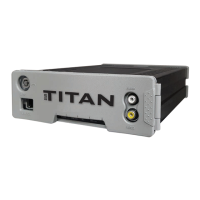
f. When “Synchronizing (ESC to abort)…” displays, immediately press the RESET button on
the front panel of TITAN:


 To Next Page