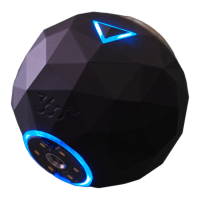
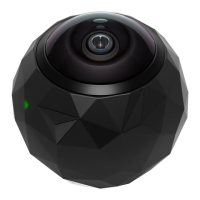
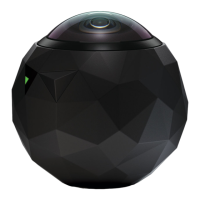
Camera: Select the icon to connect to your 360fly camera. Once connected, you will
have full control of all of your camera’s features and functions through your smartphone. You
can also view and download all of your video files stored on your camera’s memory.
On My Phone: Select the icon to access all of your videos, clips, and photos stored on
your smartphone. Review, edit, and playback your content anytime/anywhere without the need to
connect to the internet or your 360fly camera.
Explore: Select the icon to browse public content uploaded by other 360fly users.
Select and view featured videos, along with hosted content spanning a variety of interesting
topics and categories. Be sure to check back regularly to view the latest exciting uploads from
other 360fly 4K users.
Profile: Select the icon to view all of the video content uploaded to your 360fly
account. You can access and playback any videos you’ve uploaded from anywhere you have an
internet connection—with or without connecting to your 360fly camera. You can also choose to
make any of your videos public and share your experiences with friends and other 360fly users.
To make changes or edits to your account, just tap the edit profile option at the top of the screen.
Note: An active internet connection is required to access and view content.
Camera Home Screen
Once your smartphone is connected to the camera, the app’s home screen gives you full access to
all camera controls, modes, and settings options.


 To Next Page