represents your camera shutter button, allowing you to capture a still 360° photo with your
camera while recording your video.
Still Image Capture
Your 360fly 4K doubles as a still image action camera, allowing you to capture .jpeg photos at
an effective resolution of 3456x3456 pixels. Your 360° images can be viewed within the mobile
application or via the 360fly desktop Director app on PC or Mac.
To switch your camera to Photo mode, tap the photo icon at the bottom of the camera
home screen. The icon will switch your camera to still Photo mode and the application will
indicate that it is in Photo mode at the top of the viewfinder screen.
Once your shot is lined up, tap the white shutter button to take a photo. When a photo is
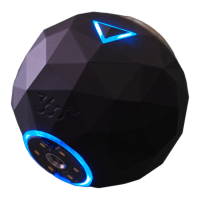
captured, the camera LED will flash red once and return back to solid blue, indicating that it is in
ready mode. All of your photo files will be stored in your camera’s memory in a .jpeg format.
Note: To exit Photo mode, tap the video icon at the bottom of the screen and your
camera will return to video record mode.
First-Person POV Photo Mode
The 360fly 4K can be set to capture standard photos from the First-Person POV perspective.
To switch from standard Photo mode to POV mode, tap the revolver wheel at the
bottom of the "camera" home screen. Tap the POV icon and the application will
indicate that it is in POV Photo mode at the top of the viewfinder screen.
Once your shot is lined up, tap the white shutter button to take a photo. When a photo is
captured, the camera LED will flash red once and return back to solid blue, indicating that it is in
ready mode. All of your photo files will be stored in the camera’s memory in a .jpeg format.


 To Next Page