Recording Without the App
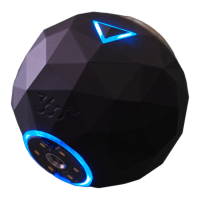
If you don’t have access to the 360fly app on your mobile device, you can record videos directly
on your camera. Simply press the OnePush button on your camera to launch a 360° recording.
Your camera will vibrate and the LED will turn from blue to solid red, indicating that your
camera is now recording. To stop recording, press the OnePush button again.
Note: The default recording mode for 360fly 4K videos is pre-set at a resolution of 2880x2880 at
30 frames per second. On this setting, the live viewfinder is disabled during active recording. To
enable live-view while recording, you must change your settings to record your 360° 4K video as
2880x2880 pixels at 24 frames per second (FPS).
First-Person POV Mode
First-Person POV mode gives you the power to record standard (non-360°), point of view
(POV) videos in a 16:9 aspect ratio, turning your 360fly into a traditional point-and-shoot action
camera. With this mode activated, simply orient or mount your camera in a horizontal position
with the lens facing forward and the OnePush button centered-facing up.
To enter First-Person POV mode, press the revolver wheel located at the bottom of the
screen and select the POV icon . Your application will display that it is set in POV
mode above the live-view display on your screen and the live-view area will display a preview in
a 16:9 aspect ratio.
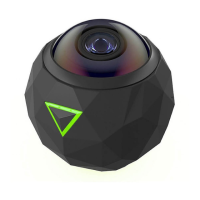
Note: The camera’s OnePush button represents the top/center of your camera’s viewing angle.
When filming in POV mode, use the OnePush button to align your shot and achieve the ideal
camera angle.
To begin a recording in First-Person POV mode, tap the white record button to start
capturing. The center of the capture button will turn red and your camera will simultaneously
vibrate while its LED turns from blue to red. As your video records, you’ll notice a second
button displaying a camera icon appears to the top right of the record


 To Next Page