4
EN11/2023
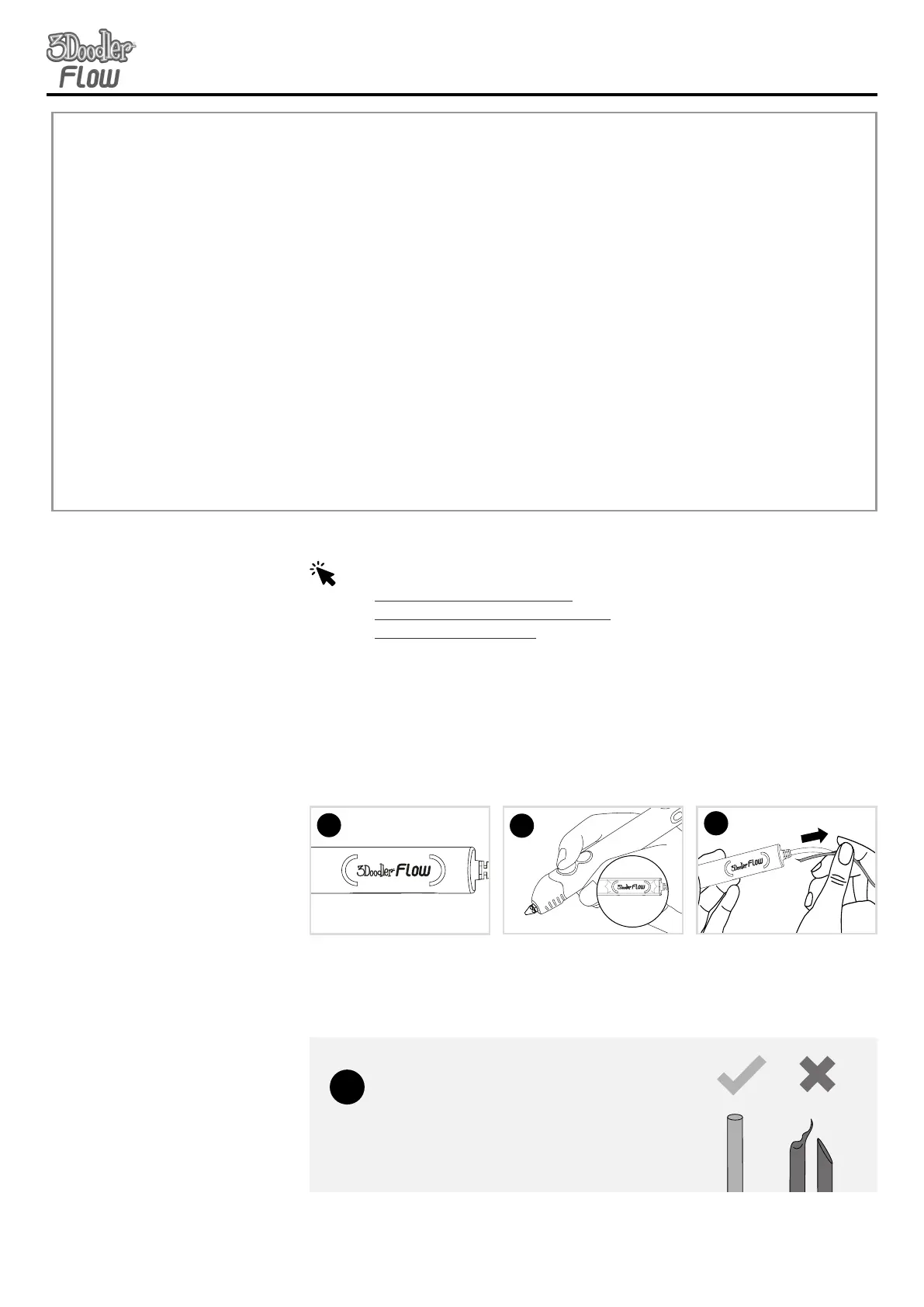
Once Plastic stops reversing,
it is safe to remove it from the
pen by gently pulling on the
back of the spool.
Make sure the pen is heated
up and ready to extrude.
Double click either speed
button. The back LED light
will flash to signal plastic is
reversing.
3
SECTION 2: GETTING STARTEDSECTION 2: GETTING STARTED
STEP 4:
Doodle Even More!
For further guides, projects and inspiration, please refer to:
• the3doodler.com/resources/
• the3doodler.com/getting-started/
• the3doodler.com/help/
STEP 5:
Reverse and
remove plastic
Here’s everything you need to know about changing filament
spools to change colors or filament type.
Your Name:
#MyFirstDoodle
After removing a plastic spool from the 3Doodler Flow,
cut and dispose of any partially melted material at the end of
your spool. This will reduce blockages and clogging issues.
SNIP THOSE ENDS!
TIP
1
Light to GREEN/BLUE
x2
2
Flashing
GREEN/BLUE


 To Next Page