6
EN11/2023
SECTION 3: TROUBLESHOOTINGSECTION 3: TROUBLESHOOTING
2.
Plastic won’t stick
to the paper, or is
curling up around
the nozzle
Stop extruding and start again using the following
instructions:
Push the nozzle down onto the paper, and then resume
extruding plastic.
Drag the tip of the pen along the paper or surface in a
continuous unbroken line as if you were writing with a
pencil.
Keep your movement slow and steady. The plastic should
hold to the paper and not curl up around the nozzle.
3.
Plastic is not
extruding from my
3Doodler Flow
The plastic is not engaging properly with the drive gear:
With the pen extruding, gently push on the filament spool until
you feel it being pulled through the drive gear on its own.
If the above does not work, reverse the plastic from the pen. (See
Section 4) Snip the ends, flat, avoiding any angles, set the pen to
extrude, reinsert the filament, and try again. If the plastic is too
short to be reversed from the back of the pen, move to 3B.
The plastic is too short to be removed from the pen:
BLUE or GREEN
Light
3A.
3B.
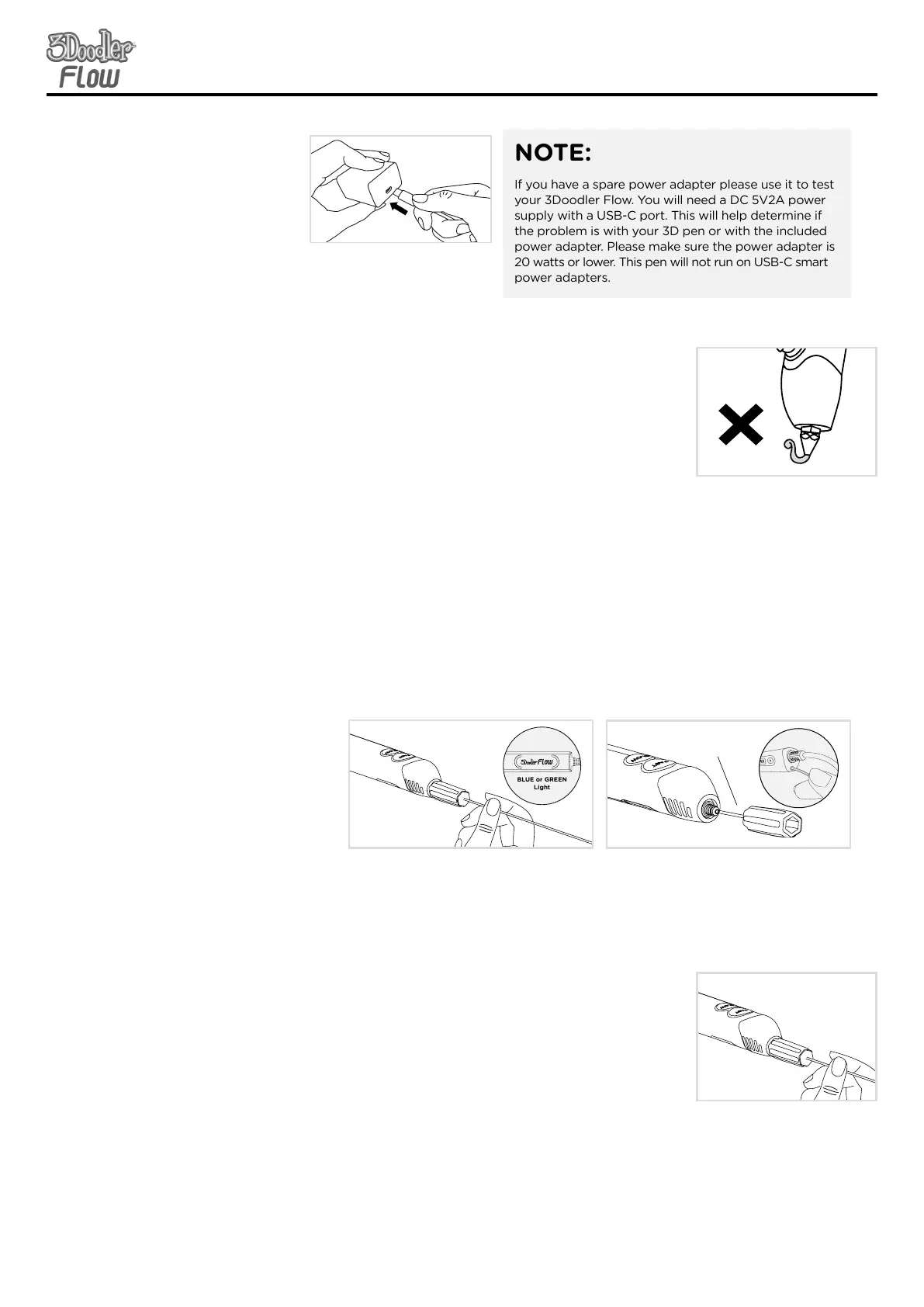
Double click either speed button to
set the pen into reverse. Insert the tool
through the front end of the pen and
gently push any excess plastic through
the back of the pen
Tool included
Tool included
Tool included
While the pen is on and the nozzle is
hot, unscrew the nozzle using the back
end of the included tool.
5A. Click either speed button once.
5B. If the pen keeps extruding, disconnect it from the
power supply and then plug it in and try again.
4.
Plastic is leaking
from around the
nozzle
5.
Plastic won’t stop
extruding
The nozzle may loosen with continued usage (or in
transit). While the pen is hot (BLUE or GREEN LED
Light is on), gently turn the nozzle clockwise to tighten
it using the included tool. Stop tightening once you first
feel resistance so as to avoid over-tightening the nozzle
and breaking it.
1.
My pen won’t
turn on (the LED
light isn’t on)
NOTE:
If you have a spare power adapter please use it to test
your 3Doodler Flow. You will need a DC 5V2A power
supply with a USB-C port. This will help determine if
the problem is with your 3D pen or with the included
power adapter. Please make sure the power adapter is
20 watts or lower. This pen will not run on USB-C smart
power adapters.
Is the USB-C cord connected
into the power adapter?


 To Next Page
 Loading...