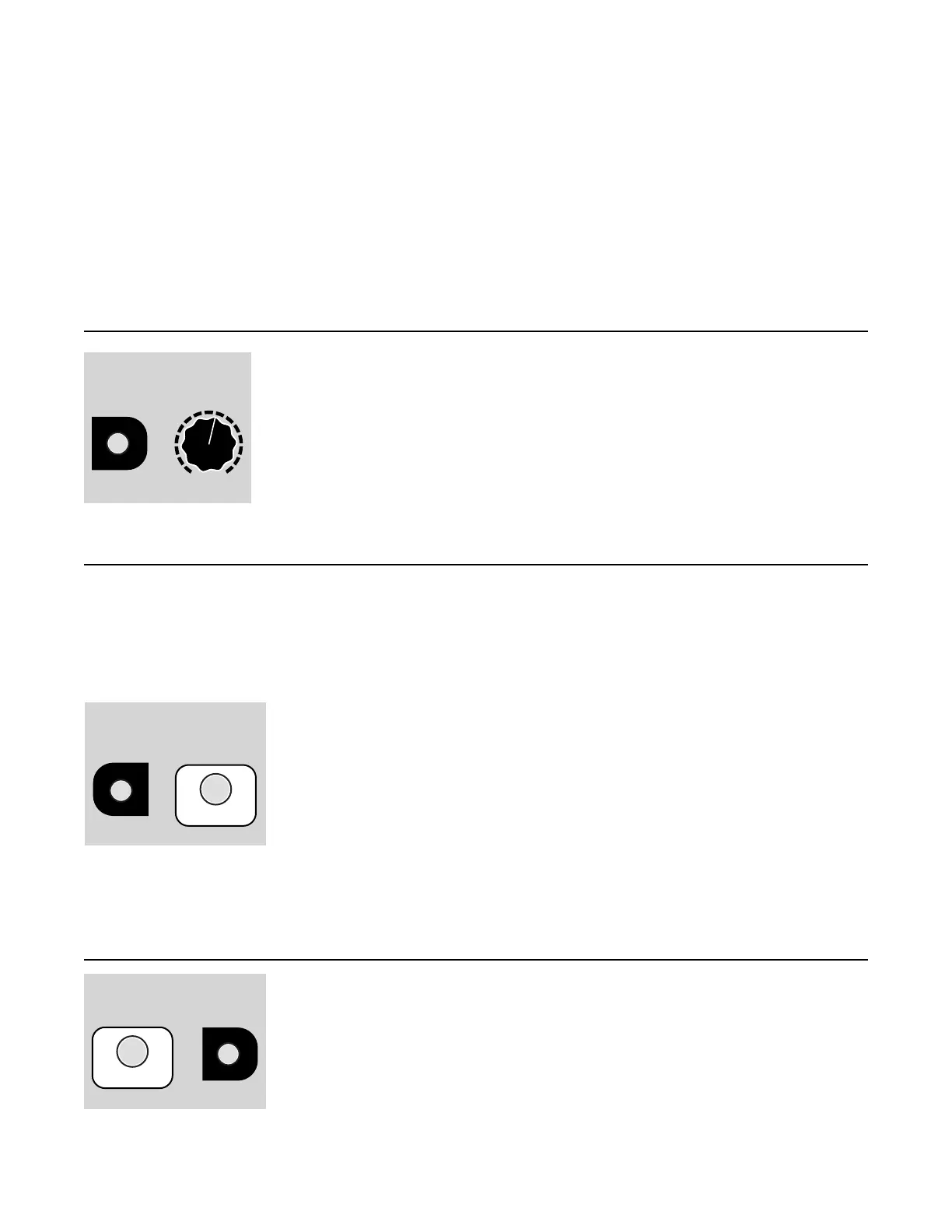
left Bank button is blinking 2 times. Release the left Bank button and it’ll jump to Yellow-2. Note that if
you turn either knob to select an empty bank, the bank button won’t change color or blinks."
The Bank CV jack can also be used to select banks. The jack responds to voltage between 0V and 5V,
which when using a keyboard, translates to 5 octaves. Since there are 60 notes (semitones) in 5
octaves, and there are 60 possible banks, the jack is essentially mapped such that each note between
C0 and C5 selects a different bank."
Note: using Quick Bank Select and Bank CV simultaneously can sometimes lead you to be on an
empty bank. If you find this happening, simply tap the Bank button to go to the next bank containing
samples."
Channel Playback Volume
Adjust Channel Playback Volume
There’s a hidden feature in the Sampler that lets you control the playback
volume: hold down Reverse while you turn the Start Pos knob. When you
power-on the Sampler, the volume is automatically set to 100%.
The Reverse button will not toggle reverse/forward mode when you use this
feature. Also, the Start Pos won’t be adjusted until/unless you move the Start
Pos knob without the Reverse button being down. "
The playback volume is not saved after power-down."
Stereo/Mono Mode
Normally a stereo file will play the left channel out of Out Left and the right channel out of Out Right.
However, if you are using a mono signal path in your patch, you may want to use Mono Mode. In this
mode, the Sampler mixes the left and right channels together and sends that to both output jacks.
Note that regardless of Stereo or Mono Mode, if you play a mono file, both jacks will output the mono
sample."
Toggle Stereo/Mono Mode
To toggle between Stereo and Mono Modes, hold down the Bank and Play
buttons for a second. When entering Mono mode, the Play button will flash
white/blue. When entering Stereo Mode, the Bank and Reverse buttons will
flash. You can tell which mode you’re in by looking at the color of the Play
button while playing or looping: in Mono Mode it’s green and in Stereo Mode
it’s yellow. When looping the button is blue in Mono Mode and cyan in Stereo
Mode."
Tip: if you don’t want to start/restart playback when changing modes, press the Bank button first
before pressing Play.
"
Tutorial 3: Recording Samples
Enabling Recording
To create a recording, you first have to enter recording mode by holding
down the Play and Reverse buttons for 2 seconds. When in recording mode,
the Play button will flash red."
Patch the audio you want to record into the Left and Right RECORD jacks.
You should be hearing your input sound coming out the Out jacks, but it’s not
recording yet— just monitoring."


 To Next Page