QCOM Tool v1.6 Copyright © 5GHUB.US
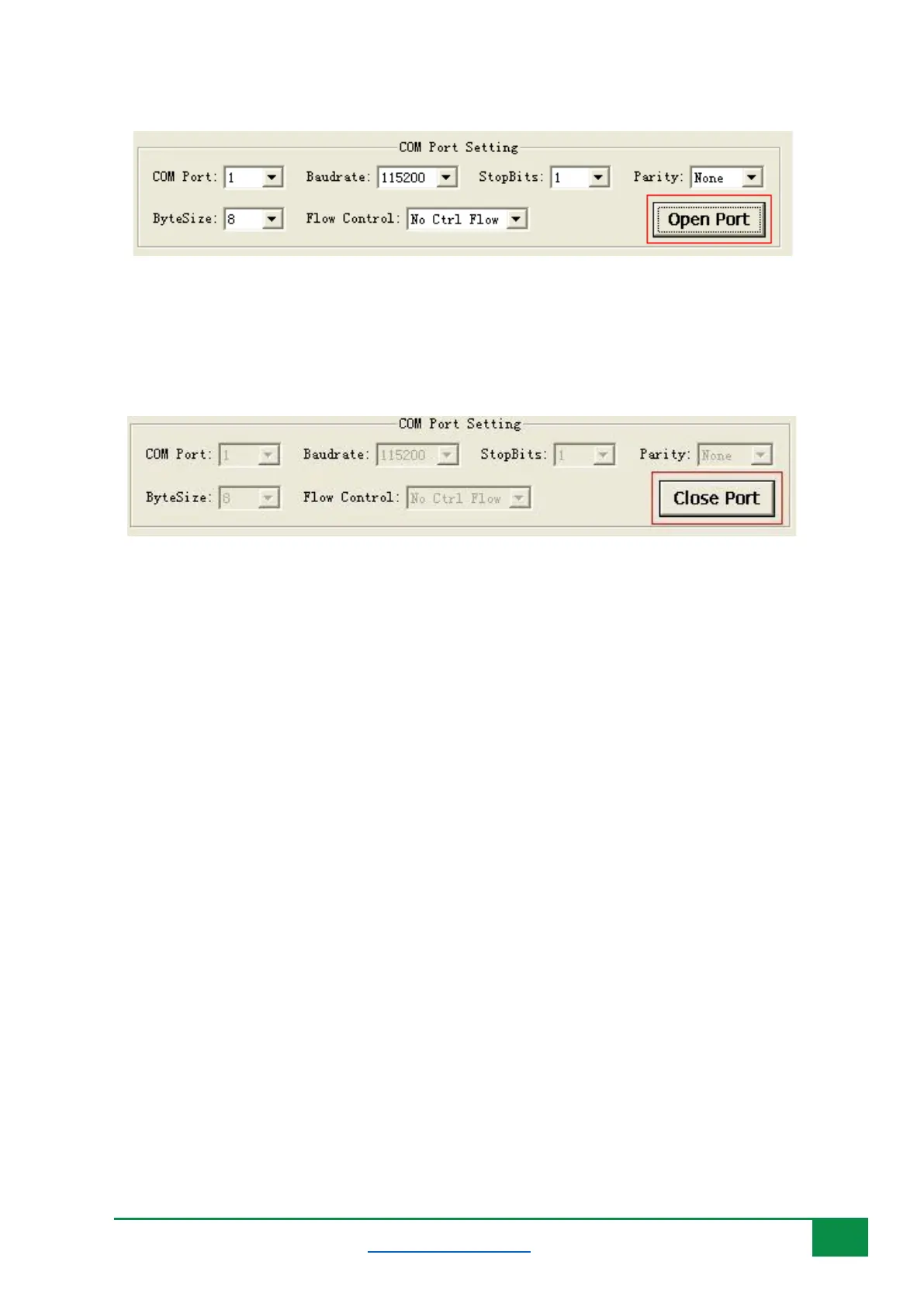
Figure 9: Clicking “Open Port” button.
Click “Close Port” to close the selected COM port. Please refer to Figure 10.
Figure 10: Clicking “Close Port” button.
4.3 Send Data
To send data from the QCOM tool, follow the following steps:
1) Red area is used to input data which would be sent.
2) Green area is used to choose file needed and send a whole file.
3) Blue area is used to save received data as a file.
4) DTR: Enable the DTR pin of COM port.
5) RTS: Enable the RTS pin of COM port.
6) View File: Show the data of the file which has been sent.
7) Show Time: Show the time of each received data.
8) HEX String: The input string is HEX string.
9) Show in HEX: The received data is shown in HEX.
10) Send with Enter: Send data with “Enter”.
11) Clear Information: Clear all received data and status information.
12) Send Command: Start to send the data which you input.
13) Select File: Select the file which would be sent.
14) Send File: Start to send the file that you have selected.
15) Save Log: Select the file of which the Log data was saved.



 To Next Page