Press start to turn on the controller.
Press & hold start for 3 seconds to turn off the controller.
Contents [ hide
1 Switch
2 Android CD – input)
3 Windows (X – input)
4 macOS
5 Turbo function
6 Battery
7 Power Saving
8 Support
9 Related Manuals:
Switch
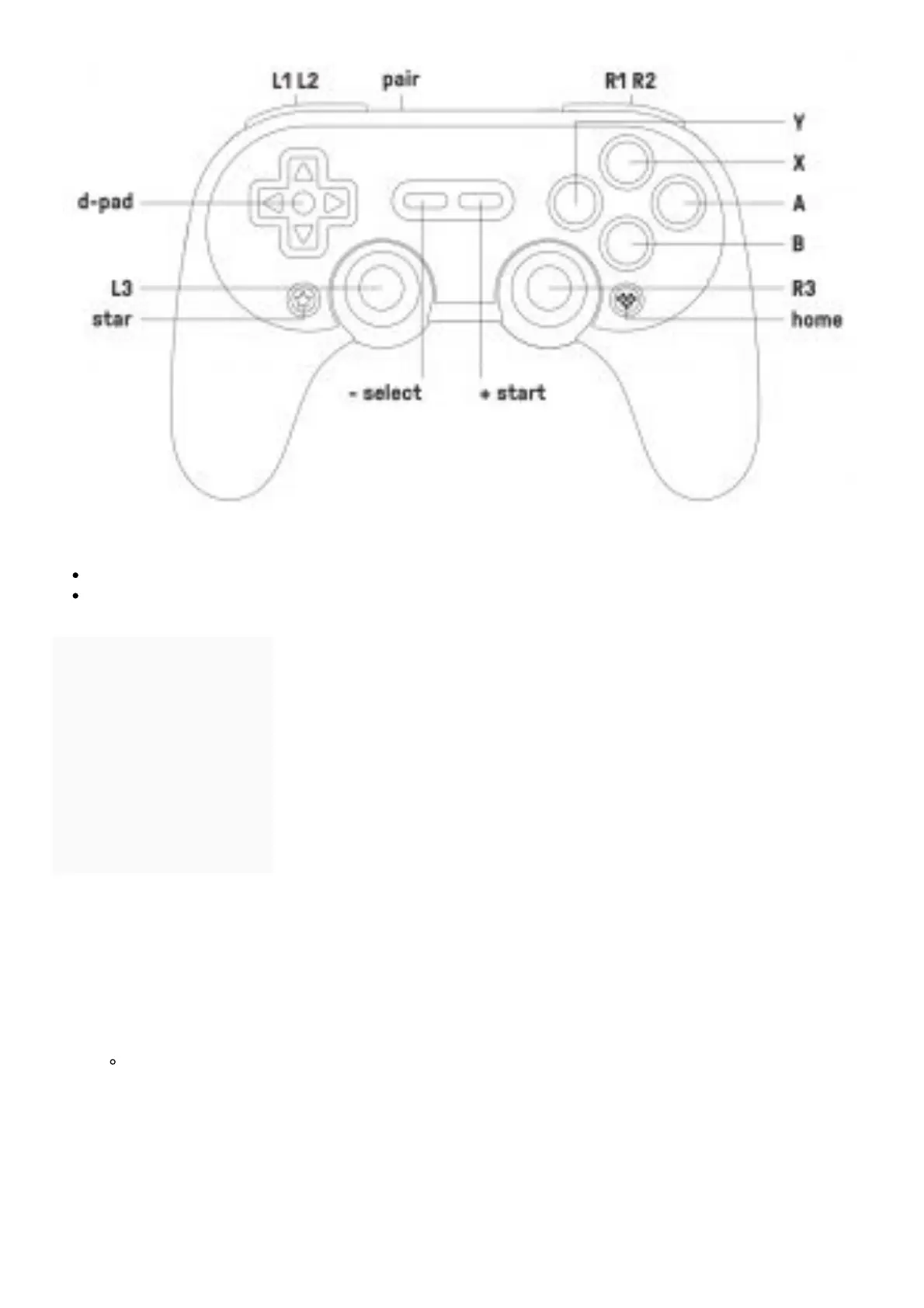
1. press & hold Y & start to turn on the controller then press pair button for 3 seconds to enter its
pairing mode. LED starts to rotate from left to right.
2. go to your Switch Home Page to click on Controllers, then click on Change Grip/Order. LED
becomes solid when connection is successful.
3. controller will auto reconnect to your Switch with the press of start once it has been paired.
when connected to your Switch, star button= Switch Screenshot button, home button=
Switch HOME button.
Android CD – input)
1. press & hold B & start to turn on the controller then press pair button for 3 seconds to enter its
pairing mode. LED starts to rotate from left to right.
2. go to your Android device’s Bluetooth setting, pair with [BBitDo SN30 Pro+]. LED becomes solid
when connection is successful.
3. controller will auto reconnect to your Android device with the press of start once it has been



 To Next Page