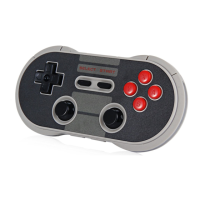
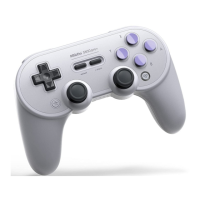
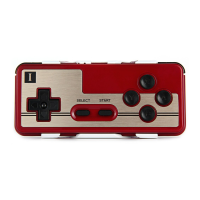
OSX, Windows are supported. Making the ZERO GamePad ideal for all popular systems and devices.
To relive the happy memories of the past.
FAST START UP
GamePad
Bluetooth
Keyboard
iCade
Emu-Touch
Screen
START ON
(Hold down key for
2 seconds)
START START+B START+A START+X
Blue LED 1 times per second 2 times per second 3 times per second
4 times per
second
Support system Windows, Android
Windows, Mac OS,
Android, iOS
Android, iOS Android
Memo
PC can use
Bluetooth Adapter.
Exclusive support
FOUR players
Input method should
be English.
Need ROOT
Selfie Mode
Bluetooth
Keyboard2P
PC Joystick
START ON
(Hold down
key for 2
seconds)
SELECT START+B+R START+R1
Blue LED 1 times per second 2 times per second 1 times per second
Support
system
Android, iOS
Windows, Mac OS,
Android, iOS
Windows PC
Memo
D-pad buttons for iOS,
four face buttons (A, B,
X, Y) for Android.
Multiplayer
supported, Dual
keyboard code
system
The Bluetooth conneection is the difference
between PC mode and 360 mode, the
buttons value also not the same
Modes:
1. For Android devices, use GamePad.
2. For iOS devices, use Mode Bluetooth Keyboard or iCade.
3. For games that only support touchscreen controls, use Emu-Touch Screen.
To turn off the controller:
Hold down button for 2 seconds.
Selfie Mode Instructions
Android/iOS
1. Press on the SELECT button on the game pad for 2 seconds;
2. Turn on Bluetooth on your other device, find ‘8Bitdo ZERO GamePad’, choose it to connect;
3. D-pad buttons for iOS, four face buttons (A, B, X, Y) for Android.



 To Next Page