11
General Operation
Standby/ON
When you rst connect the main unit to the mains socket, the main unit will be in Standby mode.
- Press the button on the unit or on the remote control to switch the unit ON.
- Press the button again on the remote control or on the unit to switch the unit back to STANDBY
mode. The POWER indicator will light up red.
- Disconnect the mains plug from the mains socket if you want to switch the unit OFF completely.
- If a TV or an external device (Only for AUX socket) is connected, the main unit will switch on
automatically when the TV or the external device is switched on.
- When the unit has no input signal for over 15 minutes, it will automatically switch to Standby mode.
Select Modes
Press the SOURCE button repeatedly on the unit or the AUX, BT, OPTICAL, COAXIAL, HDMI ARC
button on the remote control to select the desired mode.
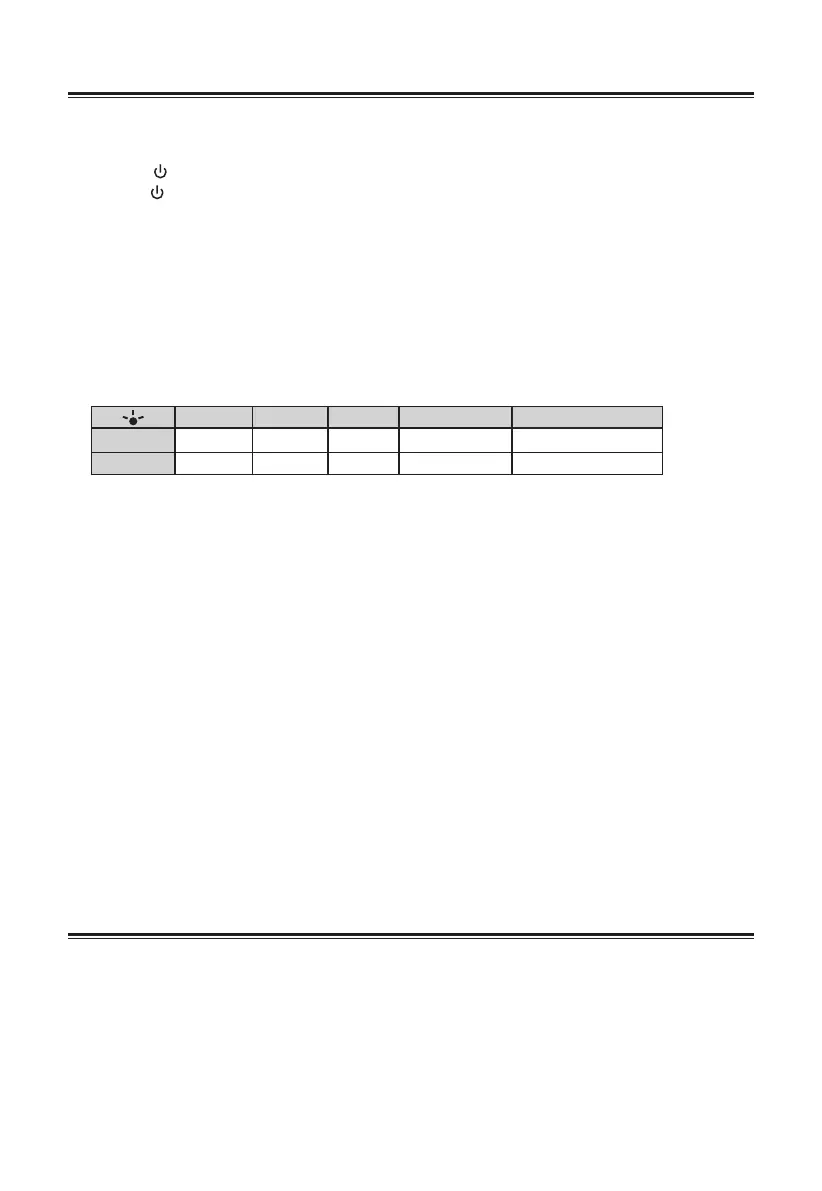
1 2 3 4 5
Indicator Red Green Blue White Orange / Orange ash
Mode Standby AUX BT HDMI ARC OPTICAL / COAXIAL
Adjust the Volume
- Press the VOL+ / VOL- buttons on the unit or on the remote control to adjust the volume.
- While adjusting the volume, the status indicator ashes quickly.
- While the volume level reaches its maximum level, if you press the VOL+ button again, the status
indicator ashes once. While the volume level reaches its minimum level, if you press the VOL-
button again, the status indicator ashes once.
Mute Sound
- If you wish to turn the sound o, press the MUTE button on the remote control. Press the MUTE
button again or press the VOL+ / VOL- buttons on the unit or on the remote control to resume
normal listening.
Select Equaliser (EQ) Eect
• While playing, press the EQ button on the unit or on the remote control to select desired preset
equalisers: Movie (recommended for viewing movies), Music (recommended for listening to music),
NEWS (recommended for listening to NEWS).
- NEWS: Green light ash / - Movie: Orange light ash / - Music: Blue light ash
Play for External Audio Devices
- Ensure that the unit is connected to the TV or audio device.
1 While in ON mode, press the SOURCE button repeatedly on the unit or the AUX, OPTICAL,
COAXIAL HDMI ARC button on the remote control to select the desired mode.
2 Operate your audio device directly for playback features.
3 Press the VOL +/– buttons to adjust the volume to your desired level.
Tip: While in OPTICAL/COAXIAL/HDMI ARC mode, if there’s no sound output from the unit and the
OPTICAL/COAXIAL/HDMI ARC Indicator ashes, you may need to activate PCM Signal output on your
source device (eg. TV, DVD or Blu-ray player).


 To Next Page