5. 22kHz: Press the ◄/► button to select ON, OFF or Auto.
6. DiSEqC 1.0: Press the ◄/► button to select the required DiSEqC1.0 input.
7. DiSEqC 1.1: Press the ◄/► button to select the required DiSEqC1.1 input.
8. Motor: Press the ◄/► button to select DiSEqC1.2 or USALS.
9. Network search: Press the ◄/► button to select ON or OFF if you want to
implement network search.
10. Start search: Press the ◄/► button to select Satellite & Multi-Sat & Blind
scan & Transponder & Multi-Transponder which you want to start search.
4.2.1 Antenna Settings for Satellite
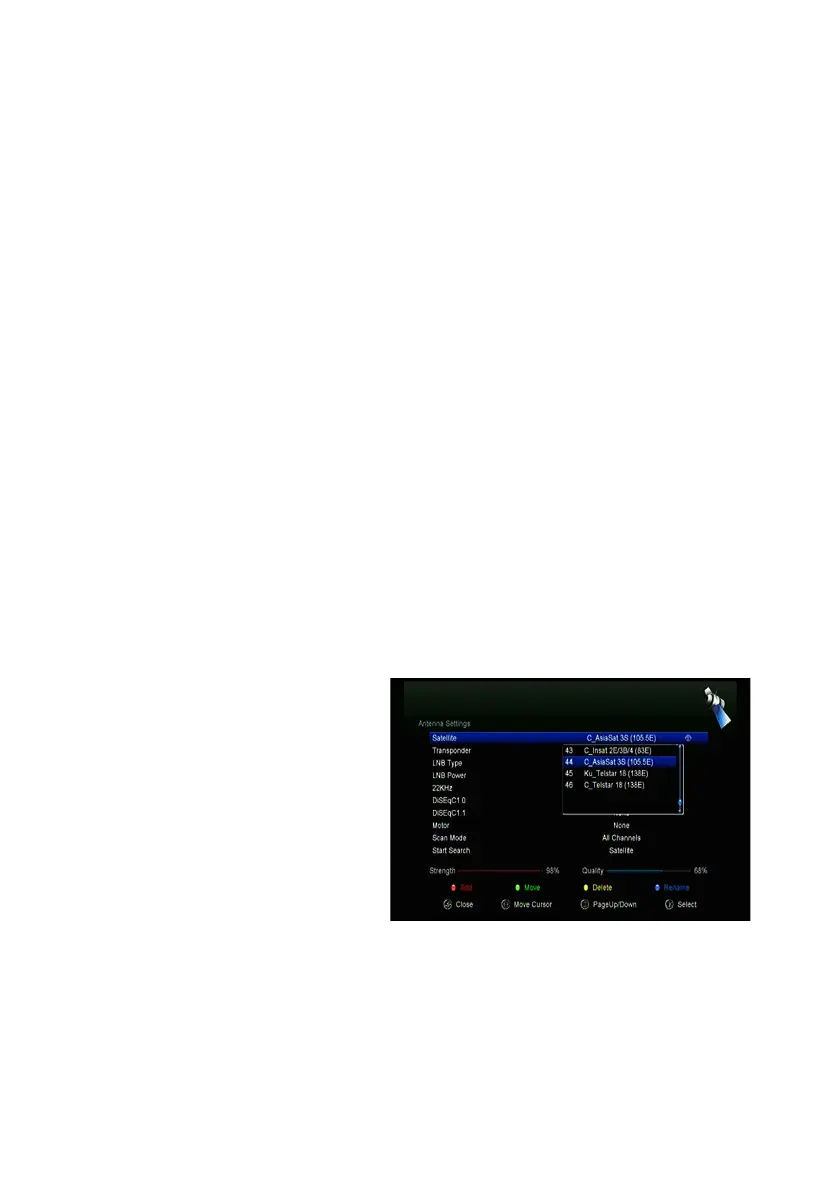
Press the ◄/► or OK button you can see the pre-stored Satellite list, in this
menu, you can execute select, Add, Move, Delete, Rename Satellites.
" Select
In this menu, you can press the ▲ /▼ keys choose the satellite which you want
to use, and then press the OK to confirm the setting.
" Add
Press RED button to add a new
satellite. Here you can input new
Satellite angle, Satellite Direction
(East, West), Band (Ku, C). OK to
confirm the setting and this new
satellite will be added to the end
of the Satellite list.
" Move
In this menu, you can Select the satellite that you want to move from the satellite
list by pressing the GREEN button, then press OK, you will be asked to move
the satellite to put where, input the destination number and press OK. Then you
can move one satellite from one position to another.



 To Next Page