Page 10 of 16 Copyright © Access-IS 2018
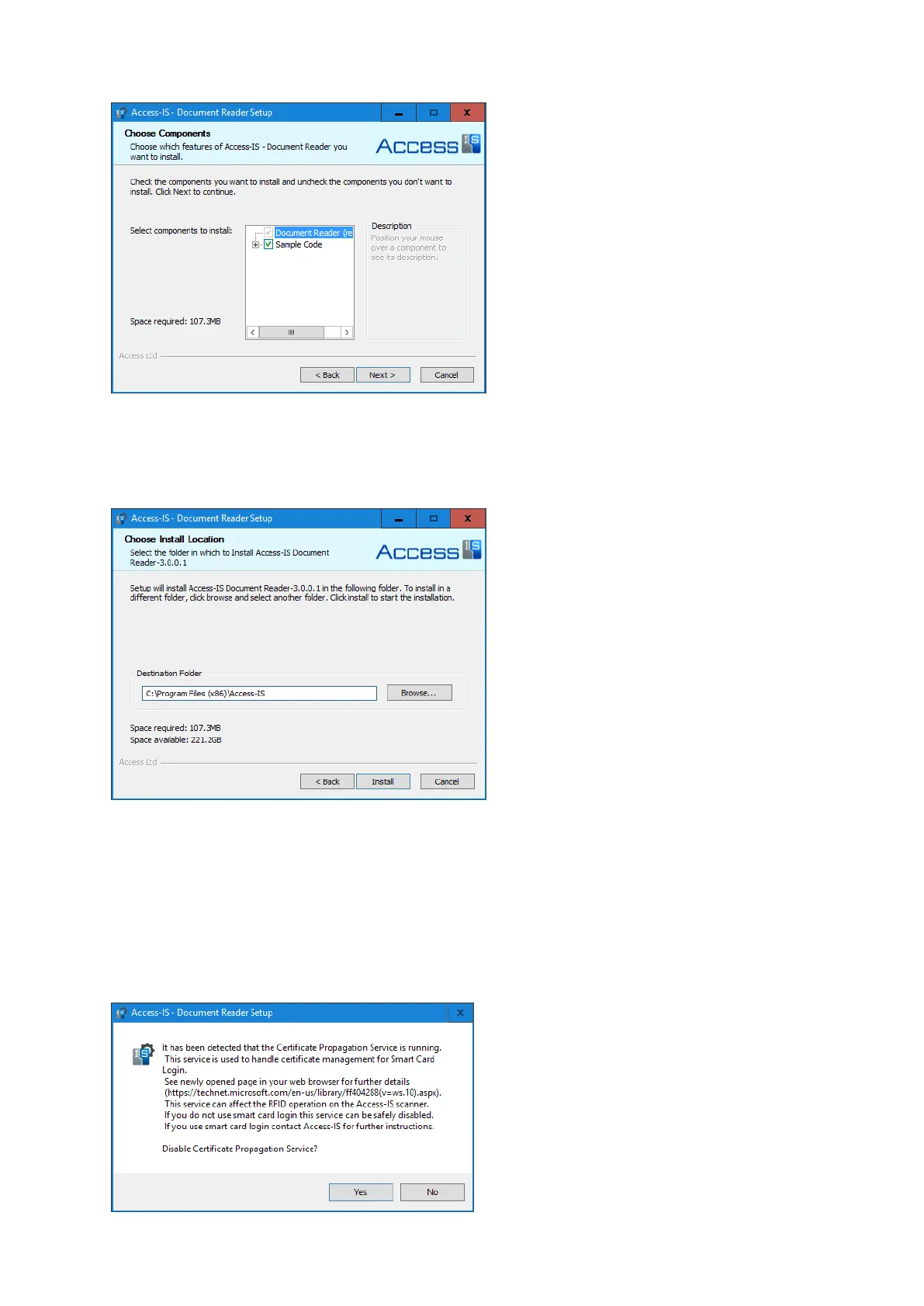
6. On the Choose Components page, select the components to install.
If you do not want to integrate the software into another system and will therefore not require the
sample code, then you may clear the Sample Code check box.
7. Click Next.
8. On the Choose Install Location page, select the installation folder.
A default location is provided; to install to a different location, click Browse and select the folder
that you want to use.
9. Click Install to start installation.
Depending on your system's settings, a message may appear asking if you want to disable the
Certificate Propagation service. This service may affect the RFID operation of Access-IS
products with RFID functionality.
If you only use devices without RFID, such as the ADR100 and OCR31x, please select No. If, in
the future, you are planning to use an Access-ID RFID-enabled device, then please select Yes.


 To Next Page