To navigate through menus and options, three (or
more) icons are shown in the bottom-left corner.
Back
Tap this icon to go to the previous page, or to go up one level in a menu.
This icon may be replaced with the hide icon in certain cases (such as if
the keyboard or list of recent applications is shown).
Home
Tap this icon to go directly to the Home screen.
Recent
Tap this icon to see recently opened applications. Tap an application to open it, or
tap anywhere on the screen to return to the Home screen.
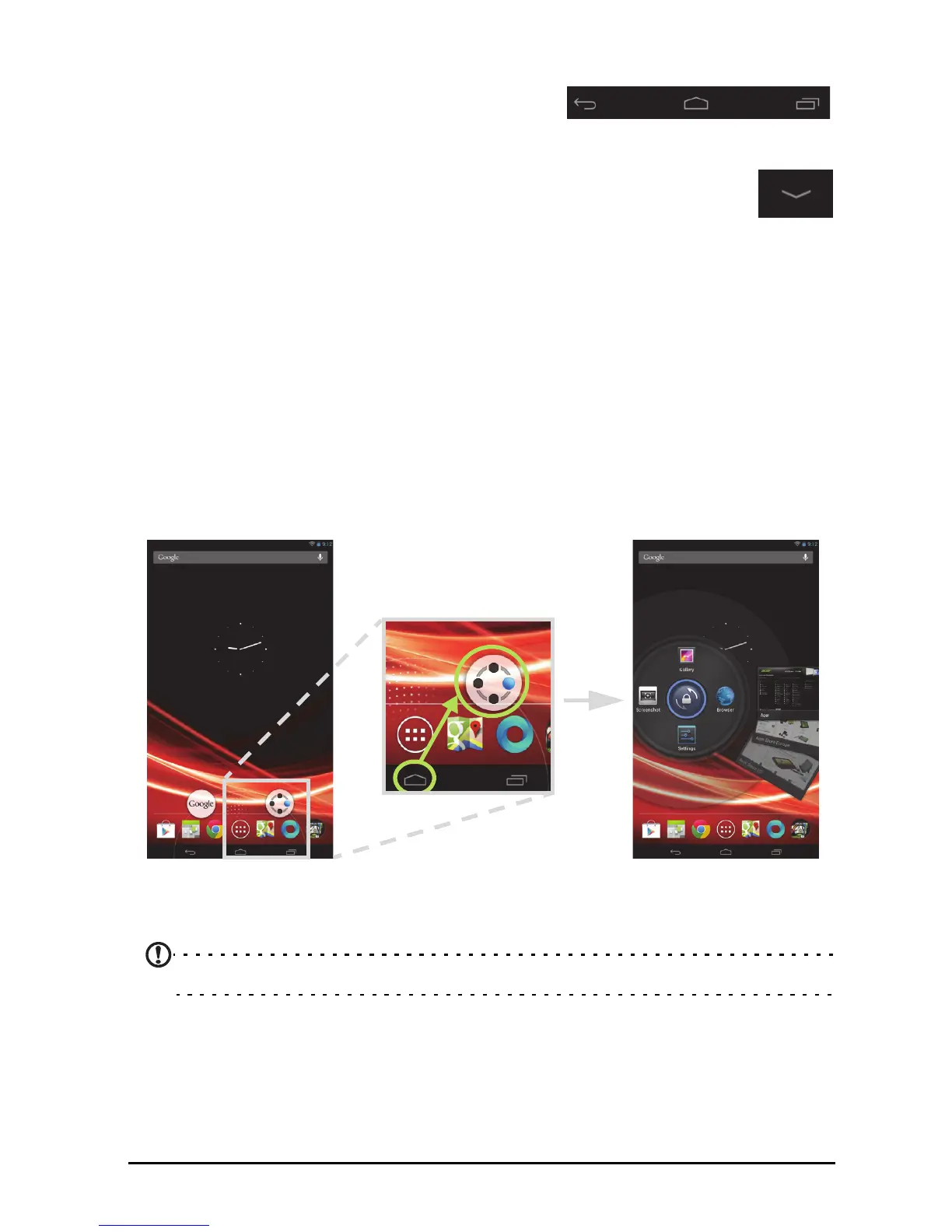
Acer Ring
Tap and hold the Home icon to display two options: Search and Acer Ring. Slide
your finger over the Acer Ring option to open it. Acer Ring allows you to quickly and
easily access your favorite applications and bookmarks. It incorporates a number of
useful tools in an easy-to-use interface.
The right side of Acer Ring shows Browser bookmarks.
Four shortcuts around the centre of the ring start your favorite applications.
Note: Open APPS > Settings > Ring to change these shortcuts.
Screenshot
Tap the Screenshot shortcut to save an image of the current screen. Tap the
thumbnail to view the image immediately, or open the Gallery to see the
Screenshots album.



 To Next Page