30
Playing music and video
Multimedia playback
Your tablet comes supplied with a variety of programs that you can use to enjoy
multimedia content.
Play Music
Use Play Music to listen to music and other audio files that you download
or copy from your computer, usb dri
ve, mass storage device, etc.
Ta p APPS > Play Mus
ic to open the application.
NOTE: Controls in Play Music change slightly depending on screen orientation
(i.e. portrait or landscape view).
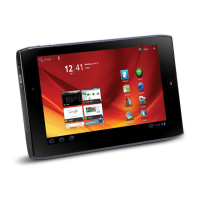
Tap the Menu button and then Shuffle All cover to play a random selection, or tap
an album view a list of tracks. Tap the play symbol or a track to start playback. Tap
the Music icon in the top-left corner to return to the previous view.
To change how your music is displayed, swipe left or right.
Depending on your selection, your music library is displayed as a grid of album
covers or a list of tracks.
Note: You can return to the Home page while playing music. The current track
along with basic music control functions appear in the status ribbon. See "Status
and notification area" on page 14.



 To Next Page