24
Going online
Managing Wi-Fi connections
If you did not connect to a Wi-Fi network when you first started your tablet, or want to
connect to a new network, tap APPS > Settings > Wi-Fi to manage your connection
settings. Alternatively, tap the Wi-Fi status icon in the bottom-right corner of the
screen.
If Wi-Fi is not on, tap the Wi-Fi ON switch and
wait for your tablet to detect nearby
networks. Tap the name of your network and enter a security password, if needed.
Browsing the Internet
In order to browse the Internet with your tablet, you must be connected to a network
with a connection to the Internet.
Using the browser
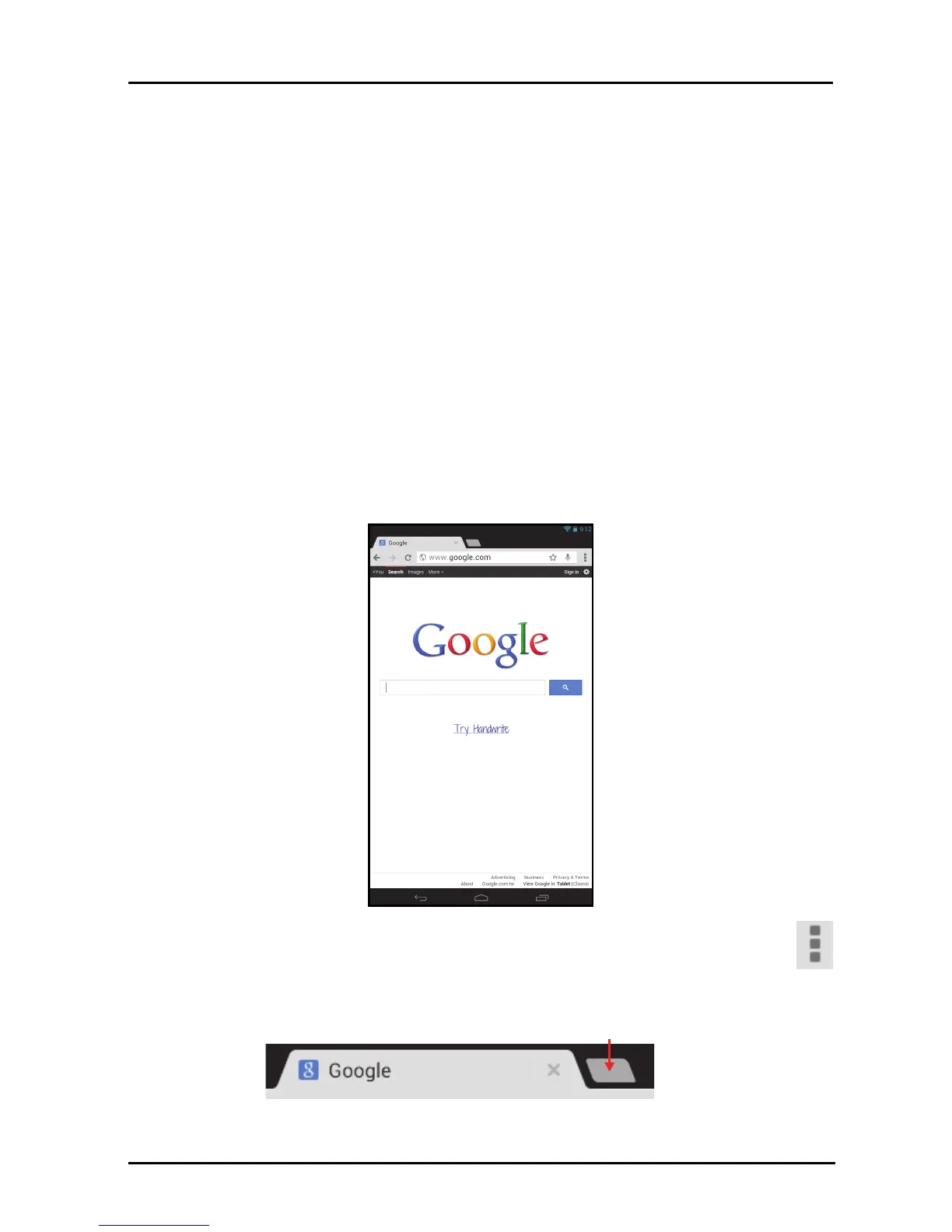
To start browsing, tap the Chrome icon on the Home screen, or open the Application
menu and select Chrome. To enter a website address, tap the address box at the
top of the page. Enter the address using the keyboard and tap Go.
To view your browsing history, bookmarks or frequently visited sites, open the
browser then tap the menu icon in the top-right corner.
You may open multiple tabs. When a page is open, tap the small New t
ab
button. Simply tap one of the open tabs across the top of the screen to switch pages.



 To Next Page