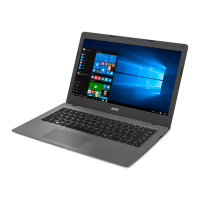
The Acer Aspire One Series Notebook PC is a portable computing device designed for mobile use, offering a range of features for connectivity, data input, and multimedia. This quick guide provides essential information for setting up and using the device.
Function Description:
The Aspire One is a notebook PC that allows users to perform various computing tasks on the go. It supports both wired (LAN) and wireless (Wi-Fi, 3G, Bluetooth) network connections, enabling internet access and communication. The device features an integrated webcam (Acer Crystal Eye webcam) for video communication and an internal microphone for sound recording. Data input is primarily handled by the keyboard and a touch-sensitive touchpad, which functions like a computer mouse. The display screen, also known as a Liquid-Crystal Display (LCD), shows the computer's output. For external display, a VGA port is available to connect to an external monitor or LCD projector. Digital video connections are supported via an HDMI port. The notebook includes multiple USB 2.0 ports for connecting peripherals like a mouse or camera. A multi-in-1 card reader supports Secure Digital (SD), MultiMediaCard (MMC), Memory Stick (MS), Memory Stick PRO (MS PRO), and xD-Picture Card (xD) for data transfer and storage. Audio input is possible through a microphone-in jack, and audio output is provided via a headphone/speaker/line-out jack with S/PDIF support. For security, a Kensington lock slot is included.
Important Technical Specifications:
- Product Name: Notebook PC
- Brand: Acer
- Model Number: MS2298
- Machine Type: AO 721 series
- Power: The device is powered by an AC adapter and a removable battery pack.
- Connectivity:
- Ethernet (RJ-45) port for 10/100/1000-based networks.
- Wi-Fi for wireless network connections.
- 3G (for certain models) for mobile broadband.
- Bluetooth for connecting wireless peripherals.
- USB 2.0 ports.
- VGA port for external display.
- HDMI port for high-definition digital video.
- Storage: Includes a hard disk drive (HDD) and memory compartments for main memory.
- Indicators:
- Power Indicator: Shows the computer's power status.
- Battery Indicator: Displays the battery status (amber when charging, blue when fully charged in AC mode).
- Communication Indicator: Indicates the status of 3G/Wireless LAN communication (blue for on, orange for on/off, not lit for off).
- HDD Indicator: Lights up when the hard disk drive is active.
- Num Lock Indicator: Lights up when Num Lock is activated.
- Caps Lock Indicator: Lights up when Caps Lock is activated.
- Environmental Conditions:
- Temperature:
- Operating: 5 °C to 35 °C
- Non-operating: -20 °C to 65 °C
- Humidity (non-condensing):
- Operating: 20% to 80%
- Non-operating: 20% to 80%
Usage Features:
- Getting Started: The Quick Guide provides initial setup instructions, including battery installation and connecting to power.
- Network Configuration: The guide details how to set up both LAN and wireless connections. For wireless, users can activate Wi-Fi via the communication manager (Fn + F3) and select an access point from the system tray.
- 3G SIM Card Insertion: For models supporting 3G, a SIM card can be inserted into a dedicated slot after removing the battery.
- Input Devices: The keyboard is used for data entry, and the touchpad offers touch-sensitive pointing functionality.
- Multimedia: The webcam and microphone facilitate video calls and audio recording. HDMI allows for high-definition video output.
- Expandability: The multi-in-1 card reader and USB ports allow for connecting various external devices and expanding storage.
- Security: A Kensington lock slot is provided for physical security.
Maintenance Features:
- Cooling System: Ventilation slots and a cooling fan are integrated to keep the computer cool during prolonged use. It is important not to cover or obstruct these openings.
- Battery Management: The battery is removable and secured by a battery lock and release latch. The battery indicator provides visual feedback on its charging status.
- Documentation: The AcerSystem User Guide (available in PDF format) provides detailed information on system utilities, data recovery, expansion options, and troubleshooting, as well as warranty information and safety notices. Adobe Reader is required to view the electronic guide, and the setup program will run automatically if not already installed.

 Need help?


 To Next Page
 General