EasyManua.ls Logo

Acer Aspire One Cloudbook 14 - User Manual

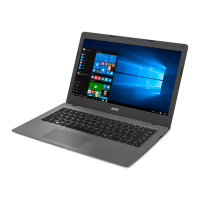
Acer Aspire One Cloudbook 14
66 pages
Print Icon
To Next Page IconTo Next Page
Loading...
- 1
Aspire One Cloudbook 14
User’s Manual

Table of Contents

Question and Answer IconNeed help?

Do you have a question about the Acer Aspire One Cloudbook 14 and is the answer not in the manual?

Summary

First things first

Your guides

Information on setup and quick guides for new users.

Basic care and tips for using your computer

Essential tips for computer and AC adapter care and cleaning.

Your Acer notebook tour

Screen view

Details of the screen, webcam, and microphones.

Keyboard view

Identification of power indicator, touchpad, power button, and keyboard.

Left view

Description of DC-in jack, HDMI, USB, and headset/speaker ports.

Right view

Identification of USB ports on the right side.

Base view

Description of speakers on the base.

Using the keyboard

Lock keys and embedded numeric keypad

Explanation of Caps Lock, Num Lock, and Scroll Lock functions.

Hotkeys

Key combinations for controlling computer functions like brightness and volume.

Windows keys

Functions of Windows and Application keys for OS-specific actions.

Touchpad

Touchpad basics

Explanation of cursor movement and basic click actions on the touchpad.

Touchpad gestures

Overview of multi-finger gestures for interaction and navigation.

Using a Bluetooth connection

Enabling and disabling Bluetooth

Steps to turn Bluetooth on or off on the computer.

Enable Bluetooth and add a device

Process for pairing new Bluetooth devices with the computer.

Connecting to the Internet

Connecting to a wireless network

Instructions for connecting to a wireless LAN via Wi-Fi.

Connecting with a cable

How to connect to the internet using a network cable (Ethernet).

Connecting to a cellular network

Information on using cellular networks for internet access.

Acer Bluelight Shield

Acer Bluelight Shield configuration

How to enable and configure blue light reduction modes for eye comfort.

Securing your computer

Using passwords

Explains password types for computer and data protection.

Entering passwords

How to input passwords when prompted by the system during boot or access.

BIOS utility

Boot sequence

How to set the computer's boot order from different devices.

Setting passwords

Instructions for setting BIOS passwords for system security.

Power management

Saving power

Tips for reducing power consumption and extending battery life.

Battery pack

Battery characteristics

Information on battery type and general behavior.

Charging the battery

Steps to connect the AC adapter and charge the battery.

Conditioning a new battery pack

Process for preparing a new battery for optimal use.

Traveling with your computer

Preparing and Disconnecting

Steps to disconnect peripherals and prepare the computer for transit.

Travel Essentials and Precautions

Items to pack and safety tips for travel.

International Travel Considerations

Specific advice for traveling across countries.

Ports and connectors

Memory card reader

Details on inserting and removing memory cards.

Video and audio connectors

Connecting monitors, headphones, and microphones.

Universal Serial Bus (USB)

Information on USB ports and their usage.

HDMI

How to use the HDMI port for audio/video output.

Frequently asked questions

Troubleshooting common issues

Solutions for power, screen, audio, and keyboard problems.

Requesting service

Information on warranty and how to contact support.

Tips and hints for using Windows 10

Guidance on using Windows 10 features and settings.

Summary

First things first

Your guides

Information on setup and quick guides for new users.

Basic care and tips for using your computer

Essential tips for computer and AC adapter care and cleaning.

Your Acer notebook tour

Screen view

Details of the screen, webcam, and microphones.

Keyboard view

Identification of power indicator, touchpad, power button, and keyboard.

Left view

Description of DC-in jack, HDMI, USB, and headset/speaker ports.

Right view

Identification of USB ports on the right side.

Base view

Description of speakers on the base.

Using the keyboard

Lock keys and embedded numeric keypad

Explanation of Caps Lock, Num Lock, and Scroll Lock functions.

Hotkeys

Key combinations for controlling computer functions like brightness and volume.

Windows keys

Functions of Windows and Application keys for OS-specific actions.

Touchpad

Touchpad basics

Explanation of cursor movement and basic click actions on the touchpad.

Touchpad gestures

Overview of multi-finger gestures for interaction and navigation.

Using a Bluetooth connection

Enabling and disabling Bluetooth

Steps to turn Bluetooth on or off on the computer.

Enable Bluetooth and add a device

Process for pairing new Bluetooth devices with the computer.

Connecting to the Internet

Connecting to a wireless network

Instructions for connecting to a wireless LAN via Wi-Fi.

Connecting with a cable

How to connect to the internet using a network cable (Ethernet).

Connecting to a cellular network

Information on using cellular networks for internet access.

Acer Bluelight Shield

Acer Bluelight Shield configuration

How to enable and configure blue light reduction modes for eye comfort.

Securing your computer

Using passwords

Explains password types for computer and data protection.

Entering passwords

How to input passwords when prompted by the system during boot or access.

BIOS utility

Boot sequence

How to set the computer's boot order from different devices.

Setting passwords

Instructions for setting BIOS passwords for system security.

Power management

Saving power

Tips for reducing power consumption and extending battery life.

Battery pack

Battery characteristics

Information on battery type and general behavior.

Charging the battery

Steps to connect the AC adapter and charge the battery.

Conditioning a new battery pack

Process for preparing a new battery for optimal use.

Traveling with your computer

Preparing and Disconnecting

Steps to disconnect peripherals and prepare the computer for transit.

Travel Essentials and Precautions

Items to pack and safety tips for travel.

International Travel Considerations

Specific advice for traveling across countries.

Ports and connectors

Memory card reader

Details on inserting and removing memory cards.

Video and audio connectors

Connecting monitors, headphones, and microphones.

Universal Serial Bus (USB)

Information on USB ports and their usage.

HDMI

How to use the HDMI port for audio/video output.

Frequently asked questions

Troubleshooting common issues

Solutions for power, screen, audio, and keyboard problems.

Requesting service

Information on warranty and how to contact support.

Tips and hints for using Windows 10

Guidance on using Windows 10 features and settings.

Acer Aspire One Cloudbook 14 Specifications

General IconGeneral
Display Size14 inches
Resolution1366 x 768 pixels
ProcessorIntel Celeron N3050
RAM2 GB
Operating SystemWindows 10 Home
Battery LifeUp to 12 hours
Weight1.6 kg
Battery3-cell Li-ion
GraphicsIntel HD Graphics
Storage16GB eMMC

Related product manuals