32
Shooting a video
Turn on camcorder mode by tapping the video icon from the camera menu, or
tap the Applications tab > Camcorder.
1. Ensure you have adjusted the parameters described above.
2. Frame your subject and steady your smartphone.
3. Zoom in or out as needed.
4. Press the camera button down
to begin recording.
5. Press the camera button down a se
cond time to stop recording.
To adjust the settings, press the Menu button. The menu options in camcorder
mode are:
• Anti-banding.
• Video format.
• Reset to default.
Supported formats
The following file formats are supported:
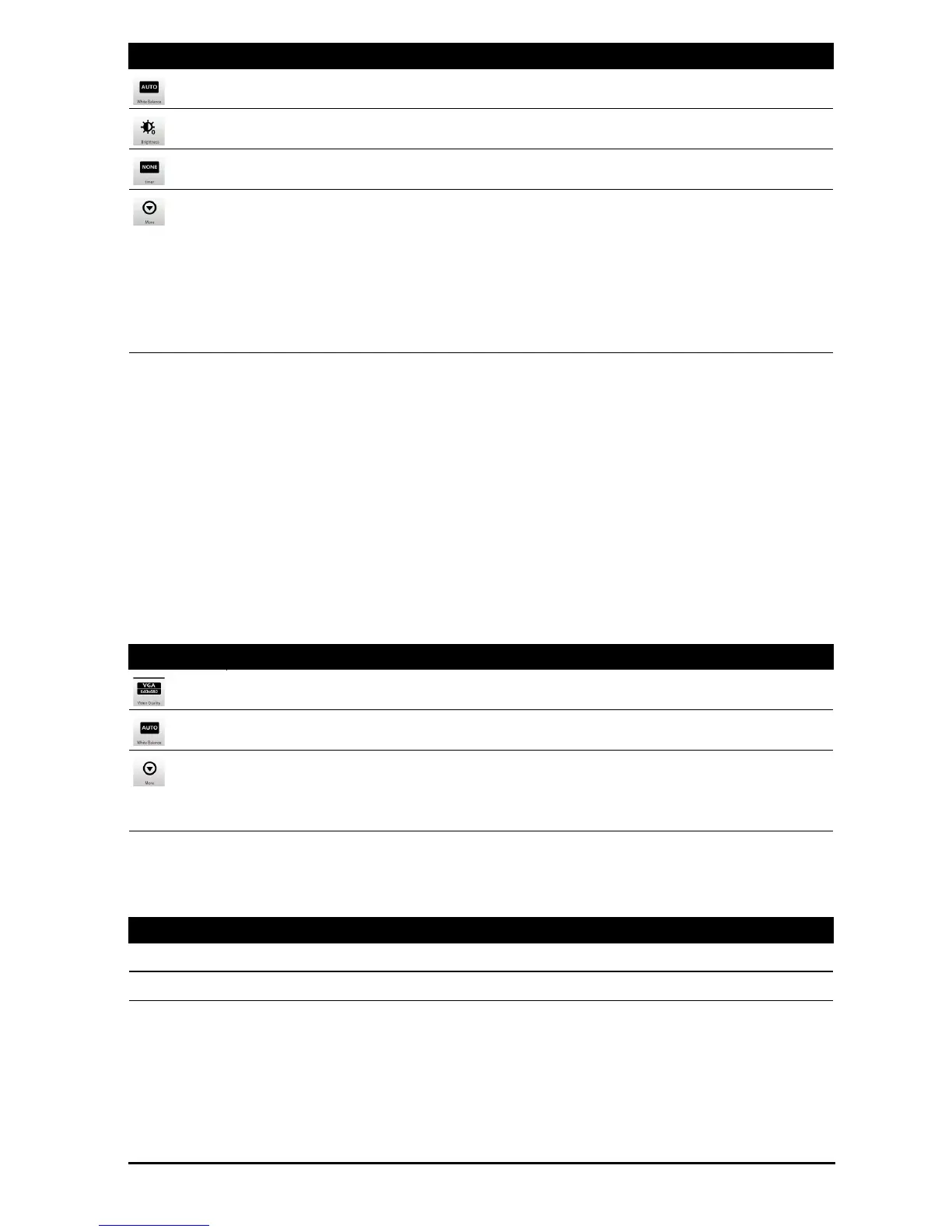
Adjust the white balance.
Adjust the brightness.
Add a delay before taking the photo.
Open additional settings:
• Color effect.
• Review duration.
• ISO.
• Jpeg quality.
• Auto exposure.
• Geo-tagging.
• Anti-banding.
• Reset to default.
Icon Description
Set the video resolution.
Adjust the white balance.
Open additional settings:
Type Formats
Image JPEG
Video MPEG-4, H.263
Icon Description


 To Next Page