English
5. Brightness: Adjust the brightness from 0 to 100.
-----------------------------------------------------------------------------------------------------------
Note:
Adjusts the balance between light and dark shades.
6. Contrast: Adjust the contrast from 0 to 100.
-----------------------------------------------------------------------------------------------------------
Note:
Sets the degree of dierence between light and dark areas.
7. Black Boost: Adjust the black level from 0 to 10. Enhances shadows by increasing the
brightness without changing lighter shades.
8. Blue Light: Filters out blue light to protect your eyes by adjusting how much blue light is
shown -- 60%, or 50%.
-----------------------------------------------------------------------------------------------------------
Note:
Higher values allow more blue light through. For the best protection select
a lower value.
9. ACM: Turn ACM on or o. The default is o.
10. Super Sharpness: Turn the Super Sharpness On or O. Super Sharpness technology
can simulate high-resolution images by boosting the pixel density of the original source
to make images sharper and clearer.
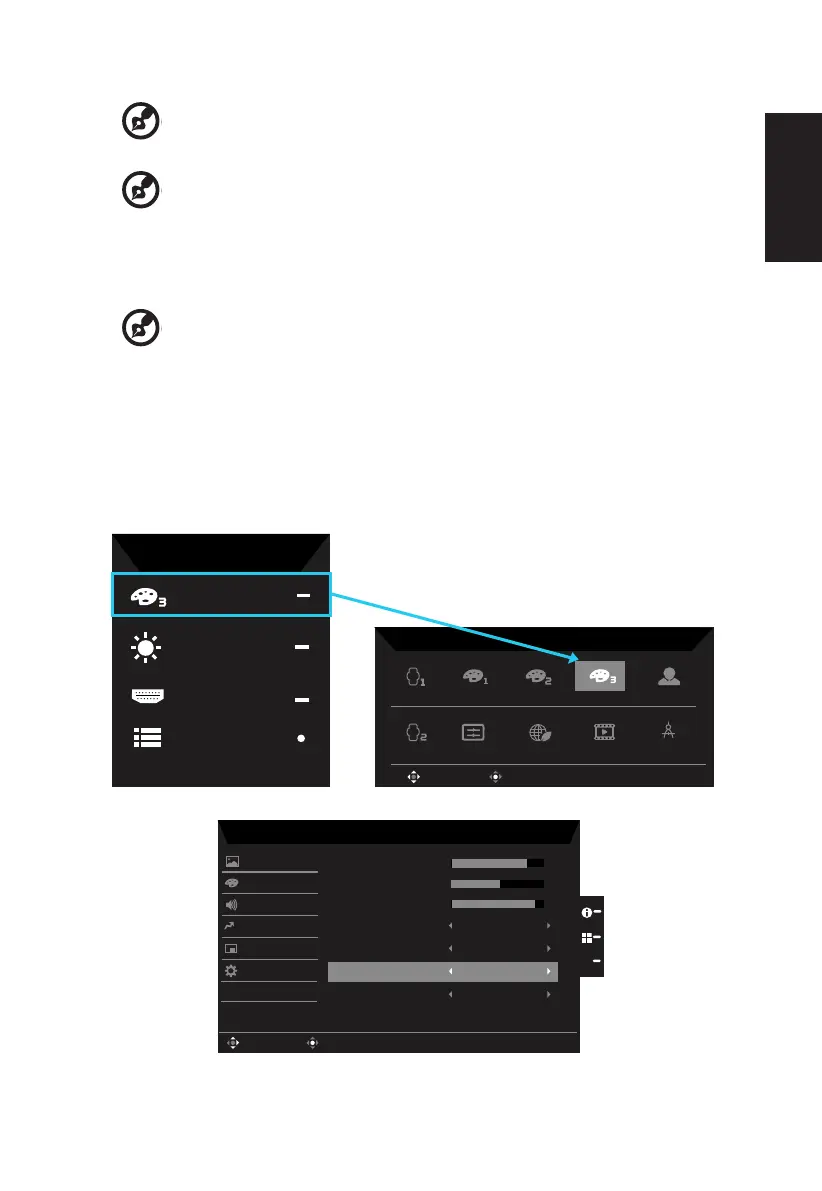
HDR function
• Hot Key of Mode:
Calibraon 1
sRGB DCI-P3
HDR
User
Graphics
Standard
Modes
OK
Move
Calibraon 2
ECO
CAD/CAM
Mode
HDR
Brightness
70
Menu
C
onceptD
Input
HDMI(2.0)
• Main Menu of HDR:
X
Mode - User
75
50
Off
Off
Color
Audio
OSD
System
Brightness
Contrast
Blue Light
ACM
Super Sharpness
Picture
9
Black Boost
Enter
Move
Pertormance
OffHDR
Off
Save Sengs to...



 To Next Page