English
6. VRB: To choose whether to support dynamic picture more clean control, default is O.
---------------------------------------------------------------------------------------------------------
Note:
1. HDR setting: "Auto" is not support VRB.
2. VRB set "On", when to turn on AdaptiveSync, will auto set VRB is "O".
3. VRB set "On", when to adjustment (Brightness, Blue Light, ACM), will auto
set VRB is "O".
4. VRB function does not aect the (Logo, Aim Point, Message and Input Icon)
brightness.
5. VRB setting "On", when detection of Input Timing <75Hz, will auto o the
VRB and gray out to disable.
6. VRB = (Normal or Extreme), because the IC control dynamic picture is
cleaner, so the overall Brightness will be dark, "Extreme" will be darker than
“Normal”.
7. Refresh rate num: Display the panel’s current refresh rate on the screen.
-----------------------------------------------------------------------------------------------------------
Note:
If AdaptiveSync set "On" you can see the V Frequency to changes in the
OSD.
8. Ultra-Low Latency: Set to On to speed up the processing time of the display switching
process.
---------------------------------------------------------------------------------------------------------
Note:
1. AdaptiveSync is On, the Ultra-Low Latency automatic set to On and gray
out unavailable.
2. Ultra-low latency is not supported at resolutions below 800x600.
OSD
X
Mode - Standard
10
English
OSD Timeout
Language
OSD
Off
Transparency
Off
OSD Lock
Enter
Move
Pertormance
Audio
System
Picture
Color
Save Sengs to...
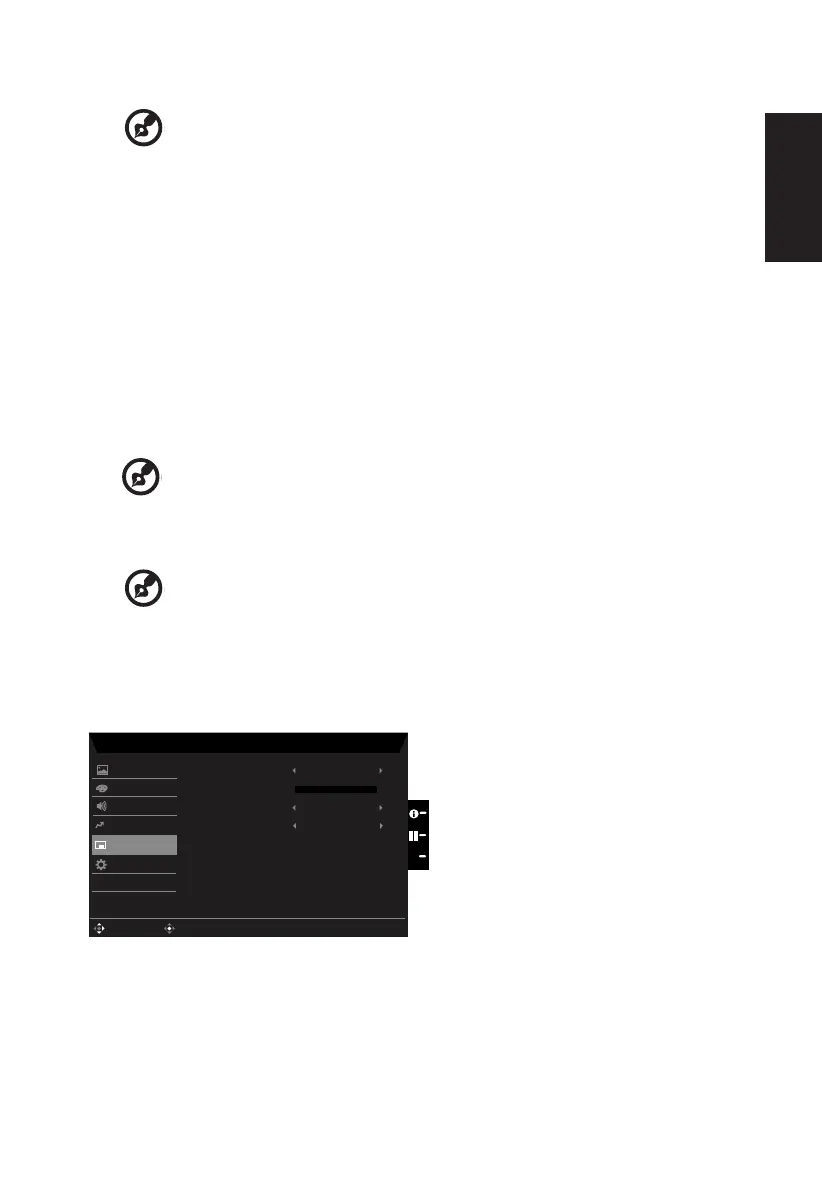
1. Press the MENU key to open the OSD.
2. Toggle the joystick to the up or down to select OSD from the OSD.Then toggle to the
right to
navigate to the element you wish to adjust and press the joystick to enter it.
3. Toggle to the left or right to adjust the sliding scales.
4. Language: Set the OSD menu language.



 To Next Page