EasyManua.ls Logo

Acer G235HL - User Manual

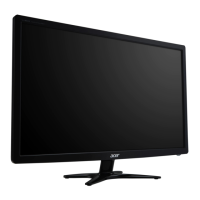
Acer G235HL
23 pages
Print Icon
To Next Page IconTo Next Page
Loading...
TABLE OF CONTENTS
Special notes on LCD monitors..................................................1
Information for your safety and comfort..................................2
Unpacking...................................................................................5
Attaching/Removing the base....................................................6
Screen position adjustment........................................................6
Connecting the power cord........................................................7
Safety precaution.......................................................................7
Cleaning your monitor...............................................................7
Power saving...............................................................................8
DDC..............................................................................................8
Connector Pin Assignment.........................................................9
Standard Timing Table..................................................................11
Installation.....................................................................................12
User controls..................................................................................13
Troubleshooting............................................................................19


Other manuals for Acer G235HL

Questions and Answers

  • D
    Dustin RogersJul 31, 2025
    What to do if my Acer G235HL has no picture?
    • M
      Morgan BenitezJul 31, 2025
      If your Acer monitor displays no picture, try these steps: First, use the OSD to maximize brightness and contrast or revert to default settings. Then, verify the power switch is on and the AC power cord is securely connected to the monitor. Also, ensure the video signal cable is properly connected at the back, and confirm that your computer system is powered on.
  • J
    Joseph HumphreyAug 10, 2025
    Why does my Acer G235HL have an abnormal picture?
    • S
      shawnguzmanAug 10, 2025
      An abnormal picture on your Acer monitor can occur due to several reasons. The graphics adapter and monitor specifications might not be in compliance, leading to an input signal frequency mismatch. To resolve this, use the OSD to adjust RESOLUTION, CLOCK, CLOCK-PHASE, H-POSITION, and V-POSITION, especially with non-standard signals. If the full-screen image is missing, use the OSD to select a different resolution or vertical refresh timing. After adjusting the image size, wait a few seconds before changing the signal cable or powering off the monitor.
  • A
    Audrey DavisAug 19, 2025
    How to fix abnormal sound on Acer Monitor?
    • D
      derek49Aug 19, 2025
      To address abnormal sound on your Acer Monitor (only for Audio-Input models), first, check if the audio cable is correctly connected to the host PC. If it is, verify that the volume on the host PC isn't set to the minimum. If it is, try increasing the volume level.

Summary

Special Notes on LCD Monitors

Information for Your Safety and Comfort

Safety Instructions

Read and follow all safety warnings and instructions marked on the product.

Accessibility and Warnings

Ensure power outlet accessibility and follow warnings for product placement and usage.

Safe Listening Guidelines

Follow expert advice for protecting hearing by adjusting volume gradually and taking breaks.

Product Servicing and Pixel Statement

Product Servicing and Risks

Refer all servicing to qualified personnel; avoid self-repair to prevent risks.

LCD Pixel Statement

Describes normal pixel variations in LCD panels and their non-malfunction status.

Comfortable Use and Injury Prevention

Vision Care and Strain Reduction

Developing Good Work Habits

Unpacking and Package Contents

Attaching and Removing the Base

Screen Position Adjustment

Connecting the Power Cord

Safety Precautions

Cleaning Your Monitor

Power Saving Modes

DDC Protocol for Plug and Play

Connector Pin Assignment

Monitor Installation Guide

User Controls and Display Settings

Power Switch and Shortcut Menu

Controls monitor power and provides quick access to settings.

Acer eColor Management Modes

Adjusting OSD Settings

Picture Quality Adjustment

Adjust brightness, contrast, position, focus, and color temperature via OSD menus.

Adjusting OSD Timeout

General Setting Adjustments

Product Information Display

Declaration of Conformity

FCC Declaration of Conformity

Acer G235HL Specifications

General IconGeneral
Screen Size23 inches
Resolution1920 x 1080
Panel TypeTN
Aspect Ratio16:9
Brightness250 cd/m²
Contrast Ratio1000:1
Response Time5 ms
ConnectivityVGA, DVI
Viewing Angle170° horizontal, 160° vertical
Power Consumption25W (operational), 0.5W (standby)

Related product manuals