EasyManua.ls Logo

Acer G247HL - User Manual

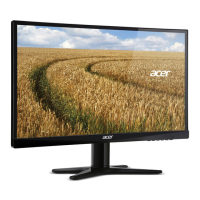
Acer G247HL
31 pages
Print Icon
To Next Page IconTo Next Page
Loading...
User Guide
Acer LCD Monitor
Downloaded from ManualMonitor.com Manuals

Other manuals for Acer G247HL

Questions and Answers

  • K
    Kara GriffinJul 28, 2025
    How to fix no picture on Acer Monitor?
    • J
      jenniferellisJul 28, 2025
      If your Acer Monitor displays no picture, here are a few things to check: * Ensure the AC power cord is properly connected to the monitor. * Verify the video signal cable is securely connected to the back of the monitor. * Confirm that the computer system is powered ON. * Check the power switch. Also, using the On-Screen Display (OSD) menu, try adjusting the brightness and contrast to their maximum levels or reset them to the default settings.
  • A
    April ThorntonAug 5, 2025
    What to do if there is no sound on Acer Monitor?
    • R
      Robin BaileyAug 6, 2025
      If you're experiencing no sound or very low sound levels on your Acer Monitor, make sure the audio cable connecting the monitor to the host PC is properly connected. Also, check the volume settings on your host PC and increase the volume level if it's set too low.
  • S
    Steven RobertsAug 16, 2025
    Why does my Acer G247HL Monitor have an abnormal picture?
    • P
      Phillip RodriguezAug 17, 2025
      If your Acer Monitor is showing an abnormal picture, first, verify that the specifications of your graphics adapter and monitor are compatible to avoid input signal frequency mismatch. If you are using non-standard signals, use the OSD to adjust RESOLUTION, CLOCK, CLOCK-PHASE, H-POSITION, and V-POSITION. If the full-screen image is missing, use the OSD to select another resolution or vertical refresh timing. After adjusting the image size, wait a few seconds before changing the signal cable or powering off the monitor.

Summary

Safety and Comfort Information

Safety Instructions

Read instructions carefully and keep for future reference. Follow warnings on product.

LCD Monitor Specifics

Details common LCD characteristics like screen flicker, brightness variation, and pixel blemishes.

Monitor Cleaning Guidelines

Provides guidelines for cleaning the monitor, including unplugging first and using a soft cloth.

Accessibility Guidelines

Safe Listening Practices

Instructions to protect hearing by gradually adjusting volume and limiting listening time.

General Warnings and Precautions

Covers warnings about water, placement, ventilation, electrical shock, and product damage.

Electrical Power Usage

Guidance on operating the product from the indicated power type and cord safety.

Product Servicing and Maintenance

When to Seek Professional Servicing

Outlines conditions requiring qualified service personnel, such as damaged cords or malfunctions.

Environmental and Safety Precautions

Potentially Explosive Environments

Advises device usage precautions in areas with potentially explosive atmospheres.

Additional Safety Information

Mentions small parts and the need to keep them out of reach of children.

Disposal and Recycling Instructions

Instructs users not to discard the device in trash and to recycle it according to WEEE regulations.

User Comfort and Health

LCD Pixel Information

Information regarding LCD pixel behavior and its impact on image quality.

Comfortable Use Tips

Advice on comfortable computer use and potential health risks like eyestrain and musculoskeletal disorders.

Finding Your Comfort Zone

Tips for adjusting viewing angle, posture, and movement for maximum comfort.

Eye Care and Ergonomics

Eye Care Practices

Recommendations for resting eyes, blinking frequently, and focusing on distant points.

Display Optimization for Vision

Guidance on display cleaning, positioning, brightness/contrast adjustment, and glare elimination.

Developing Good Work Habits

Tips for making computer use more relaxing and productive, including breaks and exercises.

Unpacking and Contents

Unpacking Instructions

Check items against the list and save packing materials for future transport.

Physical Setup and Adjustment

Base Attachment and Removal

Step-by-step instructions for attaching the monitor stand arm to the base.

Screen Position Adjustment

Guidance on adjusting the monitor's tilt for optimal viewing position.

Connectivity and Power

Power Cord Connection

Instructions on selecting the correct power cord type and connecting it to the adapter and outlet.

Safety Precautions

Important safety guidelines regarding cord placement, moisture, ventilation, and handling.

Monitor Cleaning

Steps for cleaning the monitor screen and cabinet using a soft, unplugged cloth.

Power Saving Features

Power Saving Mode

Explains how the monitor enters power saving mode and the indicator LED.

DDC (Display Data Channel)

Details the DDC protocol for Plug and Play compatibility and automatic information exchange.

Connector Pin Assignments

15-Pin Color Display Signal Cable

Diagram and pinout details for the 15-pin color display signal cable.

24-Pin Color Display Signal Cable

Pinout details for the 24-pin color display signal cable, noting it's for certain models.

19-Pin Color Display Signal Cable

Pinout details for the 19-pin color display signal cable, noting it's for certain models.

Display Timing Specifications

Standard Timing Table

A table listing various display modes, resolutions, and refresh rates.

Installation Guide

Connecting Video and Audio Cables

Instructions for connecting VGA, DVI, HDMI, MHL, and audio cables to the monitor and computer.

Connecting the Adapter and Power

Steps for connecting the AC adapter and power cord to the monitor and outlet.

Power On Sequence

Specifies the correct order for powering on the monitor and computer.

MHL Mobile Connectivity

MHL Device Connection

Explains how to connect MHL-certified portable devices for video and audio transmission.

Using MHL Features

Details how MHL devices display content, standby behavior, and display quality considerations.

Monitor Controls

Base Control Buttons

Description of the Power Switch/LED, Minus/Plus buttons, MENU, AUTO, and Empowering keys.

Image Enhancement Features

eColor Management Operation

Step-by-step guide to opening the Acer eColor Management OSD and selecting scenario modes.

eColor Management Features

Details the different modes (User, ECO, Standard, Graphic, Movie) and their benefits.

OSD Settings Adjustment

Adjusting Picture Quality

Guide to adjusting OSD settings like Brightness, Contrast, H. Position, V. Position, and Colour Temp.

Adjusting OSD Position

Instructions for adjusting the OSD's horizontal and vertical position and timeout.

Adjusting General Settings

Guide to adjusting settings like Wide Mode, DDC/CI, Input, Language, and Reset.

Product Information Display

How to access and view product information such as resolution, input source, and serial number.

Troubleshooting

Troubleshooting VGA Mode Issues

Common problems like 'No Picture' or 'Abnormal Picture' in VGA mode and their remedies.

Troubleshooting DVI;HDMI Mode Issues

Common problems like 'No Picture' or 'Abnormal Sound' in DVI/HDMI mode and their remedies.

Compliance and Declarations

Conformity to EU Standards

Declaration by Acer Incorporated and Acer Italy s.r.l. regarding product compliance with EU directives.

FCC Compliance Statement

Statement of compliance with FCC Rules and identification of the responsible party in the US.

Energy Efficiency

What is ENERGY STAR?

Explanation of the ENERGY STAR program and its benefits for energy efficiency and environmental protection.

Acer ENERGY STAR Features

Details specific features of Acer products that qualify for the ENERGY STAR rating.

Acer G247HL Specifications

General IconGeneral
3D-
Panel typeVA
Aspect ratio16:9
Response time6 ms
Display surfaceGloss
Display diagonal24 \
Display technologyLED
Contrast ratio (dynamic)100000000:1
Display number of colors16.78 million colors
Display brightness (typical)250 cd/m²
Supported graphics resolutions1920 x 1080 (HD 1080)
On/off switchYes
USB Type-A downstream ports quantity0
CertificationMPR II
Product colorBlack
LED indicatorsPower
Tilt angle range-5 - 15 °
Panel mounting interface- mm
AC input voltage120 - 230 V
Power consumption (off)0.3 W
Annual energy consumption33 kWh
Power consumption (standby)0.45 W
Power consumption (typical)40 W
Sustainability certificatesENERGY STAR
Weight and Dimensions IconWeight and Dimensions
Depth (with stand)186 mm
Height (with stand)411 mm
Depth (without stand)38 mm
Width (without stand)546 mm
Height (without stand)329 mm
Weight (without stand)- g

Related product manuals