EasyManua.ls Logo

Acer H7550ST Series - User Manual

Acer H7550ST Series
59 pages
Print Icon
To Next Page IconTo Next Page
Loading...
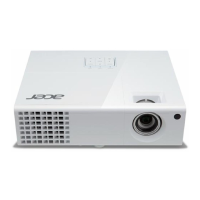
Acer Projector
H7550ST/E155S/HE-815ST/H1P1403/
H7550STz/H7550BD/E155D/HE-815J/
H1P1406/H7550BDz
Series User's Guide

Questions and Answers

  • C
    crystal48Aug 18, 2025
    How to adjust the screen size on Acer H7550ST?
    • B
      brennanerinAug 18, 2025
      To adjust the image size on your Acer Projector, use the zoom lever on the top of the projector. You can also move the projector closer to or further from the screen. Alternatively, press 'MENU' on the control panel or remote control, go to 'Image' > 'Aspect Ratio', and try different settings.
  • E
    Eduardo GilmoreAug 20, 2025
    Why notebook screen isn't displaying with Acer H7550ST?
    • D
      Dylan RuizAug 20, 2025
      If the screen of your notebook computer is not displaying your presentation when using an Acer Projector, and you are using a Microsoft® Windows® based notebook, it may have deactivated its own screen. Reactivation methods vary. If you are using an Apple® Mac® OS based notebook, open Display in System Preferences and select Video Mirroring 'On.'
  • R
    robert67Aug 22, 2025
    How to fix no image on Acer Projector?
    • N
      Nicholas JohnsonAug 22, 2025
      If no image appears on the screen when using your Acer Projector, ensure all cables are correctly connected as described in the 'Getting Started' section, and that none of the connector pins are bent or broken. Also, check if the projection lamp has been securely installed. Finally, make sure the projector is switched on.
  • M
    meganparkerAug 26, 2025
    How to focus Acer H7550ST?
    • R
      Rachael StewartAug 26, 2025
      If the image on your Acer Projector is out of focus, try adjusting the focus ring on the projector lens. Also, ensure the projection screen is within the required distance. For models H7550ST/E155S/HE-815ST/H1P1403/H7550STz, the distance should be 3.0 to 15.0 feet (0.9 to 4.6 meters). For models H7550BD/E155D/HE-815J/H1P1406/H7550BDz, it should be 4.9 to 19.7 feet (1.5 to 6 meters).
  • T
    Thomas AndersonAug 27, 2025
    How to correct keystone on Acer Projector?
    • M
      Mark MaldonadoAug 28, 2025
      To correct slanted sides on your Acer Projector's image, try repositioning the projector so that it is centered on the screen and below the bottom of the screen. You can also use the Keystone correction keys on the control panel or remote control until the image becomes square. Alternatively, press 'MENU' to open the OSD menu and go to 'Image' > 'Auto Keystone' or 'Image' > 'Manual Keystone' to make adjustments.
  • A
    Angela BoydAug 30, 2025
    What to do if Acer H7550ST image is partial on notebook?
    • D
      Diana HamiltonAug 30, 2025
      If you are experiencing a partial, scrolling, or incorrectly displayed image with your Acer Projector connected to a notebook, first press 'RESYNC' on the control panel or remote. Then, adjust the resolution of your computer. Finally, press the toggle output settings (e.g., [Fn]+[F4] for some models). Restarting all equipment, including the projector, may also help.
  • W
    westrobertSep 1, 2025
    How to fix partial image on Acer Projector connected to PC?
    • J
      joannecaldwellSep 2, 2025
      If your Acer Projector displays a partial, scrolling, or incorrectly displayed image when connected to a PC, first press 'RESYNC' on the control panel or remote control. Next, open 'My Computer > Control Panel,' and double-click the 'Display' icon, then select the 'Settings' tab. Verify that your display resolution setting is lower than or equal to 1600 x 1200 or 1920 x 1080. Click the 'Advanced Properties' button, and change the monitor display you are using by clicking the 'Change' button under the 'Monitor' tab. Click 'Show all devices > Standard monitor types' under the SP box, and choose the resolution mode you need under the 'Models' box.
  • S
    Shannon MarshallSep 4, 2025
    Why is my Acer H7550ST Projector image flickering?
    • J
      Joseph ZimmermanSep 4, 2025
      If the image on your Acer Projector is unstable or flickering, use the 'Tracking' feature to correct it. Also, try changing the display color setting on your computer.
  • S
    sandovalkaraSep 6, 2025
    How to remove vertical bar on Acer H7550ST?
    • C
      Christina CraigSep 7, 2025
      If your Acer Projector's image has a vertical flickering bar, use the 'Frequency' setting to make an adjustment. Also, check and reconfigure the display mode of your graphics card to ensure it is compatible with the projector.
  • J
    Johnny ValdezSep 9, 2025
    How to flip image on Acer H7550ST Projector?
    • J
      Joseph WilsonSep 9, 2025
      To correct a reversed image on your Acer Projector, select 'Image' > 'Projection Mode', 'Image' > 'Projection Location' on the OSD and adjust the projection direction.

Acer H7550ST Series Specifications

General IconGeneral
BrandAcer
ModelH7550ST Series
CategoryProjector
LanguageEnglish

Related product manuals