EasyManua.ls Logo

Acer H7850 - User Manual

Acer H7850
60 pages
Print Icon
To Next Page IconTo Next Page
Loading...
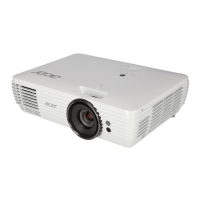
Acer Projector
H7850/E270/HE-4K20/M550/D4K1701
V7850/V270/HT-4K20/V550/D4K1702
User's Guide

Questions and Answers

  • J
    Joseph WrightAug 18, 2025
    How to fix no image on Acer H7850?
    • M
      Michael CoxAug 18, 2025
      If no image appears onscreen with your Acer Projector, ensure it is connected as described in the "Getting Started" section and that none of the connector pins are bent or broken. Check that the projector lamp has been securely installed (refer to the "Replacing the Lamp" section). Also, make sure you have removed the lens cap and the projector is switched on.
  • C
    Christina BrownAug 20, 2025
    How to adjust the image size on Acer H7850?
    • M
      Monica PattersonAug 20, 2025
      If your Acer Projector displays an image that is too small or too large, try the following: * Adjust the zoom ring on the projector. * Move the projector closer to or further from the screen. * Press "MENU" on the remote control, navigate to "Image - -> Aspect Ratio", and experiment with different settings, or press "RATIO" on the remote control to adjust directly.
  • P
    Peter BrooksAug 23, 2025
    What to do if Acer H7850 Projector is not responding?
    • M
      Michael WilkinsonAug 23, 2025
      If your Acer Projector stops responding to all controls, turn off the projector, then unplug the power cord and wait at least 30 seconds before reconnecting power.
  • N
    Natasha CallahanAug 26, 2025
    How to fix out of focus image on Acer Projector?
    • T
      Teresa Sellers MDAug 26, 2025
      If the image from your Acer Projector is out of focus: * Make sure the lens cap is removed. * Adjust the focus ring on the projector lens. * Ensure the projection screen is within the required distance of 3.3 to 30.3 feet (1.0 to 9.2 meters) from the projector.
  • C
    Claire HansenAug 28, 2025
    Why is the image stretched on my Acer Projector when playing widescreen DVD?
    • J
      James HarrisAug 28, 2025
      If your Acer Projector displays an image that is stretched when displaying a "widescreen" DVD title, you may need to adjust the following settings: * If you play a 4:3 format DVD title, change the format to 4:3 in the projector OSD. * If the image is still stretched, adjust the aspect ratio. Set up the display format to 16:9 (wide) aspect ratio on your DVD player. * If you play an Letterbox (LBX) format DVD title, change the format to Letterbox (LBX) in the projector OSD.
  • E
    Emily HardyAug 30, 2025
    How to correct slanted sides on Acer H7850 Projector image?
    • R
      Ronald BrownAug 30, 2025
      If the image from your Acer Projector has slanted sides, reposition the projector so that it is centered on the screen, if possible.
  • A
    awyattSep 2, 2025
    How to stabilize a flickering image on Acer H7850 Projector?
    • S
      Shirley LeeSep 2, 2025
      If the image from your Acer Projector is unstable or flickering, adjust the "Tracking". You may also try changing the display color depth settings on your computer.
  • A
    Amanda StephensSep 4, 2025
    How to flip image on Acer H7850?
    • P
      pam19Sep 4, 2025
      If the image from your Acer Projector is reversed, select "Image --> Projection" on the OSD and adjust the projection direction.
  • I
    Isaiah WashingtonSep 9, 2025
    How to fix scrolling image on Acer Projector from notebook?
    • J
      jenniferbaxterSep 9, 2025
      If your Acer Projector displays a partial, scrolling, or incorrectly displayed image from a notebook: * Follow the steps for PC to adjust the resolution of your computer. * Press the toggle output settings. Example: [Fn]+[F4], Compaq [Fn]+[F4], Dell [Fn]+[F8], Gateway [Fn]+[F4], IBM [Fn]+[F7], HP [Fn]+[F4], NEC [Fn]+[F3], Toshiba [Fn]+[F5] * If you experience difficulty changing resolutions or your monitor freezes, restart all equipment including the projector.
  • B
    Billy MaldonadoSep 12, 2025
    How to remove vertical bar on Acer H7850 Projector?
    • K
      Kyle CervantesSep 12, 2025
      If the image from your Acer Projector has a vertical flickering bar, use "Frequency" to make an adjustment. Also, check and reconfigure the display mode of your graphics card to make it compatible with the projector.

Summary

Safety and Precautions

General Safety Information

Covers product warnings, plug use, and accessibility guidelines.

Electrical Power Usage

Details safe practices for using electrical power, grounding, and avoiding overload.

Introduction and System Overview

Product Features

Lists the key technological capabilities and outstanding features of the projector.

Controls and Interface

Control Panel Functions

Explains the purpose and operation of buttons on the projector's control panel.

Remote Control Layout

Details the functions and layout of buttons on the projector's remote control.

Getting Started and Image Adjustment

Powering the Projector On and Off

Procedures for powering the projector on and off safely.

User Settings and Management

Navigating OSD Menus

Guide to using the Onscreen Display (OSD) for adjustments and settings.

Appendices and Troubleshooting

Troubleshooting Image Problems

Solutions for common image display issues like no image or distorted picture.

OSD and Projector Error Messages

Explains projector messages and error conditions for troubleshooting.

Lamp Replacement Procedure

Step-by-step guide for safely replacing the projector lamp.

Ceiling Mount Installation

Instructions for securely installing the projector using a ceiling mount.

Projector Specifications

Detailed technical specifications of the projector including resolution and dimensions.

Acer H7850 Specifications

General IconGeneral
Number of colors1.073 billion colors
Native aspect ratio16:9
Projection distance1.3 - 9.3 m
Vertical scan range24 - 120 Hz
Horizontal scan range15 - 135 kHz
Projection technologyDLP
Supported aspect ratios4:3, 16:9
Contrast ratio (dynamic)1000000:1
Contrast ratio (typical)-
Screen size compatibility26 - 300 \
Projector native resolution2160p (3840x2160)
Vertical synchronization (max)0.12 kHz
Vertical synchronization (min)0.024 kHz
Horizontal synchronization (max)135 kHz
Horizontal synchronization (min)15 kHz
FocusManual
Digital zoom2 x
Optical zoom1.6 x
Zoom capabilityYes
Focal length range20.91 - 32.62 mm
Aperture range (F-F)2.5 - 3.26
Lamp typeUHP
Lamp power240 W
Lamps quantity1 lamp(s)
Light source typeLamp
Service life of light source4000 h
Service life of light source (economic mode)15000 h
HDMI connector typeFull-size
USB 2.0 ports quantity1
Number of bulbs1 bulb(s)
Noise level29 dB
Projection modesCeiling, Front, Rear
Noise level (economic mode)27 dB
RMS rated power5 W
Power sourceAC
AC input voltage120 - 230 V
Power consumption (standby)- W
Power consumption (typical)315 W
Power consumption (economy mode)260 W
Operating temperature (T-T)0 - 40 °C
Operating relative humidity (H-H)0 - 80 %
PlacementDesktop, Ceiling
Product typeStandard throw projector
Product colorWhite
Market positioningHome cinema
Built-in displayNo
Supported video modes2160p
Supported graphics resolutions3840 x 2160
Weight and Dimensions IconWeight and Dimensions
Weight5300 g

Related product manuals