EasyManua.ls Logo

Acer H6800 - User Manual

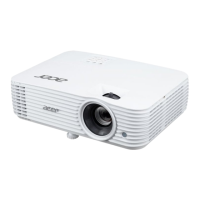
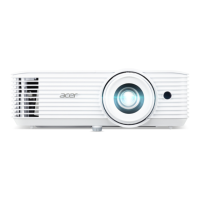
Acer H6800
53 pages
Print Icon
To Next Page IconTo Next Page
Loading...
Copyright © 2020. Acer Incorporated.
All Rights Reserved.
Acer Projector User's Guide
Original Issue: 04/2020
Acer Projector
H6800/E8600/HE-4K10/GM820/
VH-720/H6800BD+/H6800ABD/
H6800BD/H6800a/X6800/X6800a/
H6801BDa/H6800BDa/D4K2002
User's Guide

Questions and Answers

  • T
    Taylor RobersonSep 23, 2025
    How to fix Wifi or Bluetooth cannot be detected normally on Acer H6800 Projector?
    • G
      goodmadelineSep 23, 2025
      To fix the problem when Wifi or Bluetooth cannot be detected normally on Acer Projector, plug in wifi dongle again and restart projector.
  • L
    Laura McleanAug 25, 2025
    What to do if my Acer H6800 Projector image is too small or too large?
    • T
      Tonya BridgesAug 25, 2025
      If the image on your Acer Projector is too small or too large, try the following: * Adjust the zoom ring on the projector. * Move the projector closer to or further from the screen. * Press "MENU" on the remote control, go to "Image - -> Aspect Ratio" and try different settings or press "RATIO" on the remote control to adjust directly.
  • A
    Alexander LopezAug 25, 2025
    What to do if my Acer H6800 notebook screen is not displaying the presentation?
    • C
      Caroline RussellAug 26, 2025
      If the screen of your notebook computer is not displaying your presentation when connected to the Acer Projector: If you are using a Microsoft® Windows® based notebook: Some notebook PCs may deactivate their own screens when a second display device is in use. Each has a different way to be reactivated. If you are using an Apple® Mac® OS based notebook: In System Preferences, open Display and select Video Mirroring "On".
  • V
    Vincent GutierrezAug 26, 2025
    Why isn't my Acer Projector displaying my presentation from my notebook?
    • F
      Francisco BurchAug 26, 2025
      If you are using a Microsoft® Windows® based notebook: Some notebook PCs may deactivate their own screens when a second display device is in use. Each has a different way to be reactivated. If you are using an Apple® Mac® OS based notebook: In System Preferences, open Display and select Video Mirroring "On".
  • B
    Brian MendozaAug 27, 2025
    Why is there no image on my Acer H6800 Projector screen?
    • R
      roywhitakerAug 27, 2025
      If no image appears on your Acer Projector screen, ensure the connections are as described in the "Getting Started" section and that none of the connector pins are bent or broken. Also, check if the projector lamp has been securely installed. Finally, make sure you have removed the lens cap and the projector is switched on.
  • M
    Michael ThompsonSep 13, 2025
    How to flip image on Acer H6800 Projector?
    • D
      David FergusonSep 13, 2025
      To flip the image, select "Image --> Projection Mode" on the OSD and adjust the projection direction.
  • M
    Mark HoltSep 12, 2025
    Why is the image stretched on my Acer Projector when playing widescreen DVD?
    • E
      Edward HubbardSep 12, 2025
      When you play a DVD encoded in anamorphic or 16:9 aspect ratio you may need to adjust the following settings: If you play a 4:3 format DVD title, please change the format to 4:3 in the projector OSD. If the image is still stretched, you will also need to adjust the aspect ratio. Set up the display format to 16:9 (wide) aspect ratio on your DVD player. If you play an Letterbox (LBX) format DVD title, please change the format to Letterbox (LBX) in the projector OSD.
  • A
    Amber ReedSep 12, 2025
    What does it mean if my Acer H6800 Projector lamp burns out or pops?
    • K
      katelynmooreSep 12, 2025
      When the lamp reaches the end of its useful life, it will burn out and may make a loud popping sound. If this happens, the projector will not turn on until the lamp module has been replaced.
  • R
    Ryan GrantSep 4, 2025
    What to do if Acer H6800 Projector is not responding?
    • E
      Ernest RamirezSep 4, 2025
      If the projector stops responding, turn it off if possible, then unplug the power cord and wait at least 30 seconds before reconnecting the power.
  • S
    Steven ButlerSep 2, 2025
    How to fix no image on Acer H6800?
    • B
      Brenda HolmesSep 2, 2025
      First, ensure the projector is connected as described in the "Getting Started" section and that none of the connector pins are bent or broken. Also, check if the projector lamp has been securely installed. Make sure you have removed the lens cap and the projector is switched on.

Summary

Information for your safety and comfort

Power Connection Safety

Guidelines for connecting and disconnecting the power supply unit to the projector safely.

Accessibility for Disconnection

Ensuring the power outlet is accessible for easy disconnection of the projector.

Critical Safety Warnings

Critical safety warnings regarding water, unstable surfaces, and ventilation.

Electrical Power Usage

Product Servicing and Safety

Instructions and warnings against self-servicing the projector and referring to qualified personnel.

Additional Safety Precautions

Initial Setup and Use

Essential Operating Precautions

Essential precautions to maximize the projector's lifespan and ensure safe operation.

Control Panel Functions

Remote Control Operation

Powering the Projector On and Off

Operational Warning Indicators

Image Adjustment Guide

Image Size and Projection Distance

User Interface Navigation

Color Settings Adjustment

Image Settings Adjustment

System Settings Configuration

Management Settings

Audio Settings

Troubleshooting and Appendices

Image Problem Solutions

A guide to common image problems and their solutions for troubleshooting.

Projector Troubleshooting Guide

Lamp Replacement Procedure (Service Personnel)

Ceiling Mount Installation Guide

Technical Specifications

Signal Compatibility Modes

Regulatory and Safety Notices

FCC Compliance and Notices

Details on FCC compliance for Class B digital devices, including operation conditions and interference.

EU Declaration of Conformity

FCC Declaration of Conformity

Acer H6800 Specifications

General IconGeneral
BrandAcer
ModelH6800
CategoryProjector
LanguageEnglish

Related product manuals