EasyManua.ls Logo

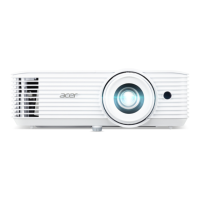
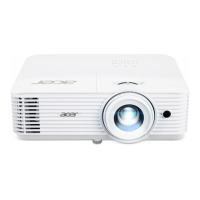
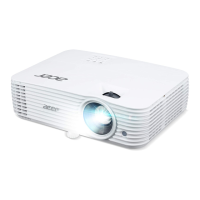
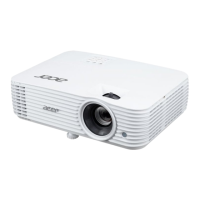
Acer H6830 Series - User Manual

Acer H6830 Series
57 pages
Print Icon
To Next Page IconTo Next Page
Loading...
Acer DLP Projector
H6815/E8615/HE-4K15/
GM835/VH-736/H6815BD+/
H6815ABD/H6815BD/H6815+/
H6815A/H6822BD/A4K2008/
H6830BD/E8630/HE-4K30/
GM835Z/VH-736Z/
H6830BDZ+/H6831BD/
H6830BD+/H6830/A4K2111
Series User's Guide
Copyright © 2020. Acer Incorporated.
All Rights Reserved.
Acer Projector User's Guide
Original Issue: 11/2020

Questions and Answers

  • R
    reneetuckerAug 14, 2025
    How to fix Acer Projector when no image appears on screen?
    • T
      Trevor QuinnAug 14, 2025
      First, ensure all cables are correctly connected as described in the "Getting Started" section. Check that none of the connector pins are bent or broken. Finally, make sure the projector is switched on.
  • D
    Danielle CalderonAug 18, 2025
    Why is the Acer Projector image too small or too large?
    • B
      brittanyjohnsonAug 18, 2025
      Adjust the zoom lever on the top of the projector. You can also move the projector closer to or further from the screen. Alternatively, press "MENU" on the control panel or remote control, go to "Image" > "Aspect Ratio," and try different settings.
  • S
    Seth RogersAug 20, 2025
    What to do if the Acer H6830 Projector image is out of focus?
    • T
      Tyrone GregoryAug 20, 2025
      First, adjust the focus ring on the projector lens. Then, ensure the projection screen is within the required distance. Refer to the "How to Get a Preferred Image Size by Adjusting Distance and Zoom" section for more information.
  • J
    Jessica MeyerAug 25, 2025
    Why is the screen of the notebook computer not displaying my presentation on Acer Projector?
    • L
      Lucas HollowayAug 25, 2025
      If you are using a Microsoft® Windows® based notebook: Some notebook PCs may deactivate their own screens when a second display device is in use. Each has a different way to be reactivated. Refer to your computer's manual for detailed information. If you are using an Apple® Mac® OS based notebook: In System Preferences, open Display and select Video Mirroring "On."
  • R
    ryanclarkAug 28, 2025
    How to correct slanted sides on Acer Projector image?
    • R
      Raymond WoodardAug 28, 2025
      If possible, reposition the Acer projector so that it is centered on the screen and below the bottom of the screen. You can also press the Keystone correction keys on the control panel or remote control until the image becomes square. Alternatively, press "MENU" on the control panel or remote control to open the OSD menu and navigate to "Image" > "H/ V Keystone" to make adjustments.
  • V
    vfranklinAug 30, 2025
    What to do if Acer Projector image is reversed?
    • B
      Billy DominguezAug 30, 2025
      Select "Image" > "Projection Mode", "Image" > "Projection Location" on the OSD and adjust the projection direction.
  • S
    sandysalazarSep 3, 2025
    How to fix partial, scrolling, or incorrectly displayed image on Acer Projector (For PC)?
    • C
      Carol WhiteSep 3, 2025
      For an incorrectly displayed image, open "My Computer > Control Panel," and then double-click the "Display" icon. Select the "Settings" tab. Verify that your display resolution setting is lower than or equal to 1600 x 1200 or 1920 x 1080. Click the "Advanced Properties" button. If the problem still appears, change the monitor display you are using and follow the steps below: Verify that the resolution setting is lower than or equal to 1600 x 1200 or 1920 x 1080. Click the "Change" button under the "Monitor" tab. Click "Show all devices > Standard monitor types" under the SP box, and choose the resolution mode you need under the "Models" box. Verify that the resolution setting of the monitor display is lower than or equal to 1600 x 1200 or 1920 x 1080.
  • S
    sandracraigSep 6, 2025
    How to fix partial, scrolling, or incorrectly displayed image on Acer H6830 Projector (For notebooks)?
    • K
      Kelly CampbellSep 6, 2025
      For an incorrectly displayed image: Follow the steps for item 2 (above) to adjust the resolution of your computer. Press the toggle output settings. Example: [Fn]+[F4], Compaq [Fn]+[F4], Dell [Fn]+[F8], Gateway [Fn]+[F4], IBM [Fn]+[F7], HP [Fn]+[F4], NEC [Fn]+[F3], Toshiba [Fn]+[F5]. If you experience difficulty changing resolutions or your monitor freezes, restart all equipment including the projector.
  • J
    James CarrollSep 10, 2025
    Why is the Acer H6830 Projector image stretched when displaying a "widescreen" DVD title?
    • C
      Crystal LewisSep 10, 2025
      When you play a DVD encoded in anamorphic or 16:9 aspect ratio, you may need to adjust the following settings: * If you play a 4:3 format DVD title, please change the format to 4:3 with the projector OSD. * If the image is still stretched, you will also need to adjust the aspect ratio. Set up the display format to 16:9 (wide) aspect ratio on your DVD player.

Summary

Information for Your Safety and Comfort

Turning the product off before cleaning

Safe cleaning requires powering down the unit before wiping.

Caution for plug as disconnecting device

Guidelines for safe power connection and disconnection from the mains.

Caution for Accessibility

Ensure power outlets are easily accessible for safe disconnection.

Using Electrical Power

Product Servicing

Package Overview

Projector Overview

Control Panel

Remote Control Layout

Getting Started

Turning the Projector On;Off

Turning On the Projector

Steps to power on the projector and activate the input source.

Turning Off the Projector

Procedure for safely shutting down the projector and its indicators.

Adjusting the Projected Image

How to Get a Preferred Image Size by Adjusting Distance and Zoom

User Controls

Onscreen Display (OSD) Menus

Color

Image

Setting

Management

Audio

Appendices

Troubleshooting

A guide to identify and resolve common projector issues.

Specifications

Compatibility Modes

Acer H6830 Series Specifications

General IconGeneral
BrandAcer
ModelH6830 Series
CategoryProjector
LanguageEnglish

Related product manuals