EasyManua.ls Logo

Acer PL7610T Series - User Manual

Acer PL7610T Series
62 pages
Print Icon
To Next Page IconTo Next Page
Loading...
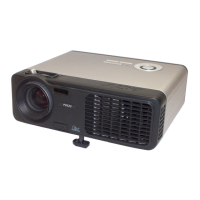
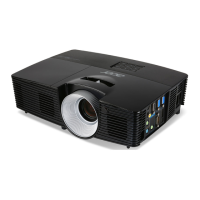
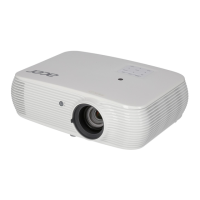
Acer DLP Projector
PL7610T/FL360T/LU-
P600UT/PF-L600UT/LR670T/
ML-570B/AWU2004/
PL7610/FL360/LU-P600U/PF-
L600U/LR670/ML-570/
AWU2005/SL6610T/
FL261ST/LU-S500UT/PS-
L500UT/LR660ST/ML-560SB/
AWU2006/SL6610/FL261S/
LU-S500U/PS-L500U/
LR660S/ML-560S/AWU2007
Series User's Guide
Copyright © 2020. Acer Incorporated.
All Rights Reserved.
Acer Projector User's Guide
Original Issue: 11/2020

Questions and Answers

  • J
    Joshua KeithAug 19, 2025
    What to do if Acer PL7610T Projector image is too small or too large?
    • R
      Rachel MurrayAug 19, 2025
      If the image from your Acer Projector is too small or too large: * Adjust the zoom lever on the top of the projector. * Move the projector closer to or further from the screen. * Press "MENU" on the control panel or remote control. Go to "Image" > "Aspect Ratio" and try different settings.
  • L
    Laura HaneyAug 21, 2025
    How to fix Acer Projector when no image appears on screen?
    • A
      Adam FisherAug 21, 2025
      If no image appears on the screen when using your Acer Projector, ensure all cables are correctly connected as described in the "Getting Started" section. Also, check that none of the connector pins are bent or broken and that the projector is switched on.
  • B
    Brittany WilsonAug 23, 2025
    What to do if Acer Projector image is out of focus?
    • J
      Jessica WestAug 23, 2025
      If the image on your Acer Projector is out of focus, adjust the focus settings. Also, ensure the projection screen is within the required distance.
  • L
    lchristensenAug 26, 2025
    How to correct slanted sides on Acer Projector image?
    • M
      Megan HayesAug 26, 2025
      To correct slanted sides on your Acer Projector image: * If possible, reposition the projector so that it is centered on the screen and below the bottom of the screen. * Press the Keystone correction keys on the control panel or remote control until the image becomes square. * Press "MENU" on the control panel or remote control to open the OSD menu. Go to "Image" > "H/ V Keystone" or "Image" > "4 Corner Correction" to make adjustments.
  • B
    bshahAug 28, 2025
    Why is my Acer PL7610T image unstable or flickering?
    • D
      Danielle ChanAug 28, 2025
      If your Acer Projector image is unstable or flickering, change the display color setting on your computer.
  • K
    katherine63Sep 1, 2025
    How to fix partial or incorrectly displayed image on Acer PL7610T (for notebooks)?
    • J
      Jose DavisSep 1, 2025
      To fix an incorrectly displayed image on your Acer Projector when connected to a notebook: * Follow the steps for item 2 to adjust the resolution of your computer. * Press the toggle output settings. Example: [Fn]+[F4], Compaq [Fn]+[F4], Dell [Fn]+[F8], Gateway [Fn]+[F4], IBM [Fn]+[F7], HP [Fn]+[F4], NEC [Fn]+[F3], Toshiba [Fn]+[F5] * If you experience difficulty changing resolutions or your monitor freezes, restart all equipment including the projector.
  • S
    susan76Sep 4, 2025
    Why does my Acer PL7610T image have a vertical flickering bar?
    • R
      rachel19Sep 4, 2025
      If your Acer Projector image has a vertical flickering bar, check and reconfigure the display mode of your graphics card to make it compatible with the projector.
  • K
    Kristen NewtonSep 6, 2025
    What to do if Acer PL7610T stops responding to all controls?
    • J
      Jordan SmithSep 6, 2025
      If your Acer Projector stops responding to all controls: * Turn off the projector, then unplug the power cord and wait at least 30 seconds before reconnecting power. * Make sure that the control panel lock function is disabled.
  • K
    kimberly07Sep 8, 2025
    How to resolve reversed image on Acer PL7610T Projector?
    • P
      Penny RobinsonSep 9, 2025
      To resolve a reversed image on your Acer Projector, select "Image" > "Projection Mode", "Image" > "Projection Location" on the OSD and adjust the projection direction.
  • T
    Tanya BrowningSep 12, 2025
    Why is the screen of the notebook computer not displaying my presentation on Acer PL7610T Projector?
    • R
      Ruth RandolphSep 12, 2025
      If the screen of the notebook computer is not displaying your presentation on Acer Projector: * If you are using a Microsoft® Windows® based notebook: Some notebook PCs may deactivate their own screens when a second display device is in use. Each has a different way to be reactivated. Refer to your computer's manual for detailed information. * If you are using an Apple® Mac® OS based notebook: In System Preferences, open Display and select Video Mirroring "On."

Summary

Safety and Comfort Information

General Safety Precautions

Covers warnings, plug safety, accessibility, and general product safety.

Electrical Power Usage Guidelines

Guidelines for operating the projector safely with electrical power.

Product Introduction

User Interface and Controls

Installation Menu and OSD Navigation

Guides on accessing and navigating the projector's installation menu and OSD.

Onscreen Display (OSD) Menus

Guides on navigating and using the projector's OSD menus.

Color Settings

Details on adjusting color settings like brightness, contrast, and hue.

Image Display Settings

Covers projection modes, aspect ratio, and keystone correction for image display.

System Management

3 D Display Setup

Appendices and Support

Troubleshooting and OSD Messages

Solutions for common problems and definitions of OSD messages.

Acer PL7610T Series Specifications

General IconGeneral
Lamp TypeUHP
Resolution1024 x 768 (XGA)
ConnectivityVGA, S-Video, Composite Video, Audio
Native Resolution1024 x 768 (XGA)
Projection Size30 - 300 inches
Input ConnectorsS-Video
Lamp Life4000 Hour (Standard), 10000 Hour (ECO), 20000 Hour (ExtremeEco)

Related product manuals