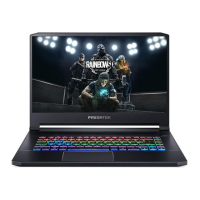
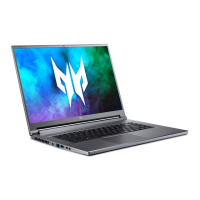
This document describes the Predator Helios 3D 15 SpatialLabs™ Edition (PH3D15-71), a high-performance notebook designed for mobile computing needs.
Function Description
The Predator Helios 3D 15 SpatialLabs™ Edition is a powerful notebook computer that allows users to switch between various operating modes, control fan behavior, and manage lighting settings. It features a unique SpatialLabs™ Edition display, enabling 3D image viewing. The notebook is equipped with a range of ports and connectors for external devices, and it includes pre-installed software like PredatorSense for system management and Norton Security for online protection.
Important Technical Specifications
Processor: The notebook features a CPU and GPU, with performance and temperature monitoring available through PredatorSense.
Display: It boasts an OLED screen known for near-perfect blacks and brilliant colors, delivering an incredible picture without needing a backlight. The display supports 3D image viewing.
Memory: The system includes RAM, with usage monitored via PredatorSense.
Storage: It supports microSD cards (SD, SDHC, and SDXC up to 2048 GB/2 TB) via a built-in reader.
Ports and Connectors:
- USB: Multiple USB ports are available, including USB 3.2 Gen 1 (blue, SuperSpeed USB), USB 3.2 Gen 2 (blue, SuperSpeed USB, up to 10 Gbps transfer speeds), and a USB port with power-off charging. USB Type-C ports are reversible and support USB 3.2 Gen 2, DisplayPort™ audio/video output, Thunderbolt™ 4, and deliver up to 3 A at 5 V DC for USB charging (requires 65 W at 20 V power adapter or source for DC-in).
- Thunderbolt 4: A Thunderbolt 4 port allows connection of up to two 4K displays or one 8K display, with transfer speeds up to 40 Gbps. It is compatible with Thunderbolt, USB, DisplayPort, and power on USB-C devices.
- HDMI: An HDMI 2.1 port supports high-definition digital video connections.
- Ethernet (RJ-45): Connects to an Ethernet 10/100/1000Mbps/2.5Gbps-based network.
- Audio: A headset/speaker jack connects to audio devices (speakers, headphones) or a headset with a microphone.
- Security: A Kensington lock slot is provided for connecting a Kensington-compatible security lock.
Network: Features built-in wireless LAN (WLAN) and Ethernet for internet connectivity. Some models may include a SIM card slot for cellular connectivity.
Battery: Uses an embedded Lithium-based battery.
Input Devices: Includes a full-sized keyboard with a numeric keypad, separate cursor keys, lock keys, Windows keys, and hotkeys. It also features a Precision Touchpad with multi-finger gestures. A fingerprint reader is available for secure sign-in.
Microphones: Internal digital microphones are included for sound recording.
Webcam: A web camera is provided for video communication, with an indicator light to show when it's active.
Eye Tracking Sensor: Tracks the position and movement of the user's eye and head, with an indicator to show when it's active.
Usage Features
Power Management:
- Turning On/Off: The computer can be turned on/off using the power button.
- Sleep Mode: The computer can be put to sleep by pressing the power button, sleep hotkey, or through Windows Start menu options.
- Fast Startup: Users can disable Fast Startup to reduce power consumption, though this may increase startup time from Sleep.
- Battery Charging: The battery recharges when connected to the AC adapter. Conditioning a new battery involves fully charging, depleting, and recharging it three times.
- Battery-low Warning: An amber battery indicator signals charging, while blue indicates a full charge. Users are advised to connect the AC adapter when a low battery warning appears to prevent data loss.
Keyboard and Touchpad:
- Hotkeys: Activate special functions by pressing and holding the Fn key in combination with other keys (e.g., Fn+F1 for speaker toggle, Fn+F5 for brightness down, Fn+F9 for Flight mode).
- Special Keys: Dedicated keys for Print Screen, Play/Pause, Previous, and Next media functions.
- Precision Touchpad: Supports single-finger slide/press/tap, two-finger press/slide, three-finger press/swipe (for Search, Task View, Desktop, and switching windows), and four-finger press/swipe (for Notifications, Calendar, Task View, and Desktop).
- Touchpad Settings: Sensitivity and other settings can be adjusted via Windows settings (Bluetooth & devices > Touchpad). The touchpad can also be turned off.
PredatorSense Software:
- Operating Modes: Switch between various modes (Quiet, Balanced, Performance, Turbo, Eco) to optimize laptop performance. Mode switching is available when the AC adapter is plugged in and battery capacity is at least 40%.
- Fan Control: Adjust CPU and GPU fan performance (Auto, Max, Custom). Custom mode allows independent adjustment of CPU and GPU cooling.
- Pulsar Lighting: Customize keyboard and other lighting effects (Global or Area lighting). Global settings allow adjusting brightness, color, speed, and direction for animated effects. Area lighting allows individual LED zone customization. Keyboard backlight can be set to turn off automatically after 30 seconds of inactivity to save battery.
- Advanced Settings: Adjust audio mode (Acer TrueHarmony™), disable/enable sticky keys, LCD Overdrive, and system boot animation & sound. Boot logo can be customized.
- Monitoring: View CPU, GPU, and system temperature and loading data for the last 60 minutes.
- App Center: Quickly launch installed apps. Apps can be pinned to widget cards for easy access.
- Scenario Profiles: Create custom profiles with specific operating modes, fan performance, lighting effects, Acer TrueHarmony™ settings, and linked apps. Apps can be linked to profiles to automatically switch settings when launched.
Bluelight Shield:
- Function: Reduces blue light emissions from the screen to protect eyes.
- Modes: Offers Low Reduction (10-25%), Medium Reduction (26-45%), High Reduction (46-65%), and Long Hour Mode. Configurable via 'Quick Access' in the Start Menu.
OLED Screen Protection:
- Burn-in Avoidance: Features like Dark mode, Screen saver settings, Auto-Hide Taskbar, and Transparency effect can be toggled on/off via 'Quick Access' in the Start Menu to prevent permanent burn-in damage from static images at maximum brightness.
Security:
- Computer Security Lock: A physical security slot is provided for a Kensington-compatible lock.
- Passwords: Supervisor Password (for BIOS utility access), User Password (for computer access), and Password on Boot (for system startup) can be set.
- Fingerprint Reader: Allows sign-in and unlocking using fingerprints after setting up a password and PIN in Windows Hello settings.
Internet Connectivity:
- Wireless LAN (WLAN): Connects to wireless networks. The computer's wireless connection is on by default.
- Wired Connection: Connects to the internet via an Ethernet cable plugged into the network port and a router.
- Flight Mode: A hotkey (Fn+F9) to turn network connections on/off.
Recovery:
- File History Backup: Create backups of personal files using Recovery Management.
- Driver Backup: Back up wireless and LAN drivers for reinstallation if the operating system is changed.
- System Restore: Reset the PC to its default status, with options to keep files or remove everything. This process reinstalls Windows.
Maintenance Features
General Care:
- Use only the provided or Acer-approved AC adapter.
- Avoid direct sunlight, extreme temperatures (below 0°C/32°F or above 50°C/122°F), and magnetic fields.
- Do not expose to rain, moisture, or liquids.
- Avoid heavy shock, vibration, dust, dirt, placing objects on top, slamming the display, or placing on uneven surfaces.
AC Adapter Care:
- Do not connect to other devices.
- Avoid stepping on or placing heavy objects on the power cord.
- Pull the plug, not the cord, when unplugging.
- Ensure total ampere ratings do not exceed cord or fuse ratings.
Cleaning and Servicing:
- Turn off the computer and disconnect the AC adapter before cleaning.
- Use a soft, moist cloth; avoid liquid or aerosol cleaners.
- Contact an authorized Acer service center if the computer is dropped, visibly damaged, or malfunctions.
Battery Maintenance:
- Avoid constant charging at full capacity and charging at extreme temperatures (above 35°C/95°F or below 0°C/32°F).
- Stop charging at 100% capacity; recharge when battery level drops below 70%.
- The charging port must be clean and used only with Acer charging equipment.
- For long-term storage, turn off the device, remove AC power, and store at room temperature (0°C-35°C) in a dry, well-ventilated area. Charge to approximately 50% capacity every 6 months.
- Built-in batteries must be replaced by an authorized service center. Removable batteries should only be replaced with Acer-approved parts.
- Dispose of used batteries according to local regulations; do not dispose in fire or as household waste.
Troubleshooting:
- The manual provides a list of common error messages and recommended corrective actions (e.g., checking power supply, restarting, adjusting display settings, contacting service for hardware errors).
- Users are advised to check BIOS settings (D2D Recovery enabled) before performing system restore operations.

 Need help?

 To Next Page
 General