EasyManua.ls Logo

Acer R271 - User Manual

Acer R271
28 pages
Print Icon
To Next Page IconTo Next Page
Loading...
Acer LCD Monitor
User Guide

Other manuals for Acer R271

Question and Answer IconNeed help?

Do you have a question about the Acer R271 and is the answer not in the manual?

Summary

Safety and Comfort Information

Safety Instructions

Read safety instructions carefully for future reference and follow product warnings.

Special Notes on LCD Monitors

Normal LCD characteristics like screen flicker, uneven brightness, or pixel blemishes explained.

Cleaning Your Monitor

Guidelines for safely cleaning the monitor screen and cabinet.

Usage Warnings and Precautions

Accessibility and Safe Listening

Advice on power outlet accessibility and protecting hearing with safe listening practices.

General Warnings

Important warnings about product placement, ventilation, and avoiding liquids.

Electrical Power Usage

Instructions for safe electrical power connection and usage, including extension cords.

Product Servicing and Environmental Responsibility

Product Servicing Guidelines

When to refer servicing to qualified personnel, and conditions requiring service.

Potentially Explosive Environments

Safety precautions for using the device in areas with potentially explosive atmospheres.

Environmental Responsibility

Information on IT equipment recycling and proper disposal instructions.

User Experience and Technical Details

Comfortable Use Tips

Tips for comfortable computer use to prevent eyestrain, headaches, and physical injury.

Vision Care and Work Habits

Suggestions for taking care of your vision and developing good work habits.

LCD Pixel Statement

Explanation of LCD pixel manufacturing and potential minor imperfections.

Regulatory Compliance

Declaration of Conformity

Manufacturer's declaration of product compliance with relevant directives and standards.

FCC Compliance Declaration

Federal Communications Commission Declaration of Conformity

Statement of compliance with FCC rules, including conditions for operation.

General Information

Information Menu

Displays basic information about the LCD monitor, such as resolution and serial number.

Troubleshooting Guide

VGA Mode Troubleshooting

Common problems and remedies when using VGA connection for the monitor.

DVI;HDMI Mode Troubleshooting

Common problems and remedies when using DVI or HDMI connections.

Unpacking and Setup

Unpacking Contents

Checklist of items included in the monitor package and advice on saving packing materials.

Attaching the Base

Step-by-step instructions for attaching the monitor stand base.

Connecting Power and Cables

Guide on connecting the AC adapter and power cord to the monitor and outlet.

Installation and Connectivity

Display Data Channel (DDC)

Explanation of the DDC protocol for plug-and-play installation.

Connector Pin Assignments

Pin assignment details for 15-pin and 24-pin display signal cables.

Cable Specifications

Pin assignment details for the 19-pin color display signal cable.

Standard Timing Table

Table listing standard monitor modes, resolutions, and refresh rates.

User Controls

Panel Controls Overview

Description of the monitor's physical buttons and their functions.

Shortcut Menu Usage

How to access and use the shortcut menu for common settings.

Acer eColor Management

Instructions and features of the Acer eColor Management system for picture modes.

OSD Menu Operations

Picture Menu Settings

Adjusting picture quality settings like brightness, contrast, and blue light.

OSD Menu Settings

Adjusting OSD menu location and timeout settings.

Setting Menu Options

Configuring general settings like aspect ratio, input, and language.

Information Menu

Summary

Safety and Comfort Information

Safety Instructions

Read safety instructions carefully for future reference and follow product warnings.

Special Notes on LCD Monitors

Normal LCD characteristics like screen flicker, uneven brightness, or pixel blemishes explained.

Cleaning Your Monitor

Guidelines for safely cleaning the monitor screen and cabinet.

Usage Warnings and Precautions

Accessibility and Safe Listening

Advice on power outlet accessibility and protecting hearing with safe listening practices.

General Warnings

Important warnings about product placement, ventilation, and avoiding liquids.

Electrical Power Usage

Instructions for safe electrical power connection and usage, including extension cords.

Product Servicing and Environmental Responsibility

Product Servicing Guidelines

When to refer servicing to qualified personnel, and conditions requiring service.

Potentially Explosive Environments

Safety precautions for using the device in areas with potentially explosive atmospheres.

Environmental Responsibility

Information on IT equipment recycling and proper disposal instructions.

User Experience and Technical Details

Comfortable Use Tips

Tips for comfortable computer use to prevent eyestrain, headaches, and physical injury.

Vision Care and Work Habits

Suggestions for taking care of your vision and developing good work habits.

LCD Pixel Statement

Explanation of LCD pixel manufacturing and potential minor imperfections.

Regulatory Compliance

Declaration of Conformity

Manufacturer's declaration of product compliance with relevant directives and standards.

FCC Compliance Declaration

Federal Communications Commission Declaration of Conformity

Statement of compliance with FCC rules, including conditions for operation.

General Information

Information Menu

Displays basic information about the LCD monitor, such as resolution and serial number.

Troubleshooting Guide

VGA Mode Troubleshooting

Common problems and remedies when using VGA connection for the monitor.

DVI;HDMI Mode Troubleshooting

Common problems and remedies when using DVI or HDMI connections.

Unpacking and Setup

Unpacking Contents

Checklist of items included in the monitor package and advice on saving packing materials.

Attaching the Base

Step-by-step instructions for attaching the monitor stand base.

Connecting Power and Cables

Guide on connecting the AC adapter and power cord to the monitor and outlet.

Installation and Connectivity

Display Data Channel (DDC)

Explanation of the DDC protocol for plug-and-play installation.

Connector Pin Assignments

Pin assignment details for 15-pin and 24-pin display signal cables.

Cable Specifications

Pin assignment details for the 19-pin color display signal cable.

Standard Timing Table

Table listing standard monitor modes, resolutions, and refresh rates.

User Controls

Panel Controls Overview

Description of the monitor's physical buttons and their functions.

Shortcut Menu Usage

How to access and use the shortcut menu for common settings.

Acer eColor Management

Instructions and features of the Acer eColor Management system for picture modes.

OSD Menu Operations

Picture Menu Settings

Adjusting picture quality settings like brightness, contrast, and blue light.

OSD Menu Settings

Adjusting OSD menu location and timeout settings.

Setting Menu Options

Configuring general settings like aspect ratio, input, and language.

Information Menu

Overview

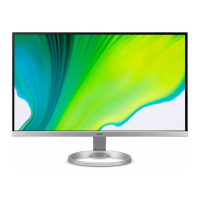
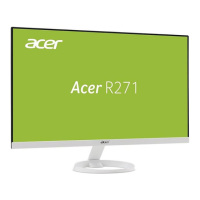
This document is a User Guide for an Acer LCD Monitor, model R271. It provides comprehensive information on the monitor's setup, usage, safety, and maintenance.

Function Description

The Acer LCD Monitor is designed for display purposes, connecting to a host system to show visual output. It supports various video input signals including VGA, DVI (optional), and HDMI (optional). The monitor features an On-Screen Display (OSD) menu for adjusting picture quality, display settings, and general preferences. It also incorporates Acer eColor Management for optimizing display modes based on user preferences or content types.
Important Technical Specifications

  • Model Number: R271
  • SKU Number: R271 xxxxxx (where "x" can be 0-9, a-z, or A-Z)
  • Power Supply: Universal power supply, allowing operation in either 100/120 V AC or 220/240 V AC voltage areas. No user adjustment is required.
  • Power Cord:
    • For 120 V AC: UL-listed cord set, type SVT wire, rated 10 A/125 V.
    • For 220/240 V AC: Cord set consisting of H05VV-F cord, rated 10 A/250 V.
  • Power Saving Mode: Activated by control signal from the display controller, indicated by a blinking blue LED light. Recovery time from power saving mode is approximately 3 seconds.
  • Display Data Channel (DDC): Supports DDC2B standard, enabling plug-and-play functionality by automatically informing the host system about its capabilities (supported resolutions, timing).
  • Supported Resolutions and Refresh Rates (Standard Timing Table):
    • VGA: 640x480 @ 60Hz, 72Hz
    • MAC: 640x480 @ 66.7Hz
    • VESA: 720x400 @ 70Hz, 1152x864 @ 75Hz, 1280x960 @ 60Hz, 1280x720 @ 60Hz, 1920x1080 @ 60Hz
    • SVGA: 800x600 @ 56Hz, 60Hz, 72Hz
    • XGA: 1024x768 @ 60Hz, 70Hz
    • SXGA: 1280x1024 @ 60Hz
    • WXGA: 1280x800 @ 60Hz, 1360x768 @ 60Hz
    • WXGA+: 1440x900 @ 60Hz
    • WSXGA+: 1680x1050 @ 60Hz
    • UXGA: 1600x1200 @ 60Hz
  • Pixel Statement: The LCD screen has 99.99% or more effective pixels. Blemishes of 0.01% or less (missing or constantly lit pixels) are considered normal and do not constitute a malfunction. Afterimages may occur if the same image is displayed for hours, but the screen recovers slowly by changing the image or turning off power for a few hours.
  • Power Management:
    • Activates display's Sleep mode within 15 minutes of user inactivity.
    • Activates computer's Sleep mode within 30 minutes of user inactivity.
    • Wakes computer from Sleep mode by pushing the power button.
  • Power Supplies (Adapter):
    • Shenzhen Honor Electronic Co., Ltd: ADS-40SG-19-3 19030G LF (30W)
    • DELTA ELECTRONICS INC.: ADP30AD BA (30W)

Usage Features

  • Installation: The monitor requires the base to be attached (for selected models) and connection to a host system via video cables (VGA, DVI, HDMI) and an AC power cord. The monitor should be turned on before the computer.
  • Screen Position Adjustment: The monitor tilt can be adjusted from 5 degrees down to 15 degrees up for optimal viewing.
  • Panel Controls:
    • Power button/indicator: Turns the monitor on/off; blue for power on, blinking blue for standby/power saving.
    • < / > buttons: Navigate OSD menus, change settings, and adjust volume (for audio-input models).
    • Menu/Enter button: Views and enters selections in the OSD menu.
    • Auto/Exit button: Exits OSD menu when active; activates Auto Adjustment (optimizes display position, focus, clock) when inactive (press for two seconds).
    • Empowering Key: Opens Acer eColor Management OSD to access scenario modes.
  • Shortcut Menu: Accessible by pressing Empowering Key, Auto, or Menu buttons. Provides quick access to Empowering (eColor Management), Auto Adjustment, Menu (OSD), Volume (optional), and Input (selects video source) functions.
  • OSD Menus:
    • Picture Menu: Adjusts picture quality settings such as Acer eColor Management, Blue Light filter (80%, 70%, 60%, 50% ratios), Brightness, Contrast, H. Position, V. Position, Focus, Clock, Colour Temp, and Auto Config.
    • OSD Menu: Adjusts OSD menu location (H.Position/V.Position) and OSD Timeout.
    • Setting Menu: Adjusts general settings for the current input signal, including Wide Mode (Full/Aspect), DDC/CI (ON/OFF), OD (Normal/OFF), ACM (ON/OFF), Input (VGA/DVI/HDMI), Language, and Reset.
    • Information Menu: Displays basic monitor information such as resolution, H/V frequency, input type, and serial number.
  • Acer eColor Management: Provides scenario modes to optimize display settings:
    • User mode: User-defined, fine-tuned settings.
    • ECO mode: Reduces power consumption.
    • Standard mode: Default settings, reflects native display capability.
    • Graphic mode: Enhances colors and fine detail for pictures/photographs.
    • Movie mode: Displays scenes in clearest detail for great visuals.
  • Accessibility: The power outlet for the monitor should be easily accessible and close to the operator for quick disconnection.
  • Safe Listening (for models with audio): Gradually increase volume, limit listening time at high volume, avoid turning up volume to block noise, and turn down volume if unable to hear others speaking.

Maintenance Features

  • Cleaning: Always unplug the monitor before cleaning. Use a soft cloth to wipe the screen and cabinet front and sides.
  • Product Servicing: Do not attempt to service the product yourself. Refer all servicing to qualified service personnel in cases of damaged power cord/plug, liquid spills, exposure to rain/water, drops, case damage, distinct change in performance, or abnormal operation.
  • IT Equipment Recycling Information: Acer is committed to environmental protection and recycling. Information on recycling and WEEE regulations is available on the Acer website.
  • Disposal Instructions: Do not dispose of the electronic device in trash. Recycle to minimize pollution and protect the environment.

Acer R271 Specifications

General IconGeneral
BrandAcer
ModelR271
CategoryMonitor
LanguageEnglish

Related product manuals