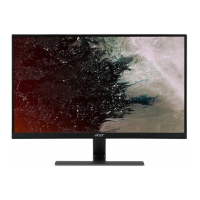
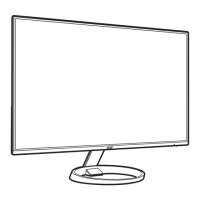
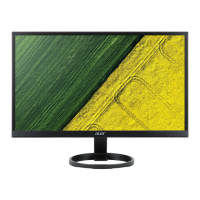
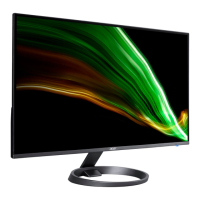
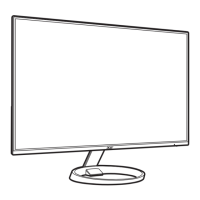
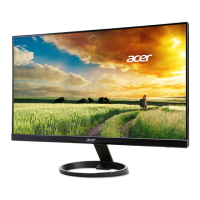
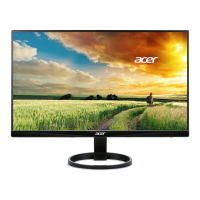
This document serves as a user guide for an Acer LCD Monitor, providing essential information for its setup, operation, and maintenance.
Function Description
The Acer LCD Monitor is designed for video and visual display of information from electronic devices. It functions as a primary output device for computers, allowing users to view graphical interfaces, documents, and multimedia content. The monitor supports various input sources, including VGA, HDMI, and DisplayPort (DP), making it versatile for different computer systems. It incorporates power management features to conserve energy by entering a "power saving" mode during user inactivity. The monitor also supports FreeSync technology, which dynamically adjusts the display refresh rate to match the content frame rates from a FreeSync-supported graphics source, aiming for power efficiency, stutter-free, and low-latency display updates.
Usage Features
The monitor offers a range of features to enhance user experience and comfort:
- Screen Position Adjustment: Users can adjust the monitor's tilt to optimize their viewing position. The monitor can be tilted 15 degrees up or 5 degrees down, allowing for ergonomic customization.
- Connectivity: The monitor provides multiple connection options:
- VGA: For standard video connections.
- HDMI (Optional): For high-definition video and audio connections.
- DisplayPort (DP) (Optional): For high-resolution video and audio connections.
- Audio Input (Optional): For connecting external audio sources.
- AC Power Cord: Connects to an AC adapter for power.
- Plug-and-Play (DDC): The monitor supports the DDC protocol, enabling automatic configuration with the host system. This means the monitor can inform the computer about its capabilities, such as supported resolutions and timing, simplifying installation.
- External Controls: The monitor features several external buttons for easy access to common functions:
- Power Button/Indicator: Turns the monitor on/off and indicates power status (blue for on, amber for standby/power saving).
- OSD Functions Button: Opens the On-Screen Display (OSD) menu for detailed settings adjustments.
- Input Button: Toggles between available input sources (VGA, HDMI, DP).
- Volume Button: Activates a sliding scale to adjust audio volume.
- Brightness Button: Opens the brightness control for quick adjustment.
- Mode Button: Activates the "Mode" menu, allowing users to select different display profiles.
- On-Screen Display (OSD) Menu: The OSD provides comprehensive control over various monitor settings, organized into categories:
- Picture: Adjusts brightness, contrast, black boost, blue light filter, ACM (Adaptive Contrast Management), Super Sharpness, Auto Config (for VGA), H. Position, V. Position, Focus, and Clock.
- Color: Adjusts Gamma, Color Temperature (Cool, Normal, Warm, Bluelight, User), 6-axis Hue, and 6-axis Saturate.
- Audio: Adjusts the volume.
- Gaming: Configures Over Drive (Off, Normal, Extreme), FreeSync (On/Off), VRB (Visual Response Boost) (Off, Normal, Extreme), and Aim Point (On/Off).
- OSD: Sets OSD menu language, OSD Timeout, Transparency, and Refresh Rate Num display.
- System: Manages Input Source selection, Auto Source (On/Off), DP Format (DP1.1/DP1.2), Wide Mode (Full, Aspect, 1:1), Hot Key Assignment (for user-defined keys), DDC/CI (On/Off), HDMI Black Level Setting (Normal/Low), and Quick Start Mode (Off/On).
- Information: Displays basic monitor information and current input status.
- Save Settings: Allows users to save up to three user-defined profiles for gaming mode, enabling quick recall of preferred settings.
- Power Saving Mode: The monitor automatically enters a "power saving" mode, indicated by an amber LED light, when no control signal is detected from the display controller. This mode helps reduce energy consumption.
- FreeSync Technology: When connected to a FreeSync-supported graphics source, the monitor can dynamically adjust its refresh rate, providing a smoother visual experience with reduced stuttering and low latency.
- VRB (Visual Response Boost): This feature enhances dynamic picture fine lines, making them clearer, though it may reduce brightness. VRB and FreeSync cannot be enabled simultaneously.
- Aim Point: For gaming, users can enable an "Aim Point" display on the screen.
- Blue Light Filter: Reduces blue light emission to protect users' eyes, with adjustable levels (80%, 70%, 60%, or 50%).
Maintenance Features
The user guide emphasizes several aspects of maintenance and safety:
- Cleaning:
- Always unplug the monitor before cleaning.
- Use a soft cloth to wipe the screen and the front and sides of the cabinet.
- Safety Instructions:
- Avoid using the product near water.
- Do not place the product on unstable surfaces.
- Ensure ventilation slots are not blocked to prevent overheating.
- Never insert objects into cabinet slots or spill liquids onto the product.
- Avoid placing the product on vibrating surfaces to prevent internal component damage.
- Use only the supplied power supply cord set.
- Ensure the power outlet is easily accessible and properly grounded.
- Do not overload power outlets or extension cords.
- Refer all servicing to qualified personnel; do not attempt to service the product yourself.
- Ergonomic Use:
- Vision Care: Suggestions include resting eyes frequently, taking breaks to focus on distant points, blinking often, keeping the display clean, positioning the head higher than the display's top edge, adjusting brightness/contrast, and eliminating glare/reflections.
- Comfort Zone: Tips for finding a comfortable viewing position by adjusting the monitor angle, using a footrest, and adjusting sitting height.
- Work Habits: Encourages regular short breaks, stretching exercises, fresh air, and maintaining a healthy body to prevent physical injury and discomfort from prolonged computer use.
- Environmental Protection:
- Recycling Information: Acer is committed to environmental protection and recycling of used equipment. Users are directed to Acer's website for more information on recycling and WEEE regulations.
- Disposal Instructions: Users are advised not to dispose of the electronic device in regular trash but to recycle it to minimize pollution.
- Troubleshooting Guide: The manual includes a troubleshooting section for common issues, providing remedies for problems such as no picture, unstable picture, or abnormal picture, categorized by VGA, HDMI, and DP modes. This helps users self-diagnose and resolve minor issues before seeking professional service.
The monitor is designed with user safety and comfort in mind, offering a range of adjustable features and clear guidelines for proper use and maintenance.

 Need help?
 General

 To Next Page