EasyManua.ls Logo

Acer V7850 - User Manual

Acer V7850
66 pages
Print Icon
To Next Page IconTo Next Page
Loading...
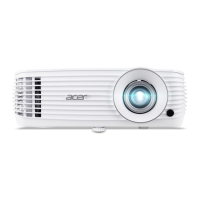
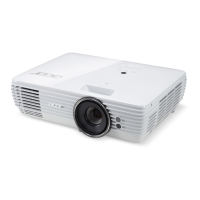
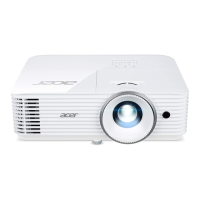
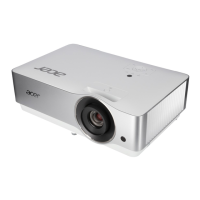
Acer Projector
H7850/V7850/H6815/V6815/E270/V270/
E8615/E8615C/HE-4K20/HT-4K20/
ET-4K15/HT-4K15/M550/V550/
GM834/HV834/VH-735/TH-735/D4K1701/
D4K1702/D4K1735/D4K1732
User's Guide

Other manuals for Acer V7850

Questions and Answers

  • O
    Omar SloanAug 22, 2025
    How to adjust image size on Acer V7850 Projector?
    • J
      Justin StokesAug 22, 2025
      To adjust the image size, try the following: adjust the zoom ring on the projector; move the projector closer to or further from the screen; or press "MENU" on the remote control, go to "Image - -> Aspect Ratio" and try different settings or press "RATIO" on the remote control to adjust directly.
  • G
    grant69Sep 3, 2025
    How to remove vertical flickering bar on Acer Projector?
    • R
      Roger RobbinsSep 4, 2025
      To remove a vertical flickering bar, use "Frequency" to make an adjustment. Also, check and reconfigure the display mode of your graphics card to make it compatible with the projector.
  • T
    thomas91Sep 2, 2025
    How to stop image flickering on Acer V7850 Projector?
    • D
      Deanna CraneSep 2, 2025
      To stabilize an unstable or flickering image, adjust the "Tracking". Also, change the display color depth settings on your computer.
  • I
    ikleinSep 1, 2025
    How to fix scrolling image on Acer V7850?
    • B
      Bobby CaseySep 1, 2025
      To correct an incorrectly displayed image, open "My Computer", then the "Control Panel", and double-click the "Display" icon. Select the "Settings" tab and verify that your display resolution setting is lower than or equal to WUXGA-RB (1920 x 1200). Click the "Advanced Properties" button. If the issue persists, change the monitor display you are using and follow these steps: verify that the resolution setting is lower than or equal to WUXGA-RB (1920 x 1200); click the "Change" button under the "Monitor" tab; click "Show all devices", select "Standard monitor types" under the SP box, and choose the resolution mode you need under the "Models" box. Verify that the resolution setting of the monitor display is lower than or equal to WUXGA-RB (1920 x 1200).
  • J
    Jason StephensAug 30, 2025
    How to fix partial image on Acer V7850 Projector from notebook?
    • M
      Mark VazquezAug 30, 2025
      If the image is incorrectly displayed, follow the steps to adjust the resolution of your computer. Press the toggle output settings. For example: [Fn]+[F4], Compaq [Fn]+[F4], Dell [Fn]+[F8], Gateway [Fn]+[F4], IBM [Fn]+[F7], HP [Fn]+[F4], NEC [Fn]+[F3], Toshiba [Fn]+[F5]. If you experience difficulty changing resolutions or your monitor freezes, restart all equipment including the projector.
  • K
    Kelly KlineAug 29, 2025
    How to fix out of focus image on Acer V7850?
    • W
      william82Aug 29, 2025
      If the image is out of focus, first ensure that the lens cap is removed. Then, adjust the focus ring on the projector lens. Also, ensure the projection screen is within the required distance: 3.3 to 30.3 feet (1.0 to 9.2 meters) for H7850/V7850/E270/V270/HE-4K20/HT-4K20/ M550/V550/D4K1701/D4K1702 series or 3.3 to 26.4 feet (1.0 to 8.0 meters) for H6815/V6815/E8615/E8615C/ ET-4K15/HT-4K15/GM834/HV834/VH-735/TH-735/ D4K1735/D4K1732 series.
  • N
    Nicole DunnAug 27, 2025
    How to fix no image on Acer V7850 Projector?
    • S
      Samantha NobleAug 27, 2025
      If no image appears on the screen, ensure the projector is connected as described in the "Getting Started" section and that none of the connector pins are bent or broken. Also, verify that the projector lamp has been securely installed. Make sure you have removed the lens cap and the projector is switched on.
  • C
    carlsonchristopherAug 26, 2025
    What to do if Acer V7850 is not responding?
    • R
      Robert MerrittAug 26, 2025
      If your Acer Projector stops responding to all controls, turn off the projector, then unplug the power cord and wait at least 30 seconds before reconnecting power.
  • J
    Jeremy James DDSAug 25, 2025
    What to do if Acer Projector stops responding?
    • S
      Scott JohnsonAug 26, 2025
      If the projector stops responding to all controls, turn off the projector, then unplug the power cord and wait at least 30 seconds before reconnecting power.
  • T
    Tiffany CampbellAug 23, 2025
    How to adjust the image size on Acer V7850?
    • H
      Hannah PriceAug 23, 2025
      If your Acer Projector displays an image that is too small or too large, try the following: * Adjust the zoom ring on the projector. * Move the projector closer to or further from the screen. * Press "MENU" on the remote control, navigate to "Image - -> Aspect Ratio", and experiment with different settings, or press "RATIO" on the remote control to adjust directly.

Acer V7850 Specifications

General IconGeneral
Resolution3840 x 2160 (4K UHD)
Brightness3000 ANSI Lumens
Lamp Life (Normal)4000 hours
HDRYes
3DYes
Display TechnologyDLP
Lamp Life (Eco)10000 hours
ConnectivityHDMI, VGA, USB
Projection Size30 - 300 inch
Inputs2 x HDMI, 1 x VGA, 1 x USB

Related product manuals