EasyManua.ls Logo

Acer C120 - User Manual

Acer C120
10 pages
Print Icon
To Next Page IconTo Next Page
Loading...
i
English
Copyright © 2011. Acer Incorporated.
All Rights Reserved.
Acer Projector C120 Series User's Guide
Original Issue: 9/2011
Changes may be made periodically to the information in this publication without obligation to notify any person of such revisions or
changes. Such changes will be incorporated in new editions of this manual or supplementary documents and publications. This company
makes no representations or warranties, either expressed or implied, with respect to the contents hereof and specically disclaims the
implied warranties of merchantability or tness for a particular purpose.
Record the model number, serial number, purchase date and place of purchase information in the space provided below. The serial
number and model number are recorded on the label afxed to your projector. All correspondence concerning your unit should include
the serial number, model number and purchase information.
No part of this publication may be reproduced, stored in a retrieval system, or transmitted, in any form or by any means, electronically,
mechanically, by photocopy, recording or otherwise, without the prior written permission of Acer Incorporated.
Acer Projector C120 Series
Model number:
_______________________________________
Serial number: _______________________________________
Date of purchase: _____________________________________
Place of purchase:
____________________________________
Acer and the Acer logo are registered trademarks of Acer Incorporated. Other companies' product names or trademarks are used herein
for identication purposes only and belong to their respective companies.
• Do not use this product near water.
• Do not place this product on an unstable cart, stand or table. If the product falls, it could be seriously damaged.
• Slots and openings are provided for ventilation to ensure reliable operation of the product and to protect it from overheating.
These openings must not be blocked or covered. The openings should never be blocked by placing the product on a bed,
sofa, rug or other similar surface.
• This product should never be placed near or over a radiator or heat register, or in a built-in installation unless proper
ventilation is provided.
• Never push objects of any kind into this product through cabinet slots as they may touch dangerous voltage points or
short-out parts that could result in a re or electric shock. Never spill liquid of any kind onto or into the product.
• To avoid damage of internal components and to prevent battery leakage, do not place the product on a vibrating surface.
• Never use it under sporting, exercising, or any vibrating environment which will probably cause unexpected short current or
damage rotor devices.
Information for your safety and comfort
Read these instructions carefully. Keep this document for future reference. Follow all warnings and instructions marked on the product.
Turning the product off before cleaning
Do not use liquid cleaners or aerosol cleaners. Use a damp cloth for cleaning.
Caution for plug as disconnecting device
Observe the following guidelines when connecting and disconnecting power to the external power supply unit:
• Install the power supply unit before connecting the power cord to the AC power outlet.
• Unplug the power cord before removing the power supply unit from the projector.
• If the system has multiple sources of power, disconnect power from the system by unplugging all power cords from the power
supplies.
Caution for Accessibility
Be sure that the power outlet you plug the power cord into is easily accessible and located as close to the equipment operator as
possible. When you need to disconnect power to the equipment, be sure to unplug the power cord from the electrical outlet.
....................................................................................................
Warning:

Questions and Answers

Summary

Information for your safety and comfort

Turning the product off before cleaning

Instructions for safely turning off the projector before cleaning to prevent damage or hazards.

Caution for plug as disconnecting device

Guidelines for safely connecting and disconnecting the power supply unit from the projector and outlet.

Caution for Accessibility

Ensuring the power outlet is accessible for easy disconnection of the projector's power cord.

Product servicing

Additional safety information

Important warnings and precautions for safe operation, placement, and handling of the projector.

Caution for Listening

Recommendations to protect hearing by adjusting volume levels for extended listening periods.

Disposal instructions

Guidance on proper disposal of the electronic device to minimize pollution and protect the environment.

Regulations and safety notices

FCC notice

Information regarding FCC compliance for Class B digital devices and potential interference.

Notice: Shielded cables

Requirement to use shielded cables for all connections to maintain FCC compliance.

Notice: Peripheral devices

Guidelines for using certified peripheral devices to avoid interference with radio and TV reception.

Caution

Warning that unauthorized modifications may void the user's authority to operate the device.

Operation conditions

Conditions under which the device complies with FCC rules, including non-interference.

Notice: Canadian users

Statement of compliance for Canadian digital apparatus with ICES-003 standard.

Declaration of Conformity for EU countries

Declaration of projector series compliance with essential requirements of EU Directive 1999/5/EC.

Radio device regulatory notice

Note that regulatory information pertains to models with wireless LAN and/or Bluetooth.

Canada - Low-power license-exempt radio communication devices (RSS-210)

Information on Canada's Low-power license-exempt radio communication device regulations.

List of applicable countries

Information on using the device in strict accordance with country regulations and constraints.

First things first

Usage Notes

Essential tips for cleaning the projector housing and disconnecting power when not in use.

Precautions

Follow all warnings, precautions, and maintenance recommendations to maximize the projector's lifespan.

Intrduction

Product Overview

Identification of key components of the Acer Projector C120 Series through numbered diagrams.

Package Overview

List of items included in the projector package, with instructions to contact dealer if any are missing.

Getting Started

How to use the AC adater plug

Instructions for using the AC adapter plug, including insertion and changing the plug type.

Connecting the Projector

Steps and notes for connecting the projector to a computer via USB and power adapter for optimal display.

Minimum System Requirements

Supported OS

Lists the operating systems compatible with the projector, excluding macOS and Android.

Turn Off the Projector

Display over USB

Guide to projecting NB/PC screen using a single USB cable, including software installation and usage tips.

Acer DisplayPal

Display Mode

Options to choose between Mirror mode or 800x600 mode for displaying content.

Power Mode

Selection between Auto Power mode and ECO mode, with a table detailing power and brightness.

About

Information about the Acer DisplayPal software version and projector firmware version.

How to Optimize Image Size and Distance

Troubleshooting

Solutions for common projector issues like no image, out of focus, incorrect size, or flickering screen.

Specifications

Detailed technical specifications of the projector, including resolution, connectivity, and accessories.

Compatibility Modes

A. PC 4:3 timing

Table detailing compatible PC modes and resolutions for 4:3 aspect ratio timing.

B. PC Wide timing

Table detailing compatible PC modes and resolutions for wide aspect ratio timing.

Overview

This document serves as a user's guide for the Acer Projector C120 Series, detailing its operation, safety guidelines, and maintenance procedures.

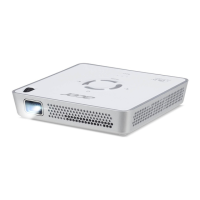
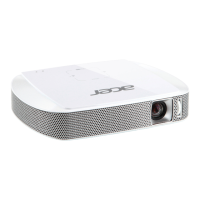
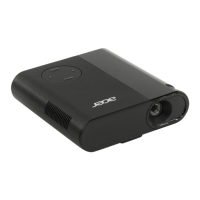
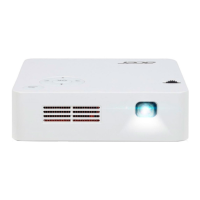
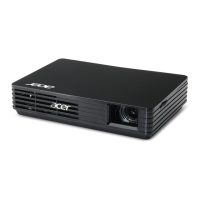
The Acer Projector C120 Series is a compact and portable projector designed for easy display of content from a notebook or PC via a single USB cable. Its primary function is USB projection, eliminating the need for separate video cables or traditional drivers, making it a convenient solution for presentations or personal viewing. The projector supports both USB 3.0 and USB 2.0 projection, offering flexibility in connectivity.

Usage Features:

The projector is designed for straightforward setup and operation. To begin, users connect the USB Y-cable from the projector to their computer. For optimal brightness, it is recommended to use the included power adapter. If a power adapter is not available, plugging into a USB 3.0 port or using both USB connectors on the same side of the computer is suggested for best performance, ensuring the computer can supply sufficient current. If only one USB port is available, the Master USB connector should be used. It is particularly recommended to use two USB ports if the computer is not an Acer notebook. The projector is designed to link with only one C120 unit per computer.

Upon initial connection, the computer will automatically detect the C120 and prompt the user to install the Acer DisplayPal application. This application, launched by running "dlusb_launcherC120.exe," enables the computer's screen to be projected via the C120. Users should ensure that the Auto Run function is enabled on their computer; if not, it can be manually enabled by right-clicking to open the folder and run the launcher. It's important to use the C120 after the computer has completed its start/restart procedure and to have administrator-level permissions for installation. Users may encounter pop-up messages from anti-virus applications regarding the execution of C120, which should be allowed. To avoid potential issues, it is recommended not to use other USB devices (such as external optical drives, external HDD devices, or mobile phone charging) when using the USB projector. The projector does not support USB projection for DirectX PC games.

The Acer DisplayPal application, accessible via a tray icon, allows users to adjust various settings. The "Display Mode" offers options for "Mirror" mode, which duplicates the computer screen, or "800x600" mode, which is the default setting. The "Power Mode" allows users to select between "Auto Power" (default) and "ECO" mode. A table is provided to help users choose the most suitable power mode based on desired brightness and power consumption, considering whether a power adapter or USB ports are used. The "About" section within Acer DisplayPal provides version information for the application and firmware.

To optimize image size and distance, a diagram and table are provided, illustrating the relationship between desired distance, screen size (diagonal, width x height), and the height of the image from the base. This helps users set up the projector to achieve their preferred viewing experience.

Troubleshooting tips are included for common issues. If no image appears on-screen, users should check USB cable connections, ensure the computer is on, verify the Master USB connector is plugged in, and consider using a power adapter if it's not an Acer notebook. For out-of-focus images, adjusting the focus dial and the distance from the screen is recommended. If the image is too small or too large, moving the projector closer or further from the screen will resolve the issue. Image flickering can often be addressed by adjusting the power mode if USB power is insufficient, with the option of using a USB power adapter.

Maintenance Features:

Proper maintenance is crucial for the longevity and optimal performance of the projector. Before cleaning, the product should be turned off. A soft cloth moistened with mild detergent should be used to clean the display housing. Liquid or aerosol cleaners, abrasive cleaners, waxes, or solvents should not be used. If the projector will not be used for an extended period, the power plug should be disconnected from the AC outlet.

The projector should not be used in extreme temperatures (hot, cold, or humid environments), areas with excessive dust and dirt, near appliances that generate strong magnetic fields, or in direct sunlight. Adequate ventilation is essential; slots and openings for ventilation should never be blocked or covered. The projector should not be placed on a bed, sofa, rug, or similar soft surface, nor near or over a radiator or heat register, or in a built-in installation without proper ventilation.

Users should never push objects into the cabinet slots, as this could lead to dangerous voltage points or short-out parts, potentially causing fire or electric shock. Liquids should never be spilled onto or into the product. To prevent damage to internal components and battery leakage, the projector should not be placed on a vibrating surface or used in sporting, exercising, or any vibrating environment that could cause unexpected short currents or damage to rotor devices.

The air filter, if present, should be cleaned frequently to prevent the internal temperature from rising and causing damage due to clogged filter/ventilation slots. The projector lens should not be blocked with any object during operation, as this could cause the object to heat up, deform, or even cause a fire. Users are advised not to attempt to disassemble the projector due to dangerous high voltages inside. All servicing should be referred to qualified professional service personnel. The projector should not be stood on end vertically, as it may fall over and cause injury or damage.

For hearing protection, users are advised to increase volume gradually, avoid listening at high volumes for extended periods, and decrease volume if they cannot hear people speaking nearby.

When discarding the electronic device, it should not be thrown into the trash. Instead, it should be recycled to minimize pollution and protect the environment, following Waste from Electrical and Electronics Equipment (WEEE) regulations.

Acer C120 Specifications

General IconGeneral
Number of colors16.78 million colors
Projection distance0.4 - 3.7 m
Vertical scan range0 - 60 Hz
Horizontal scan range0 - 32200 kHz
Projection technologyLED
Contrast ratio (typical)1000:1
Screen size compatibility0 - 100 \
Projector native resolutionWVGA (854x480)
Projector brightness (economic mode)75 ANSI lumens
Aspect ratio4:3, 16:9
RS-232 ports-
Connectivity technologyWired
Focal length range- mm
Aperture range (F-F)0 - 1.87
Lamps quantity1 lamp(s)
Service life of light source20000 h
Full HDNo
Color depth24 bit
USB connector typeMicro-USB B
USB 2.0 ports quantityUSB 2.0 ports have a data transmission speed of 480 Mbps, and are backwards compatible with USB 1.1 ports. You can connect all kinds of peripheral devices to them.
Noise level- dB
Product typeStandard throw projector
Product colorBlack
LED indicatorsYes
Market positioningPortable
Power sourceAC
AC input voltage110 - 220 V
Power consumption (standby)- W
Weight and Dimensions IconWeight and Dimensions
Weight180 g

Related product manuals