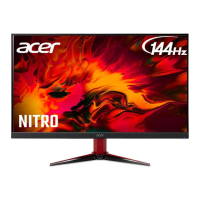
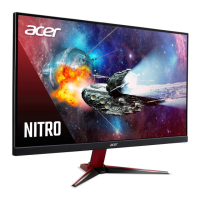
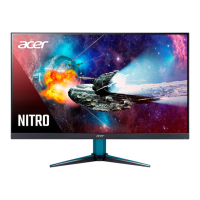
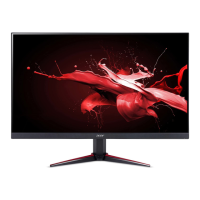
This document is a user guide for an Acer LCD Monitor, providing essential information for safe operation, comfort, and maintenance.
Function Description
The Acer LCD Monitor is designed for video and visual display of information from electronic devices. It supports various display resolutions and timing, automatically informing the host system about its capabilities through the DDC (Display Data Channel) protocol, making it a plug-and-play device. The monitor is equipped with a universal power supply, allowing operation in either 100/120 V AC or 220/240 V AC voltage areas without user adjustment. It also features power-saving modes, indicated by an amber-colored power LED, which activate when a control signal from the display controller is not detected.
Usage Features
The monitor offers a range of features to enhance user experience and comfort:
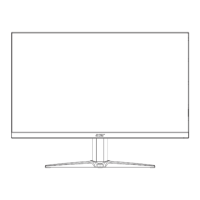
- Screen Position Adjustment: The monitor tilt can be adjusted from 20 degrees up to 5 degrees down, allowing users to find an optimal viewing position.
- User Controls: The monitor includes external controls for power, function keys, and a joystick-like toggle button on the backside of the display bezel. These controls allow users to navigate the On Screen Display (OSD) menu and adjust various settings.
- OSD Menu: The OSD provides comprehensive settings for picture quality, OSD position, and general monitor configurations.
- Hot Key Functions: The monitor has hotkeys for quick access to specific functions. Hotkey 1 (default: Standard mode) allows selection of game modes (G1, G2, G3) or scenario modes (User, Standard, ECO, Graphics, Movie). Hotkey 2 (default: Brightness) opens the brightness control for easy adjustment. Hotkey 3 is for input selection.
- Picture Settings: Users can adjust Brightness (0-100), Contrast (0-100), Black Boost (0-10) to enhance shadows, Blue Light (80%, 70%, 60%, or 50%) to filter blue light for eye protection, ACM (Adaptive Contrast Management) for dynamic contrast adjustment, HDR (High Dynamic Range) control (Off/Auto), and Super Sharpness to boost pixel density for clearer images.
- Color Settings: This menu allows adjustment of Gamma (default 2.2), Color Temperature (Cool, Normal, Warm, Bluelight, User), Modes for scenario selection, sRGB Mode (On/Off) for color matching with peripheral devices, Grayscale Mode, 6-axis Hue (red, green, blue, yellow, magenta, cyan), and 6-axis Saturate (red, green, blue, yellow, magenta, cyan).
- Audio Settings: Users can adjust the Volume and Mute (on/off) the audio output.
- Gaming Settings: This section includes Over Drive (Off, Normal, Extreme) to reduce response time, FreeSync (On/Off) for adaptive synchronization, Refresh Rate Num to display the current refresh rate, Ultra-Low Latency (On/Off) to speed up display processing, and Aim Point (On/Off) for shooting games.
- OSD Settings: Users can set the OSD menu Language, OSD Timeout (delay before turning off the OSD menu), Transparency (0%, 20%, 40%, 60%, or 80% when using gaming mode), and OSD Lock (on/off) to prevent accidental changes.
- System Settings: This menu allows selection of Input source (HDMI1, HDMI2, DP), Auto Source (On/Off) for automatic signal source search, DP Format (DP1.1 or DP1.2), Wide Mode (Aspect or Full screen aspect), Hot Key Assignment for customizing shortcut keys, DDC/CI (Display Data Channel/Command Interface) for software-based monitor control, HDMI Black Level, and Quick Start Mode (Off/On) to speed up boot time.
- Save Settings: In User mode, users can save their preferred settings into five user-defined profiles for quick recall when turning on gaming mode.
Maintenance Features
The user guide provides clear instructions for maintaining the monitor and ensuring its longevity:
- Cleaning: Users are advised to always unplug the monitor before cleaning and to use a soft cloth to wipe the screen and cabinet front and sides.
- Troubleshooting: A troubleshooting list is provided to help users self-diagnose common problems before seeking professional servicing. This includes checks for no picture visible (LED status: Blue or Amber), power switch, AC power cord connection, video signal cable connection, computer system power/standby mode, and OSD Lock status.
- Safety Instructions: The guide emphasizes reading and following all warnings and instructions marked on the product. It includes sections on accessibility, safe listening practices, and general warnings against using the product near water, on unstable surfaces, blocking ventilation openings, pushing objects into slots, spilling liquids, or placing it on vibrating surfaces. It also advises against using the product under sporting, exercising, or vibrating environments.
- Electrical Power Usage: Instructions are provided for using the correct type of power cord, avoiding overloading power outlets, and ensuring proper grounding of the power outlet.
- Product Servicing: Users are cautioned against attempting to service the product themselves due to the risk of dangerous voltage points or other hazards. All servicing should be referred to qualified service personnel, especially if the power cord is damaged, liquid is spilled, the product is exposed to rain/water, dropped, or exhibits a distinct change in performance.
- Environmental Responsibility: Acer is committed to environmental protection and recycling. The guide provides links to Acer's sustainability website for information on IT equipment recycling and disposal instructions, encouraging users to recycle electronic devices to minimize pollution.
- LCD Pixel Statement: The guide informs users that while the LCD unit is produced with high-precision manufacturing, minor blemishes such as misfired pixels (black or red dots) are normal and do not constitute a malfunction.
- Power Management: The product is shipped with power management enabled, activating Sleep mode within 5 minutes of user inactivity and waking the monitor by moving the mouse or pressing any keyboard key.
- Comfortable Use Tips: The guide offers advice for comfortable computer use, including adjusting viewing angle, using a footrest, maintaining good posture, taking regular breaks, performing stretching exercises, breathing fresh air, and exercising regularly to prevent physical injuries like carpal tunnel syndrome, tendonitis, or musculoskeletal disorders.
- Vision Care: Suggestions are provided to reduce eyestrain, such as resting eyes frequently, taking regular breaks from the monitor, blinking frequently, keeping the display clean, positioning the head correctly relative to the display, adjusting brightness/contrast, and eliminating glare and reflections.

 Need help?
 General

 To Next Page