EasyManua.ls Logo

Acer X1140A - User Manual

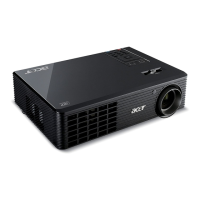
Acer X1140A
61 pages
Print Icon
To Next Page IconTo Next Page
Loading...
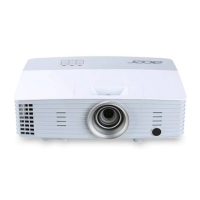
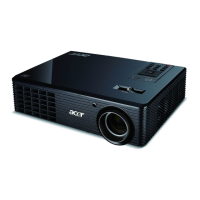
Acer Projector
X111/X1140/X1140A/X1240/
X1340W/P1340W
Series User's Guide
Downloaded From projector-manual.com Acer Manuals

Other manuals for Acer X1140A

Questions and Answers

  • Q
    qthompsonAug 18, 2025
    How to fix Acer X1140A when no image appears onscreen?
    • K
      Kimberly MontoyaAug 18, 2025
      First, check that all cables are correctly connected. Ensure that none of the connector pins are bent or broken. Also, verify that the projection lamp has been securely installed and that the projector is switched on.
  • G
    gonzalesmonicaAug 20, 2025
    Why is Acer X1140A image too small or too large?
    • T
      twilliamsAug 20, 2025
      Adjust the zoom lever on the top of the projector. You can also move the projector closer to or further from the screen. Alternatively, press "MENU" on the control panel or remote control, go to "Image" > "Aspect Ratio," and try different settings.
  • R
    Raymond RodriguezAug 23, 2025
    What to do if Acer X1140A image is out of focus?
    • M
      Mark PowellAug 23, 2025
      Adjust the focus ring on the projector lens. Ensure the projection screen is within the required distance of 4.9 to 19.7 feet (1.5 to 6 meters).
  • G
    Gabrielle CarterAug 26, 2025
    What to do if Acer Projector image is unstable or flickering?
    • A
      Ashley AllenAug 26, 2025
      Use the "Tracking" feature to correct the image. Also, try changing the display color setting on your computer.
  • D
    davidwilliamsAug 27, 2025
    Why is the screen of the notebook computer not displaying my presentation on Acer Projector?
    • S
      Steve SmithAug 27, 2025
      If you are using a Microsoft® Windows® based notebook: Some notebook PCs may deactivate their own screens when a second display device is in use. Each has a different way to be reactivated. If you are using an Apple® Mac® OS based notebook: In System Preferences, open Display and select Video Mirroring "On."
  • M
    Madison MoraAug 30, 2025
    What to do if Acer X1140A image has slanted sides?
    • M
      Michael ColemanAug 30, 2025
      If possible, reposition the projector so that it is centered on the screen and below the bottom of the screen. You can also press the Keystone correction keys on the control panel or remote control until the image becomes square. Alternatively, press "MENU" on the control panel or remote control to open the OSD menu and go to "Image" > "Auto Keystone" or "Image" > "Manual Keystone" to make adjustments.
  • R
    Ryan FosterSep 1, 2025
    How to fix partial, scrolling or incorrectly displayed image on Acer X1140A Projector (For notebooks)?
    • S
      Stacey RandallSep 1, 2025
      Press "RESYNC" on the control panel or remote control. For an incorrectly displayed image, adjust the resolution of your computer. Press the toggle output settings, for example: [Fn]+[F4], Compaq [Fn]+[F4], Dell [Fn]+[F8], Gateway [Fn]+[F4], IBM [Fn]+[F7], HP [Fn]+[F4], NEC [Fn]+[F3], Toshiba [Fn]+[F5]. If you experience difficulty changing resolutions or your monitor freezes, restart all equipment including the projector.
  • M
    Mary GonzalezSep 6, 2025
    What to do if Acer Projector image has vertical flickering bar?
    • M
      Mary HinesSep 6, 2025
      Use the "Frequency" setting to make an adjustment. Also, check and reconfigure the display mode of your graphics card to ensure it is compatible with the projector.
  • L
    Lori ClarkSep 8, 2025
    How to fix Acer X1140A Projector image that is stretched when displaying a "widescreen" DVD title?
    • M
      michael60Sep 8, 2025
      When playing a DVD encoded in anamorphic or 16:9 aspect ratio, adjust the following settings: * If you play a 4:3 format DVD title, change the format to 4:3 with the projector OSD. * If the image is still stretched, adjust the aspect ratio. Set up the display format to 16:9 (wide) aspect ratio on your DVD player.
  • R
    Richard JohnsonSep 10, 2025
    Why is Acer X1140A image reversed?
    • M
      Melinda CoxSep 12, 2025
      Select "Image" > "Projection Mode", "Image" > "Projection Location" on the OSD and adjust the projection direction.

Acer X1140A Specifications

General IconGeneral
Display TechnologyDLP
Image Size30 - 300 inches
Brightness3000 ANSI Lumens
ResolutionSVGA (800 x 600)
Lamp Life5000 hours (Normal mode), 6000 hours (Eco mode)
Weight2.5 kg
Throw Ratio1.95 ~ 2.15 (50"@2m)
Keystone Correction+/-40 Degrees (Vertical)
Input ConnectorsVGA, HDMI, Composite
Noise Level29 dB

Related product manuals