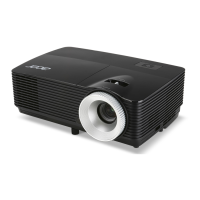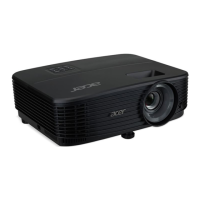
EasyManua.ls Logo

Acer X1123HP - User Manual

Acer X1123HP
62 pages
Print Icon
To Next Page IconTo Next Page
Loading...
Acer DLP Projector
X1123HP/D800D+/Q55S/
ES550/EV-S80HP/BS-020P/
DX120P/KS330P/ASV1904/
X1223HP/D810D+/Q55X/
EX550/EV-X80HP/BS-120P/
DX220P/KX330P/ANX1903/
X1323WHP/D820D+/Q55W/
EW550/EV-W80HP/BS-320P/
DX420P/KW330P/AWX1902/
P1155/M307/PE-S46/PR121/
MF-020/ASV1910/P1255/
M317/PE-X46/PR221/MF-120/
ANX1909/P1355W/M327/PE-
W46/PR321/MF-220/AWX1908
Series User's Guide
Copyright © 2020. Acer Incorporated.
All Rights Reserved.
Acer Projector User's Guide
Original Issue: 01/2020

Questions and Answers

  • D
    Donna DanielAug 19, 2025
    How to adjust the Acer Projector image size?
    • D
      David HudsonAug 19, 2025
      To resolve an image that is too small or too large on your Acer projector: * Adjust the zoom lever on the top of the projector. * Move the projector closer to or further from the screen. * Press 'MENU' on the control panel or remote, navigate to 'Image' > 'Aspect Ratio', and experiment with different settings.
  • E
    Erin FrenchAug 21, 2025
    What to do if no image appears on Acer Projector?
    • M
      Michelle DaviesAug 21, 2025
      If no image appears on the screen when using the Acer projector: * Ensure all cables are correctly connected as described in the 'Getting Started' section. * Check that none of the connector pins are bent or broken. * Verify that the projector is switched on.
  • L
    Latoya KlineAug 23, 2025
    Why is my notebook computer screen not displaying on Acer X1123HP Projector?
    • H
      Heather WolfeAug 23, 2025
      If the screen of your notebook computer is not displaying your presentation on the Acer projector: * For Microsoft® Windows® notebooks: Some PCs deactivate their screens when a second display is used. Refer to your computer's manual for reactivation instructions. * For Apple® Mac® OS notebooks: Open Display in System Preferences and turn Video Mirroring 'On.'
  • K
    kellymendezAug 26, 2025
    Why does my Acer X1123HP lamp burn out or make a popping sound?
    • J
      Jennifer CannonAug 26, 2025
      If the Acer projector lamp burns out or makes a popping sound, it means the lamp has reached the end of its life. The projector will not turn on until you replace the lamp module. Contact your local dealer or an Acer service center to replace the lamp.
  • B
    Brian MaynardAug 28, 2025
    How to fix slanted sides on Acer X1123HP Projector image?
    • M
      Ms. Amy Simmons MDAug 28, 2025
      To fix slanted sides on the Acer projector image: * Try to center the projector on the screen, positioning it below the screen's bottom edge. * Use the Keystone correction keys on the control panel or remote to square the image. * Access the OSD menu by pressing 'MENU'. Then, go to 'Image' > 'Auto Keystone' or 'Image' > 'Manual Keystone' to adjust the image.
  • P
    Paula BensonAug 30, 2025
    How to fix out of focus image on Acer X1123HP?
    • R
      robert40Aug 30, 2025
      To correct an out-of-focus image on your Acer projector: * Adjust the focus ring on the projector lens. * Ensure the projection screen is within the required distance.
  • Z
    Zachary KingSep 1, 2025
    What to do if Acer X1123HP stops responding to all controls?
    • T
      Traci GomezSep 1, 2025
      If the Acer projector stops responding, try the following: * Turn off the projector, unplug the power cord, and wait at least 30 seconds before plugging it back in. * Ensure the control panel lock function is disabled.
  • R
    Richard BuckleySep 3, 2025
    How to correct a reversed image on Acer X1123HP Projector?
    • T
      Tyler GarciaSep 4, 2025
      If the Acer projector image is reversed, go to 'Image' > 'Projection Mode' or 'Image' > 'Projection Location' on the OSD and adjust the projection direction.
  • J
    Jessica HartmanSep 6, 2025
    How to fix vertical flickering bar on Acer X1123HP?
    • D
      Danielle AustinSep 6, 2025
      If the Acer projector image has a vertical flickering bar, use the 'Frequency' setting to make an adjustment. Also, check and reconfigure the display mode of your graphics card to ensure it is compatible with the projector.
  • J
    Jessica SullivanSep 8, 2025
    How to resolve unstable or flickering image on Acer X1123HP?
    • M
      meadowshollySep 8, 2025
      To resolve an unstable or flickering image on your Acer projector, use the 'Tracking' setting to correct it. You can also try changing the display color setting on your computer.

Summary

Acer Projector Safety and Comfort Guidelines

Safe Cleaning and Power Disconnection

Instructions for safely powering down the projector before cleaning and disconnecting power.

Electrical Power and Accessibility Safety

Guidelines for safe electrical power usage and ensuring accessible power outlets.

Using Electrical Power Safely

Proper procedures for operating the projector using the correct electrical power sources.

Product Servicing and Additional Safety

When to seek professional servicing and important safety precautions for product use.

Getting Started with Your Acer Projector

Connecting the Projector

Visual guide for connecting various input devices and accessories to the projector.

Turning the Projector On and Off

Step-by-step instructions for powering the projector on/off and understanding indicator lights.

Acer Projector Introduction

Product Features Overview

Key features and technologies of the Acer DLP projector, including DLP and Acer ColorBoost.

Package Contents Explained

Inventory of items included in the projector box and optional accessories available.

Projector Overview and Ports

Identification of the projector's physical components, outlook, and connection ports.

Acer Projector User Controls and Settings

Installation and OSD Menu Navigation

Guide to using the Installation menu and navigating general OSD menus for setup.

Image and Color Adjustments

Customizing image quality via color settings, display modes, aspect ratio, and keystone correction.

System, Management, and Audio Settings

Configuring system preferences, management options, security, and audio levels.

Advanced Features: 3 D, Language, and More

Settings for 3D display, language selection, and other advanced projector functions.

Acer Projector Appendices

Troubleshooting Common Issues

Solutions for common image problems, projector malfunctions, and OSD messages.

Acer X1123HP Specifications

General IconGeneral
Number of colors1.073 billion colors
Native aspect ratio4:3
Projection distance1 - 12 m
Projection technologyDLP
Supported aspect ratios16:9
Contrast ratio (typical)20000:1
Screen size compatibility23 - 300 \
Projector native resolutionSVGA (800x600)
Keystone correction, vertical-40 - 40 °
Vertical synchronization (max)0.024 kHz
Vertical synchronization (min)0.12 kHz
Horizontal synchronization (max)100 kHz
Horizontal synchronization (min)15 kHz
Lamp power210 W
Lamps quantity1 lamp(s)
Light source typeLamp
Service life of light source5000 h
Service life of light source (economic mode)15000 h
Focus-
Zoom capabilityYes
Focal length range22 - 24.1 mm
Aperture range (F-F)2.56 - 2.68
Full HDNo
Analog signal format systemNTSC, PAL, SECAM
Supported graphics resolutions1920 x 1200 (WUXGA)
HDMI version1.4
USB 2.0 ports quantityUSB 2.0 ports have a data transmission speed of 480 Mbps, and are backwards compatible with USB 1.1 ports. You can connect all kinds of peripheral devices to them.
Component video (YPbPr/YCbCr) in0
Noise level- dB
Projection modesCeiling, Front, Rear
RMS rated power3 W
PlacementDesktop, Ceiling
Product typeStandard throw projector
Product colorBlack
Power sourceAC
AC input voltage120 - 230 V
Power consumption (standby)- W
Power consumption (typical)260 W
Operating temperature (T-T)0 - 40 °C
Operating relative humidity (H-H)0 - 90 %
Cables includedAC, VGA
Harmonized System (HS) code85286200
Weight and Dimensions IconWeight and Dimensions
Weight2400 g

Related product manuals