EasyManua.ls Logo

Acer X112H - User Manual

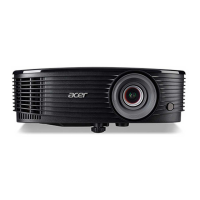
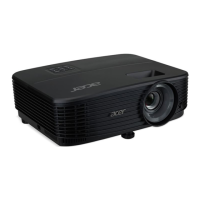
Acer X112H
57 pages
Print Icon
To Next Page IconTo Next Page
Loading...
Acer Projector
X112H/D402D/EV-S33H/V31S/AS311/
P1120/X1120H/D401D/EV-S32H/
X1120/D401/EV-S32/X122H/D412D/
EV-X33H/V31X/AX312/X122/D412/
EV-X33/V30X/AX302/P1223/D413D/
EV-X34H/X1223/D413/EV-X34/
P1220n/X1220Hn/D411DT/EV-
X32HG/P1220/X1220H/D411D/EV-
X32H/X1220/D411/EV-X32/X132WH/
D422D/EV-W33H/V31W/AW312/
P1320W/X1320WH/D421D/EV-
W32H Series
User's Guide
Downloaded From projector-manual.com Acer Manuals

Other manuals for Acer X112H

Questions and Answers

  • C
    Cheyenne SandersAug 17, 2025
    How to change image size on Acer X112H Projector?
    • B
      bradysarahAug 17, 2025
      To adjust the image size on your Acer Projector, try the following: adjust the zoom lever on the top of the projector. You can also move the projector closer to or further from the screen. Alternatively, press "MENU" on the remote control, go to "Image - -> Aspect Ratio" and try different settings or press "RATIO" on the remote control to adjust directly.
  • D
    diazmichaelAug 19, 2025
    What to do if notebook screen is not displaying presentation on Acer Projector?
    • E
      emartinAug 19, 2025
      If your notebook screen isn't displaying the presentation when using an Acer Projector: * For Microsoft® Windows® notebooks, the screen may be deactivated when a second display is in use. Refer to your computer's manual for reactivation instructions. * For Apple® Mac® OS notebooks, open Display in System Preferences and select Video Mirroring "On".
  • J
    John MercerAug 22, 2025
    How to troubleshoot no image on Acer Projector?
    • J
      Joshua JohnsonAug 22, 2025
      To troubleshoot why no image appears on your Acer Projector, ensure it's connected as described in the setup guide and that connector pins are not bent or broken. Verify the projector lamp is securely installed and that you've removed the lens cap, and the projector is switched on.
  • S
    sextoncraigAug 25, 2025
    How to fix out of focus image on Acer X112H Projector?
    • S
      steven19Aug 26, 2025
      If the image on your Acer Projector is out of focus, first make sure the lens cap is removed. Then, adjust the focus ring on the projector lens. Also, ensure the projection screen is within the required distance of 3.3 to 39.2 feet (1.0 to 11.9 meters) for SVGA/XGA series or 3.3 to 31.8 feet (1.0 to 9.7 meters) for WXGA series.
  • S
    Stephanie WestAug 28, 2025
    How to fix slanted sides on Acer X112H Projector image?
    • K
      Kimberly ParksAug 28, 2025
      If the image from your Acer Projector has slanted sides: * Reposition the projector so that it is centered on the screen, if possible. * Press the "Keystone / " button on the remote control until the sides are vertical. * If the "Keystone" button is unavailable, press "MENU" on the remote control, go to "Image - -> Auto Keystone" and choose "Off" on the OSD.
  • K
    Kristina LevyAug 30, 2025
    What to do if Acer Projector displays image incorrectly from notebook?
    • H
      hernandezderrickAug 30, 2025
      If your Acer Projector displays a partial, scrolling, or incorrectly displayed image from notebooks: * Adjust the resolution of your computer. * Press the toggle output settings. Example: [Fn]+[F4], Compaq [Fn]+[F4], Dell [Fn]+[F8], Gateway [Fn]+[F4], IBM [Fn]+[F7], HP [Fn]+[F4], NEC [Fn]+[F3], Toshiba [Fn]+[F5]. * If you experience difficulty changing resolutions or your monitor freezes, restart all equipment including the projector.
  • S
    Sarah PerrySep 5, 2025
    How to fix vertical flickering bar on Acer X112H Projector image?
    • K
      Kristina RiveraSep 5, 2025
      If your Acer Projector image has a vertical flickering bar, use the "Frequency" setting to make an adjustment. Also, check and reconfigure the display mode of your graphics card to ensure it's compatible with the projector.
  • K
    Kristina MaySep 7, 2025
    How to fix reversed image on Acer X112H?
    • C
      Corey MartinezSep 8, 2025
      To correct a reversed image on your Acer Projector, select "Image --> Projection" on the OSD and adjust the projection direction.
  • K
    Katherine GloverSep 12, 2025
    What to do if Acer Projector stops responding to controls?
    • C
      Carla FreemanSep 12, 2025
      If your Acer Projector stops responding to all controls, turn off the projector, unplug the power cord, and wait at least 30 seconds before reconnecting the power.
  • J
    James McclureSep 13, 2025
    Why does Acer Projector lamp burn out or make popping sound?
    • I
      ijohnsonSep 13, 2025
      When the lamp in your Acer Projector burns out or makes a popping sound, it has reached the end of its life. The projector will not turn on until the lamp module is replaced.

Summary

Safety, Handling, and Disposal

General Safety Precautions

Covers essential safety warnings, plug handling, accessibility, electrical power, and product servicing.

Product Servicing and Maintenance

Instructions for product servicing, cleaning dust filters, replacing the lamp, and ceiling mount installation.

Listening Safety and Environmental Disposal

Precautions for listening volume, disposal of electronics, and mercury advisories.

Projector Overview and Setup

Initial Usage Notes and Precautions

Essential usage notes and precautions before operating the projector.

Product Introduction

Details on projector features, package contents, physical outlook, control panel, and remote layout.

Connecting and Powering the Projector

Step-by-step instructions for connecting sources and powering the projector on or off.

Image Adjustment Basics

Guidance on adjusting projected image height, size, distance, and zoom for optimal viewing.

User Controls and System Settings

Menus and Display Settings

Using Installation menu, OSD, and adjusting color and image properties.

System Configuration and Features

System settings for security, management, 3D display, and language selection.

Appendices and Technical Data

Troubleshooting and Error Indicators

Guides for resolving image problems, understanding LED/alarm messages, and projector issues.

Specifications and Compatibility

Technical specifications of the projector and its compatibility modes with various input signals.

Regulatory and Compliance Information

FCC, Canadian, EU conformity notices, and safety regulations.

Acer X112H Specifications

General IconGeneral
ResolutionSVGA (800 x 600)
Display TechnologyDLP
Zoom Ratio1.1x
Throw Ratio1.96 - 2.15
Weight2.5 kg
Aspect Ratio4:3
Keystone Correction+/-40° (Vertical)
Input PortsVGA, Composite Video, S-Video
Output PortsVGA (D-Sub)
Noise Level28 dB (Eco mode)
Projection Size30 - 300 inches

Related product manuals