EasyManua.ls Logo

Acer X1161 Series - User Manual

Acer X1161 Series
54 pages
Print Icon
To Next Page IconTo Next Page
Loading...
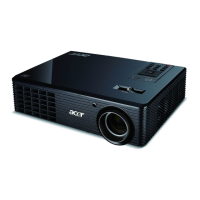
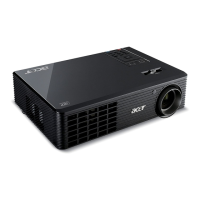
Acer Projector
X1161/X1161A/X1161N/X1261
Series
User's Guide

Questions and Answers

  • L
    Lisa KennedyAug 18, 2025
    How to fix no image on Acer Projector?
    • C
      Clifford WardAug 18, 2025
      To troubleshoot a missing image on your Acer Projector, first, ensure that all connections are correctly set up as described in the "Getting Started" section. Check connectors for bent or broken pins and make sure the projector lamp is securely installed (refer to the "Replacing the Lamp" section). Finally, verify that the lens cap has been removed and the projector is switched on.
  • J
    Jeffrey FuentesAug 20, 2025
    How to change the image size on Acer X1161 Projector?
    • D
      Denise MitchellAug 20, 2025
      To adjust the image size on your Acer Projector, try the following: Adjust the zoom lever on the front of the projector. You can also move the projector closer to or further from the screen to change the image size. Additionally, you can press "MENU" on the remote control, navigate to "Image --> Aspect Ratio", and experiment with different settings or press "Aspect Ratio" on the remote control to adjust directly.
  • M
    Michelle BoyerAug 23, 2025
    How to adjust focus on Acer X1161?
    • Z
      Zachary RiceAug 23, 2025
      If your Acer Projector's image is blurry, first, ensure the lens cap is removed. Then, adjust the focus ring on the projector lens. Also, confirm that the projection screen is within the required distance of 3.3 to 39.4 feet (1.0 to 12.0 meters) from the projector. For more details, see the "How to Get a Preferred Image Size by Adjusting Distance and Zoom" section.
  • C
    Cindy BuckAug 26, 2025
    What to do if notebook screen not displaying presentation on Acer Projector?
    • C
      Charles AndersonAug 26, 2025
      If your notebook screen isn't displaying your presentation when using an Acer Projector: If you're using a Microsoft® Windows® based notebook, it might be deactivating its own screen. Refer to your computer's manual for reactivation instructions. If you're using an Apple® Mac® OS based notebook, go to System Preferences, open Display, and turn Video Mirroring "On".
  • M
    Marvin HernandezAug 27, 2025
    What to do if Acer X1161 Projector is not responding?
    • C
      craigsullivanAug 27, 2025
      If your Acer Projector stops responding to all controls, turn off the projector, unplug the power cord, and wait at least 30 seconds before reconnecting the power.
  • S
    Shawn CoxAug 30, 2025
    How to fix slanted sides on Acer X1161 Projector image?
    • V
      vanessagallegosAug 30, 2025
      To correct slanted sides on your Acer Projector's image: If possible, reposition the projector so it's centered on the screen. You can also press the "Keystone / " button on the remote control until the sides are vertical. If the "Keystone" button is unavailable, press "MENU" on the remote, go to "Image - -> Auto Keystone," and choose "Off" on the OSD.
  • A
    Anthony BallSep 1, 2025
    What to do if Acer X1161 image is scrolling on notebook?
    • B
      Brian HughesSep 1, 2025
      If you're experiencing a partial, scrolling, or incorrectly displayed image on your Acer Projector with a notebook: Press "RESYNC" on the remote control. If the image is incorrectly displayed, adjust your computer's resolution. Press the toggle output settings (e.g., [Fn]+[F4], Compaq [Fn]+[F4], Dell [Fn]+[F8], Gateway [Fn]+[F4], IBM [Fn]+[F7], HP [Fn]+[F4], NEC [Fn]+[F3], Toshiba [Fn]+[F5 ]). If you have trouble changing resolutions or your monitor freezes, restart all equipment, including the projector.
  • T
    Todd SteinSep 6, 2025
    How to stabilize flickering image on Acer X1161?
    • K
      Kristine WallaceSep 6, 2025
      If the image on your Acer Projector is unstable or flickering: Adjust the "Tracking" setting. Additionally, try changing the display color depth settings on your computer.
  • A
    adamselizabethSep 8, 2025
    How to remove vertical flickering bar on Acer Projector?
    • S
      Shannon JosephSep 8, 2025
      To resolve a vertical flickering bar on your Acer Projector's image: Use the "Frequency" setting to make an adjustment. Also, check and reconfigure the display mode of your graphics card to ensure it's compatible with the projector.
  • D
    Derek HernandezSep 10, 2025
    How to flip image on Acer X1161 Projector?
    • S
      sdaviesSep 12, 2025
      If the image on your Acer Projector is reversed, select "Image --> Projection" on the OSD and adjust the projection direction.

Summary

Safety, Handling, and Environment

General Safety and Electrical Precautions

Read instructions, turn off before cleaning, avoid water, safe power cord and outlet use.

Environment and Servicing Guidelines

Refer servicing to qualified personnel; avoid adverse environments; proper disposal of waste.

Wireless, Vehicle, and Explosive Environments

Warnings for wireless use, medical device interaction, and operation in specific environments.

Getting Started and Basic Operation

Initial Usage Notes and Precautions

Do's and don'ts for usage; general precautions to maximize lifespan.

Introduction, Features, Package, and Overview

Projector features, capabilities, package contents, and parts identification.

Remote Control and Connecting the Projector

Remote control functions and steps for connecting cables and powering on/off.

Adjusting Image Height and Size

Using projector feet and zoom for optimal image positioning and dimensions.

Configuration and Settings

User Controls: Installation and OSD Menus

Navigating installation and OSD menus for setup, maintenance, and image adjustments.

Acer Empowering Technology Features

Utilizing Acer utilities for eView, eTimer, and ePower Management.

Color, Image, Settings, Management, Timer, Language

Adjusting color, image, settings, management, timer, and language via OSD.

Maintenance, Troubleshooting, and Specifications

Troubleshooting Common Issues

Solutions for image problems, projector unresponsiveness, and lamp issues.

Replacing the Projector Lamp

Step-by-step instructions for safely removing and replacing the lamp module.

Ceiling Mount Installation

Procedures for physically mounting the projector to a ceiling using appropriate hardware.

Technical Specifications and Compatibility

Detailed specs on resolution, video compatibility, power, and supported modes.

Regulatory Compliance

FCC and EU Declarations of Conformity

Product compliance statements with US FCC and EU directives.

Acer X1161 Series Specifications

General IconGeneral
Display TechnologyDLP
Lamp Life5000 Hours (Standard), 6000 Hours (ECO)
Aspect Ratio4:3
Projection Distance1.1 - 11.8 m
Screen Size30 - 300 inches
Keystone Correction+/-40 Degrees (Vertical)
InputsComposite, S-Video
OutputsAnalog RGB: D-Sub (15 pin) x 1

Related product manuals