EasyManua.ls Logo

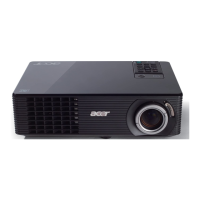
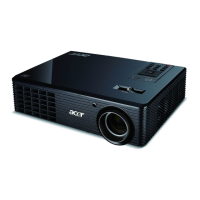
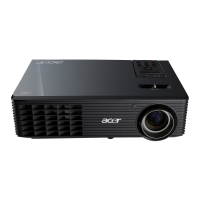
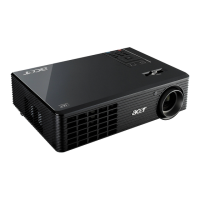
Acer X1160P - User Manual

Acer X1160P
53 pages
Print Icon
To Next Page IconTo Next Page
Loading...
Acer Projector
X1160/Z/ZC/P/PZ/PZC,
X1260/Z/ZC/P/PZ/PZC/K/KC Series
User's Guide

Other manuals for Acer X1160P

Questions and Answers

  • E
    ebradleyAug 18, 2025
    How to fix Acer Projector when no image appears on screen?
    • D
      Dr. Tammy LopezAug 19, 2025
      First, ensure the projector is connected as described in the "Getting Started" section and that none of the connector pins are bent or broken. Then, check if the projector lamp has been securely installed. Also, verify that you have removed the lens cap and the Acer Projector is switched on.
  • D
    David MyersAug 21, 2025
    How to adjust the image size on an Acer X1160P?
    • U
      uherreraAug 21, 2025
      To adjust the image size on your Acer Projector, try the following: adjust the zoom lever on the front of the projector (for X1160Z/ZC/PZ/PZC, X1260/Z/ZC/P/PZ/PZC/K/KC series), move the projector closer to or further from the screen, or press "MENU" on the remote control, go to "Image --> Aspect Ratio" and try different settings or press "Aspect Ratio" on the remote control to adjust directly.
  • A
    Adam WatkinsAug 23, 2025
    What to do if Acer X1160P Projector stops responding?
    • T
      Tamara WilliamsAug 23, 2025
      If your Acer Projector stops responding to all controls, turn off the projector, then unplug the power cord and wait at least 30 seconds before reconnecting power.
  • K
    Kelly HaleyAug 26, 2025
    Why is my Acer X1160P Projector image out of focus?
    • V
      Vincent PerezAug 26, 2025
      First, make sure the lens cap is removed. Then, adjust the focus ring on the projector lens. Also, ensure that the projection screen is within the required distance of 3.3 to 39.4 feet (1.0 to 12.0 meters) from the Acer Projector.
  • T
    Tony BaldwinAug 28, 2025
    What to do if Acer X1160P Projector image is partial or scrolling on notebook?
    • D
      Denise BullockAug 28, 2025
      If you see a partial, scrolling, or incorrectly displayed image on your Acer Projector when connected to a notebook, try these steps: Press "RESYNC" on the remote control. To fix an incorrectly displayed image: adjust the resolution of your computer. Press the toggle output settings, for example: [Fn]+[F4], Compaq [Fn]+[F4], Dell [Fn]+[F8], Gateway [Fn]+[F4], IBM [Fn]+[F7], HP [Fn]+[F4], NEC [Fn]+[F3], Toshiba [Fn]+[F5]. If you experience difficulty changing resolutions or your monitor freezes, restart all equipment including the projector.
  • A
    Antonio LopezAug 30, 2025
    How to resolve partial image on Acer Projector with Windows PC?
    • J
      Jennifer HudsonAug 30, 2025
      If you are experiencing a partial, scrolling, or incorrectly displayed image on your Acer Projector (For PC (Windows 95/98/ 2000/XP)), try the following solutions: Press "RESYNC" on the remote control. For an incorrectly displayed image, verify that your display resolution setting is lower than or equal to SXGA (1280 x 1024) (X1160/Z/ZC/P/PZ/PZC) or SXGA+ (1400 x 1050) (X1260/Z/ZC/P/PZ/PZC/K/KC). If the problem still appears, change the monitor display you are using and verify that the resolution setting is lower than or equal to SXGA (1280 x 1024)(X1160/Z/ZC/P/ PZ/PZC) or SXGA+ (1400 x 1050)(X1260/Z/ZC/P/ PZ/PZC/K/KC).
  • M
    michael70Sep 1, 2025
    Why is my Acer Projector image flickering?
    • M
      Michael BryantSep 2, 2025
      If the image from your Acer Projector is unstable or flickering, try adjusting the "Tracking". Also, change the display color depth settings on your computer.
  • M
    Mrs. Kimberly HendersonSep 3, 2025
    Why isn't my notebook screen displaying on the Acer X1160P?
    • L
      Linda EdwardsSep 4, 2025
      If the screen of your notebook computer is not displaying your presentation on the Acer Projector: If you are using a Microsoft® Windows® based notebook, some notebook PCs may deactivate their own screens when a second display device is in use. Refer to your computer's manual for detailed information. If you are using an Apple® Mac® OS based notebook: In System Preferences, open Display and select Video Mirroring "On".
  • A
    Aaron ThomasSep 6, 2025
    How to fix slanted sides on Acer X1160P image?
    • D
      Deborah PierceSep 6, 2025
      To correct slanted sides on your Acer Projector's image: If possible, reposition the projector so that it is centered on the screen. Alternatively, press the "Keystone / " button on the remote control until the sides are vertical.
  • O
    osbornedorisSep 8, 2025
    How to fix vertical flickering bar on Acer Projector?
    • A
      Andrew MillerSep 8, 2025
      If your Acer Projector's image has a vertical flickering bar, use "Frequency" to make an adjustment. Also, check and reconfigure the display mode of your graphics card to make it compatible with the projector.

Summary

Safety and Handling Information

Product Cleaning and Power Disconnection

Safely turn off the product before cleaning and disconnect power properly from the unit.

Electrical Power Safety Guidelines

Proper usage of electrical power, grounding, and extension cords to prevent hazards.

General Operational Safety Warnings

Avoid water, unstable surfaces, blockages, and ensure proper ventilation for safe operation.

Product Servicing and Environment

Safe Operating Environment and Practices

Avoid looking into the lens, high temperatures, humidity, dust, and ensure proper cooling.

Wireless Function and Device Usage

Wireless Device Safety and Interference

Turn off wireless devices in specific conditions; avoid interference with medical devices.

Projector Overview and Controls

Remote Control and Panel Functions

Details the functions of each button on the remote control and projector panel.

Getting Started: Setup and Operation

Connecting the Projector to Devices

Diagrams and instructions for connecting the projector using various cables.

Turning the Projector On and Off

Step-by-step guide to power on/off the projector and source devices safely.

Appendices and Troubleshooting

Troubleshooting Common Projector Issues

Guide to resolving common problems with projector operation.

Image Display Problems and Solutions

Troubleshooting steps for image-related issues like no image or incorrect display.

Maintenance and Installation Procedures

Lamp Replacement Procedure

Detailed instructions and safety warnings for changing the lamp module.

Product Specifications and Compatibility

Technical Specifications Summary

Detailed technical data including resolution, compatibility, dimensions, and power.

Acer X1160P Specifications

General IconGeneral
Number of colors16.78 million colors
Vertical scan range50 - 85 Hz
Horizontal scan range31 - 69 kHz
Projection technologyDLP
Contrast ratio (typical)2500:1
Projector native resolutionSVGA (800x600)
Aspect ratio4:3
Dimensions (WxDxH)267 x 80 x 187 mm
Power requirements100 - 240 V
Connectivity technologyWired
Lamp power180 W
Light source typeLamp
Service life of light source3500 h
Service life of light source (economic mode)4000 h
USB 2.0 ports quantity1
Power consumption (standby)5 W
Power consumption (typical)255 W
Weight and Dimensions IconWeight and Dimensions
Weight2300 g

Related product manuals