EasyManua.ls Logo

Acer X112 Series - User Manual

Acer X112 Series
56 pages
Print Icon
To Next Page IconTo Next Page
Loading...
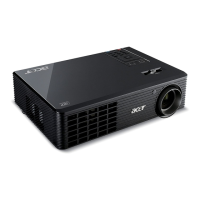
Acer Projector
X1161P/X1161PA/X1161PN/X112/
X1261P/X1261PN Series
User's Guide

Questions and Answers

  • J
    John MccoyAug 18, 2025
    How to fix no image on Acer X112 Projector?
    • P
      Peter ConnerAug 18, 2025
      If no image is appearing onscreen with your Acer Projector, ensure that the connections are properly set up as described in the "Getting Started" section. Check for any bent or broken connector pins and make sure the projector lamp is securely installed. Also, verify that you have removed the lens cap and that the projector is switched on.
  • E
    Elaine HallAug 20, 2025
    How to adjust Acer X112 image size?
    • M
      Matthew MannAug 21, 2025
      If your Acer Projector's image is too small or too large, you can adjust the zoom lever on the top of the projector. You can also try moving the projector closer to or further from the screen. Alternatively, press "MENU" on the remote control, navigate to "Image - -> Aspect Ratio", and experiment with different settings, or press "Aspect Ratio" directly on the remote.
  • S
    Sharon SuttonAug 23, 2025
    Why is Acer Projector not displaying my notebook screen?
    • H
      hansonwhitneyAug 23, 2025
      If the screen of your notebook computer is not displaying your presentation when connected to the Acer Projector: * If using a Microsoft® Windows® based notebook, some PCs may deactivate their own screens when a second display is in use. Refer to your computer's manual for reactivation instructions. * If using an Apple® Mac® OS based notebook, open Display in System Preferences and select Video Mirroring "On".
  • A
    Andrew BrownAug 26, 2025
    How to correct slanted image on Acer Projector?
    • D
      Douglas KnappAug 26, 2025
      If the image displayed by your Acer Projector has slanted sides, try repositioning the projector so that it is centered on the screen. You can also press the "Keystone / " button on the remote control until the sides appear vertical. If the "Keystone" button is unavailable, press "MENU" on the remote, go to "Image - -> Auto Keystone" and choose "Off" in the OSD.
  • D
    daniellesmithAug 27, 2025
    How to focus Acer X112 Projector?
    • B
      Bobby WardAug 27, 2025
      If your Acer Projector image is out of focus, first ensure the lens cap is removed. Then, adjust the focus ring on the projector lens. Also, confirm that the projection screen is within the required distance of 3.9 to 39.0 feet (1.2 to 11.9 meters) from the projector.
  • W
    Wendy MonroeAug 29, 2025
    How to stabilize flickering image on Acer Projector?
    • K
      Kenneth JohnsonAug 30, 2025
      If you're experiencing an unstable or flickering image on your Acer Projector, adjust the "Tracking". You can also try changing the display color depth settings on your computer.
  • M
    melissa79Sep 1, 2025
    How to flip image on Acer X112?
    • B
      bthompsonSep 1, 2025
      If your Acer Projector's image is reversed, navigate to "Image --> Projection" on the OSD and adjust the projection direction.
  • J
    Justin BrennanSep 6, 2025
    Why is Acer Projector image stretched on widescreen DVD?
    • K
      Kelly HigginsSep 6, 2025
      When playing a "widescreen" DVD title and the image appears stretched on your Acer Projector, you may need to adjust the following settings: * If playing a 4:3 format DVD title, change the format to 4:3 in the projector OSD. * If the image is still stretched, adjust the aspect ratio and set up the display format to 16:9 (wide) aspect ratio on your DVD player.
  • M
    Michael WoodSep 8, 2025
    How to remove vertical bar from Acer Projector image?
    • C
      Carlos WatkinsSep 8, 2025
      If you see a vertical flickering bar on your Acer Projector's image, use the "Frequency" setting to make an adjustment. Also, check and reconfigure the display mode of your graphics card to ensure it is compatible with the projector.
  • B
    blairmelissaSep 12, 2025
    How to fix Acer Projector distorted image from notebook?
    • C
      cristian41Sep 12, 2025
      If your Acer Projector is displaying a partial, scrolling, or incorrectly displayed image from notebooks, first press "RESYNC" on the remote control or control panel. For an incorrectly displayed image: follow the steps to adjust the resolution of your computer. Press the toggle output settings, for example: [Fn]+[F4], Compaq [Fn]+[F4], Dell [Fn]+[F8], Gateway [Fn]+[F4], IBM [Fn]+[F7], HP [Fn]+[F4], NEC [Fn]+[F3], Toshiba [Fn]+[F5]. If you have difficulty changing resolutions or your monitor freezes, restart all equipment including the projector.

Summary

Information for your safety and comfort

Turning the product off before cleaning

Instructions for safely turning off the projector before cleaning.

Caution for plug as disconnecting device

Guidelines for safely connecting and disconnecting the power supply.

Caution for Accessibility

Ensuring power outlets are accessible for easy disconnection.

Introduction

Product Features

Details the outstanding features of the DLP projector.

Projector Overview

Projector Outlook

Visual identification of projector parts from front/upper and rear sides.

Getting Started

Connecting the Projector

Step-by-step guide for connecting the projector to sources.

Turning the Projector On;Off

Turning on the Projector

Procedure for powering on the projector and source devices.

Adjusting the Projected Image

Adjusting the Height of Projected Image

Instructions for adjusting the projector's height using elevator feet.

User Controls

Installation menu

Onscreen display menu for projector installation and maintenance.

Onscreen Display (OSD) Menus

Using the OSD menus

Instructions on how to navigate and use the OSD menus for settings.

Color

Display Mode

Selection of factory presets for various image types.

Wall color

Choosing a proper color to match the wall for accurate image tone.

Brightness

Adjusts the image brightness, either darkening or lightening.

Image

Projection

Settings for projector orientation: Front-Desktop, Rear-Desktop, Rear-Ceiling, Front-Ceiling.

Setting

Closed Caption

Option to display or turn off closed captioning for video signals.

Management

ECO Mode

Dims the projector lamp for lower power consumption and extended life.

Audio

Volume

Controls the audio output level for the projector.

3 D

3 D Format

Adjusts the 3D format for correct display of 3D content.

Appendices

Troubleshooting

Guide to resolving common image problems and their solutions.

Replacing and cleaning the dust filters

Replacing the Lamp

Ceiling Mount Installation

Specifications

Compatibility modes

VGA Analog

Lists supported resolutions and frequencies for VGA analog PC signals.

Regulations and safety notices

Acer X112 Series Specifications

General IconGeneral
BrandAcer
ModelX112 Series
CategoryProjector
LanguageEnglish

Related product manuals