Aclas Pty Ltd Tel: (07) 3277 8989 http://www.aclas.com.au 5-3
4.2 PLU Set/ Department Set
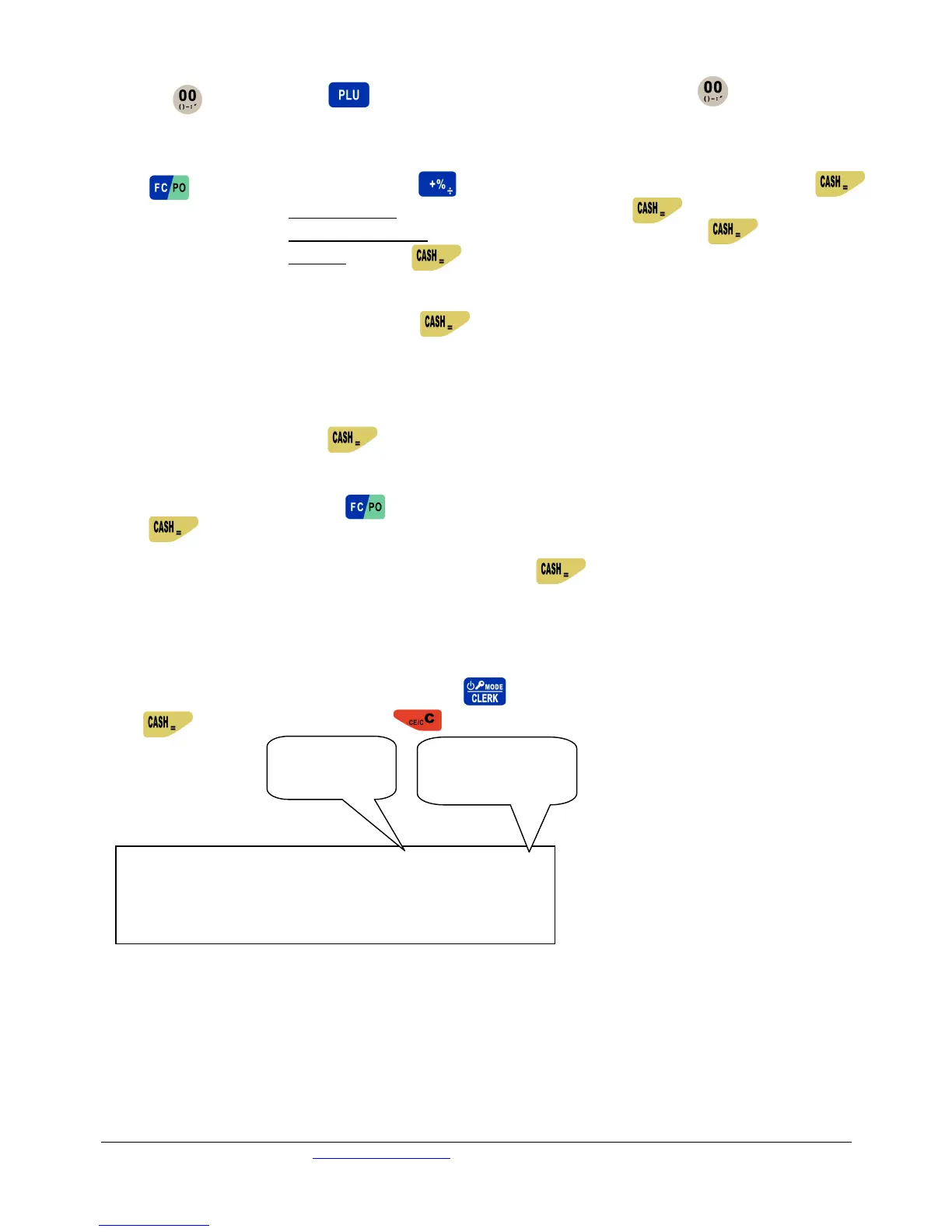
Press and then press to enter PLU set directly, enter the ba. Press twice, then the
respective department number to enter department set.
4.3 Date and Time Set
Press to enter function menu. Use the key to scroll to “Date and Time” function and press
System prompts <Input manager>. Enter Manager’s ID and press .
System prompts <Input manager psw>. Input manager’s password and press
System prompts <Set date>. Press and input the date in DD-MM-YYYY format.
The system will then print out a copy of the information you have just set.
System prompts <Time set>. Press and then input the time in HH-MM-SS format.
The system will then print out a copy of the information you have just set.
4.4 Printer Settings
After each transaction the receipt printer will print out the tax invoice. If you wish to print a duplicate copy of
the last transaction simply press again after the transaction is complete.
Altenatively, you can switch off the printer so that it does not print a tax invoice after each transaction
automatically. To do so, press the key. The system will prompt <Do Not Print Sale Rec.>,
press . The system will print out a copy of the information you have just set.
N.B If a customer would like a copy of the receipt, simply press after the transaction, and this will
print it out, there is no need to change the settings back.
5 OPERATION MODE SELECTION
The cash register has 6 operation modes. Press key to shift to X, Z, SET, S or OFF mode, and
press to enter the mode. Press key to return to the default mode--- REG mode.
REG sale operation mode
X REPORT To read various reports
Z REPORT To read reports and reset the total to zero
SET Set some items
SYSTEM SET Set system parameter
OFF ECR Turn off the system
AC LOSS The cursor flashes when AC is lost
▲ ▲ ▲ ▲ ▲ ▲ ▲ ▲ ▲
0
REG X Z SET S OFF AC LOSS
Flashes when
[2FUNC] is in use
Flashes when journal
paper has run out


 To Next Page
 Loading...