Aclas Pty Ltd Tel: (07) 3277 8989 http://www.aclas.com.au 6-5
6.10 Save Operation
CR35 can save transactions (5 receipts at most) by pressing and the transaction can be retrieved by
inputting the receipt number and pressing again.
7 REPORT
Press to select X or Z mode and print the X or Z report. Refer to Section 4 of this manual.
X report: read totals without resetting (next sales sum will be accumulated).
Z report: read totals and reset them to zero (next sales sum will be recalculated).
8 Common Error Messages
Error 19
– If this message appears, simply print the daily report to repair. See section 7 of this Quickstart
for details on how to print the daily report.
Error 2
– If this message appears, no clerk has been logged in. See section 3 of this Quickstart for
details on how to log in a clerk.
LLB –
If this message appears, along with a beeping sound, the battery level is low. Please connect
the machine to a power point immediately.
WARNING: Do not let the battery go flat, connect it immediately after the warning message, as the battery
cannot be recharged after it has gone flat.
9 Extra Information (Adding Clerk, Setting Authorisation)
The following has already been set up by your dealer; however this may be useful for future reference.
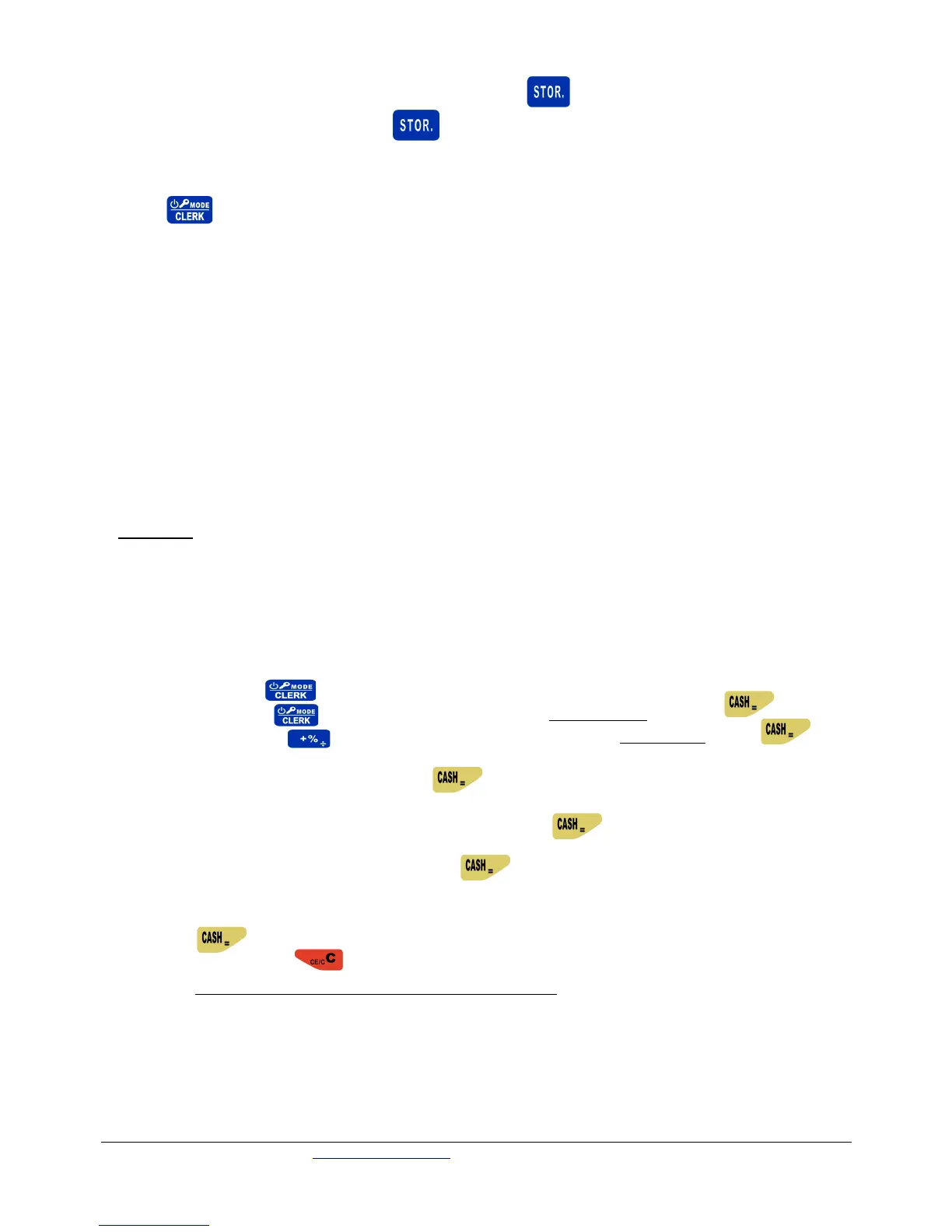
Log in, and press the key.
3.1.1 Press key until the system prompts with SYSTEM SET and press
3.1.2 Use the key to scroll until the system prompts with SET CLERK, press
3.1.3 System Prompts: <IDX (1 - 4)>
Input Clerk number and press
3.1.4 System Prompts: < CLERK NAME>
Input Clerk’s name by using the key pad, press
3.1.5 System Prompts: < PSW>
Input Clerk’s password and press
3.1.6 System Prompts: < CHECK ALL>
Select the functions which the Clerk will be authorized to enter, by scrolling down the options
and pressing on the functions you would like to be selected. If you prefer the Clerk have no access
to any of the functions press when you reach this screen.
N.B: Selecting ‘CHECK ALL’ gives Clerk full authority.


 To Next Page
 Loading...