The ACME Internet Tablet, model TB03, is a portable device designed for various multimedia and internet-related tasks. It features a touchscreen interface and runs on the Android™ operating system, offering a range of functionalities for communication, entertainment, and productivity.
Function Description:
The ACME Internet Tablet serves as a versatile portable device for browsing the web, checking email, watching videos, reading e-books, and running various applications. It supports wireless internet connectivity via Wi-Fi 802.11 b/g/n, allowing users to stay connected and access online content. The tablet is equipped with a front-facing camera for video calls and photos. Its automatic orientation detection feature adjusts the display based on how the tablet is held, enhancing user experience. The device also includes an HDMI™ output, enabling users to connect it to a TV or other display for enjoying videos and photos on a larger screen. For storage, it supports microSD memory cards, allowing for expansion of its internal capacity.
Important Technical Specifications:
- Model: TB03
- Connectivity: High-speed Wi-Fi 802.11 b/g/n networking
- Display: Touchscreen with automatic orientation detection
- Camera: Front-facing camera
- Storage: microSD card reader (supports up to 32 GB)
- Ports:
- Volume + key
- Volume - key
- Power key
- Speaker
- microSD card slot
- Reset key
- Power jack (DC input)
- USB 2.0 port
- Headphone jack (3.5 mm / 1/8 in plug)
- HDMI jack (mini Type C)
- Power: AC 100-240V power adapter for charging.
- Operating System: Android™ (implied by app marketplace and settings)
Usage Features:
- Web Browsing: Users can visit their favorite websites.
- Email: The tablet allows users to check their email and stay in touch with friends and family.
- Video Playback: It supports watching YouTube™ videos and other video content.
- E-book Reading: The included Aldiko E-book reader allows users to download and read thousands of books.
- App Ecosystem: Access to thousands of apps for Android™ through the 1Mobile Market, which is designed for tablets.
- Media Library: Plays popular music, video, and photo formats, making it a portable powerhouse for media consumption.
- Touchscreen Actions:
- Touch: Activates on-screen items like application icons, buttons, menu items, and keyboard letters/symbols.
- Touch and Hold: Activates alternate actions or the drag function for on-screen items.
- Drag: Changes the position of on-screen items, such as application icons on the home screen.
- Swipe: Scrolls through lists or changes views by quickly moving a fingertip across the screen.
- Doubletap: Zooms in on webpages or other application screens (if supported by the application).
- Device Operation:
- Power ON/OFF: Long press (1.2s) the POWER button to turn on. Long press the POWER button and choose "Power off" to turn off.
- Standby and Wakeup: Short press (0.3s) the POWER button for standby mode. Short press again to wake up, then press and move the lock icon out of the circle to unlock the screen.
- Homepage Functions:
- Change wallpaper by long-pressing a blank space on the home page.
- Add/Delete application icons by long-pressing them to move into/out of the homepage.
- Preview multiple tasks.
- View time, network, and battery information.
- Check USB connection and manage files (copy/delete).
- USB Connection: Connects to a PC via USB cable for data exchange. Users must select "USB connected" and "Turn on USB storage" to copy files.
- Applications Management:
- Installation: Copy APK packages to the device, then use File Manager to install.
- Uninstallation: Go to Settings > Apps > All, select the application, and choose Uninstall.
- Management: In Settings > Apps > All, users can Force stop, Uninstall, Clear data, or Move to SD card for selected applications.
- Network Access (Wi-Fi): Configured via Settings > Wireless & Networks > Wi-Fi. Also allows switching to Airplane mode, Ethernet, VPN, Mobile networks, and 3G Support Information via "More..." option.
- System Settings: Accessed via the Settings icon, allowing configuration of Wireless&networks, Sound, Display, Storage, Battery, Apps, Accounts&sync, Location services, Security, Language&input, Backup&reset, Date&time, Accessibility, Developer options, and About tablet.
- Language Change: Find the Settings icon, access Language&input settings, and select the first option for language setting.
- Input Change: Access Setting > Language&input, and set the default input.
Maintenance Features:
- Charging: The tablet should be charged using the included power adapter. Plug one end into an AC 100-240V outlet and the other into the Power jack on the tablet. Disconnect when fully charged.
- Resetting the Device: If the device freezes or behaves abnormally, press the Reset key (using a paperclip or small object) to restart it.
- Troubleshooting Applications: If installed applications are not found, check if they were installed on an external TF card that has been ejected.
- System Problems/Popup Errors: Restart the device using the POWER button or the RESET key. If errors persist, check active applications for unknown or malicious apps and uninstall them. Installing security applications is recommended.
- Protective Film: A thin protective film is applied to the touchscreen during shipping and should be removed before use.
- Cleaning: Unplug the product from the wall outlet before cleaning. Use a damp cloth; do not use liquid or aerosol cleaners.
- Safety Instructions:
- Read all safety and operating instructions.
- Retain instructions for future reference.
- Heed all warnings.
- Follow all operating and usage instructions.
- Do not use near water.
- Ensure proper ventilation; do not block slots or openings.
- Operate only from the specified power source.
- Avoid overloading wall outlets.
- Prevent objects or liquids from entering the product.
- Refer all servicing to qualified personnel.
- Unplug and seek service for damaged power supply/plug, liquid spills, product exposure to rain/water, abnormal operation, drops/damage, or distinct performance changes.
- Use manufacturer-specified replacement parts.
- Ensure safety checks after service/repairs.
- Keep away from heat sources.
- Hearing Protection: Avoid constant use of personal stereos at high volume to prevent hearing loss. Discontinue use and seek medical advice if experiencing ringing in the ears or hearing loss.
- Electrostatic Discharge Recovery: If the product suddenly loses response or powers off due to electrostatic discharge, turn off the unit by pushing and holding the slide button on the right (Power off position) for 15 seconds, then turn it on again.

 Need help?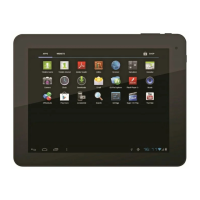

 To Next Page
 General