1514
Schedule
To create a 7 day programmed event, ‘ Menu ’ > Schedule.
NOTE: Maximum of 6 actions per day. For detailed and advanced
programming visit ActronAir website.
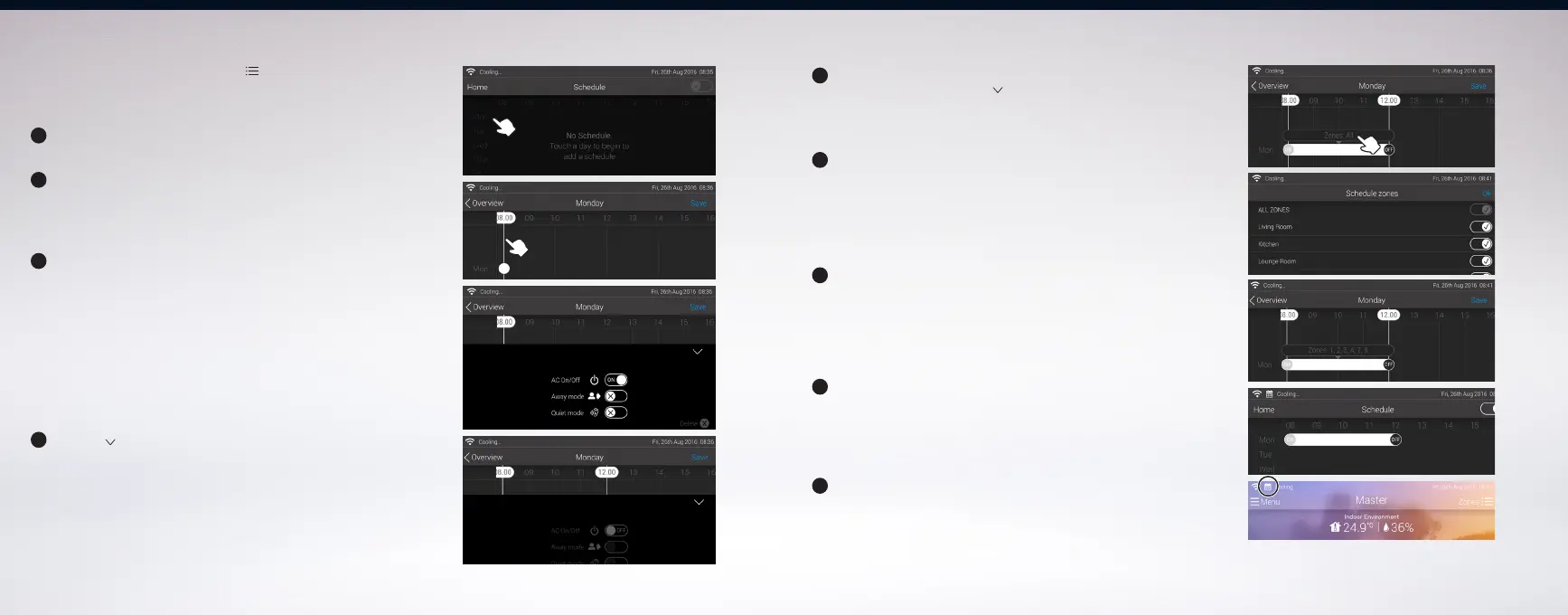
1
On the next screen, select by touching a day.
2
Create the first action by touching and holding the preferred
time on the screen, until the action banner appears.
3
In the banner, select the desired action for the event.
Example, switch AC On/Off to the right to turn the AC ON at
that time.
• Automatically turn the system or zone ON or OFF.
• Away Mode - to activate or de-activate ‘Away’ set
temperature set point.
• Quiet Mode - to activate or deactivate low
noise operation.
4
Touch ‘ ’ to close the event options banner.
5
6
7
8
9
Repeat steps 3 and 5 to create second action. Example, turn
the AC system OFF. Touch ‘ ’ after programming the second
event. If required, touch the ‘Zones’ balloon to target a
specific zone/s for this program.
From zone list, select which of the zones will be included in the
schedule. Slide the switch to the right to activate and to the left
to deactivate. Then press ‘Ok’.
NOTE:
Away and Quiet mode options are global settings. You cannot set this
per zone.
Touch ‘Save’.
NOTE:
It is still possible to adjust the time created by touching and hovering
the action marker across the screen.
From schedule screen, the event created on the day will be
shown. Slide the schedule switch to the right to activate.
When on the home screen, the status will show the calendar
icon, indicating that the schedule is active.


 To Next Page