How to set up Weather Sharing
1. Open the PC Connect software.
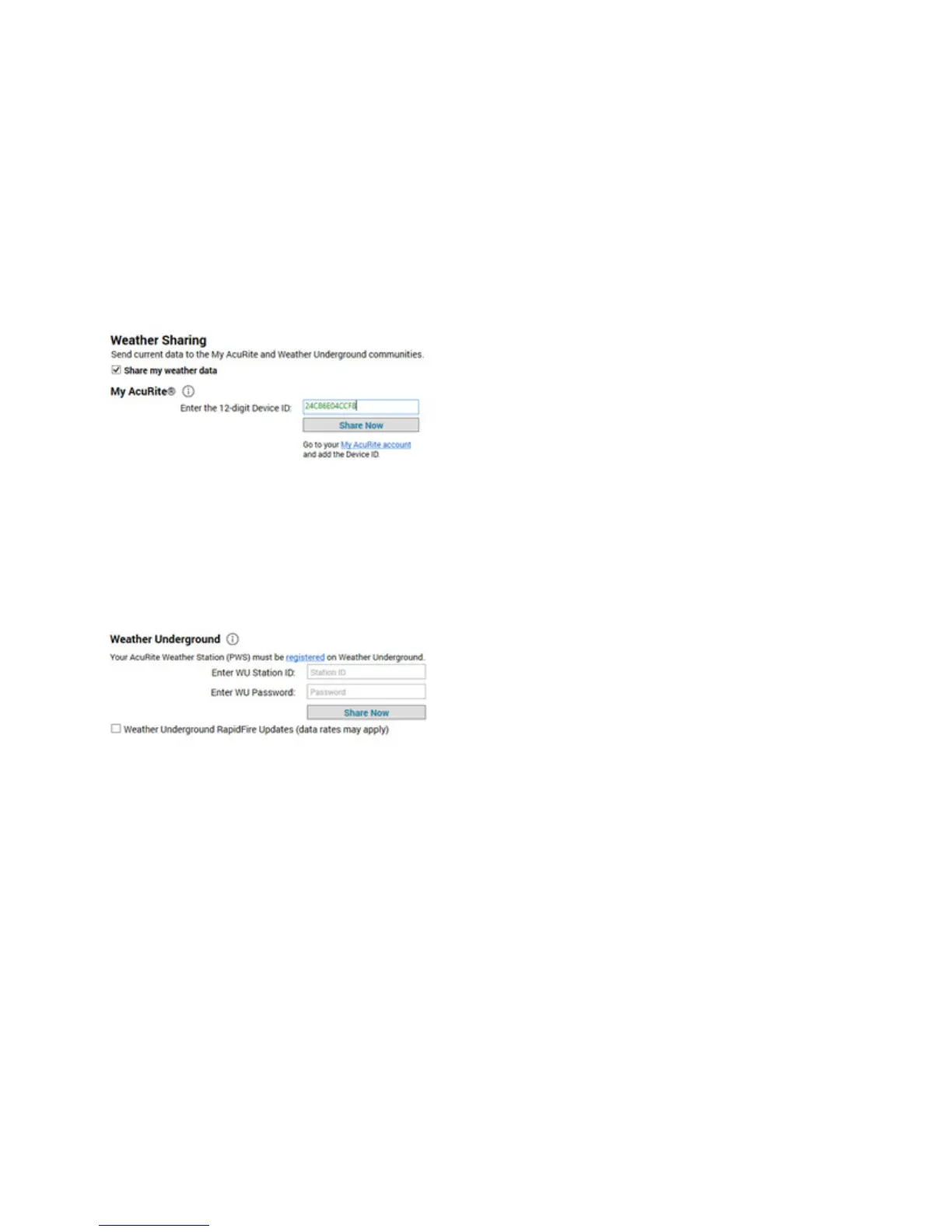
2. From the Weather Sharing section, select the check box Share my weather data.
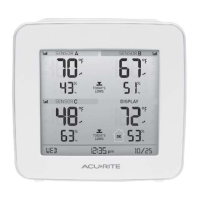
3. From My AcuRite Sharing, enter the 12-character Device ID of the Indoor Display. The Device ID is located on the
back of the unit.
4. Select Share Now. This activates the Device ID with My AcuRite, allowing you to add the Device ID to your My
AcuRite account.
5. Go to myacurite.com or download the AcuRite app from the App Store or the My AcuRite app from Google Play to
create a My AcuRite account. If you have an account, add the PC Connect Display to your account. Once the
Device ID is added to your account, you can set up sharing with Weather Underground.
6. To share with Weather Underground, enter your Weather Underground (WU) Station ID and Password
(Station Key) and select Share Now. Readings are sent in 12-minute intervals to Weather Underground.
7. To share readings with Weather Underground as often as every 18 seconds, select Weather Underground
RapidFire updates. Enabling Rapid Fire Updates may result in significantly more data being sent over your internet
connection.
8. To prevent your computer from entering sleep mode, it's recommended to enable the Always-on Connection
setting.
From the Status section, you can view the status of the sensor readings being sent to My AcuRite and Weather
Underground.


 To Next Page