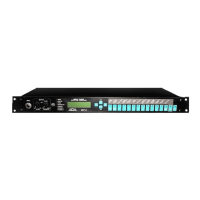
ADA MB-1 owners manual version 2
7. Press the contour button for the desired voice
8. Use the up/down arrow buttons to select the desired contour filter curve. There are
six contour filter curves for the Tube voice and five contour curves for the Solid State
voice. With a CONTOUR parameter selected, the display will show the curve number
and a graphic representation of the curve. In the Tube voice, curves number 5 and 6
are to be used for overdrive settings. Curves 5 and 6 will increase gain through the
tubes. With the INPUT and MASTER parameters you may fine tune the amount and
color of overdrive
9. Press the Compressor button
10. The display will show the current compression ratio
11. Use the up/down arrow buttons to set the compression ratio (amount of
compression.) Pressing the up and down arrows together will turn off the Compressor
12. Press the Compressor button again. The display will read "t" followed by a number
0.1 to 10.0. This represents the compression Threshold ( the level at which
compression begins.)
13. Use the up/down arrow buttons to set the threshold. A higher Threshold will pass
more signal before compression begins.
14. Press the Compressor button again. The display will read "G" followed by a number
1.0 to 10.0. This represents compressor output Gain
15. Use the up/down arrow buttons to set the Gain. It is recommended that the Gain be
set to its lowest value for most Compressor setups. For Compressor Ratios over 10: 1
with Threshold values set below 2.0, the gain can be set to a higher value
16. Press the LO button. If no EQ parameters have been entered the display will read
"FLAt". Note: At any time you have one of the five EQ bands selected (dB/cut or
boost page for the three mid bands) you can push the up and down arrow buttons
together to set the entire EQ section flat (no EQ cut or boost.)
17. Use the up/down arrow buttons to set the amount of boost or cut desired
18. Press the LO MID button. Note the LED in the left side of the display: "dB" indicates
amount of boost or cut. Pressing the LO MID button again will toggle to "Hz"
indicating the center frequency being cut or boosted. You may toggle back and forth
as needed
19. Use the up/down arrow buttons to set the amount of boost or cut along with the
center frequency desired
20. Use the above method to adjust MID and HI MID
21. Press the HI button. Note that the HI EQ parameter is a shelving type, the same as
the LO EQ parameter. To adjust the HI EQ follow the procedure in steps 15 and 16
22. Press the CHORUS button. The display will read "d" followed by a number 0 to 100.
This indicates Chorus Depth
23. Use the up/down arrow buttons to set the desired Chorus Depth: 0 = off and 100 =
full. Note: At this stage, pressing the up and down arrow buttons together will turn
OFF the chorus
24. Press the CHORUS button again, the display will read "r" followed by a number 0.0 to
10.0. This indicates Chorus Rate
25. Use the up/down arrow buttons to set the desired Chorus Rate: 0 = off and 10.0 = full.
When Chorus Rate is set to 0 the chorus will act as a comb filter. Changing the value
of Chorus Depth will move the comb filter point from 1 to 100. If no chorus or comb
filter is desired set Chorus Depth and Rate to 0
26. Press the EFFECTS LOOP button
27. Use the up/down arrow buttons to select the desired Effects Loop status: "Out" =
none or off, "A" = effect loop A only, "b" = effect loop B only, and “A b" = effect loop A
and B together. Note: at this stage, pressing the up and down arrow buttons
together will turn off effect loops A and B.
Page 11 of 22


 To Next Page