Chapter 1: Getting Started with the Command Line Utility ● 13
If the package installed successfully, you should see a line like this:
arcconf 1.00-1 Adaptec unknown 2011-08-26
6 Continue the installation with Installing Remote ARCCONF on a Windows Guest OS on
page 13 or Installing Remote ARCCONF on a Linux Guest OS on page 14.
Installing Remote ARCCONF on a Windows Guest OS
Note: The following instructions assume that you have already created a virtual machine in
VMware and installed the Windows Guest OS. To run Remote ARCCONF on Windows, you must
be logged in as Administrator.
To install Remote ARCCONF on a Windows Guest OS:
1 On a Windows machine, insert the Adaptec Installation DVD.
2 Start the Remote Desktop Connection utility, then connect to the Windows Guest OS on
VMware. (You will be asked for credentials when you connect.)
3 Navigate to the ASMCD\remote_arcconf\windows directory on the installation DVD, then
copy the setup program, setup_remote_arcconf_x32.exe, to a local directory on the
Windows Guest OS.
4 Double-click setup_remote_arcconf_x32.exe.
The installation wizard opens.
5 Click Next to begin the installation, click I accept the terms..., then click Next.
6 To accept the default installation location, click Next. To choose a different location, click
Change, select a location, then click Next.
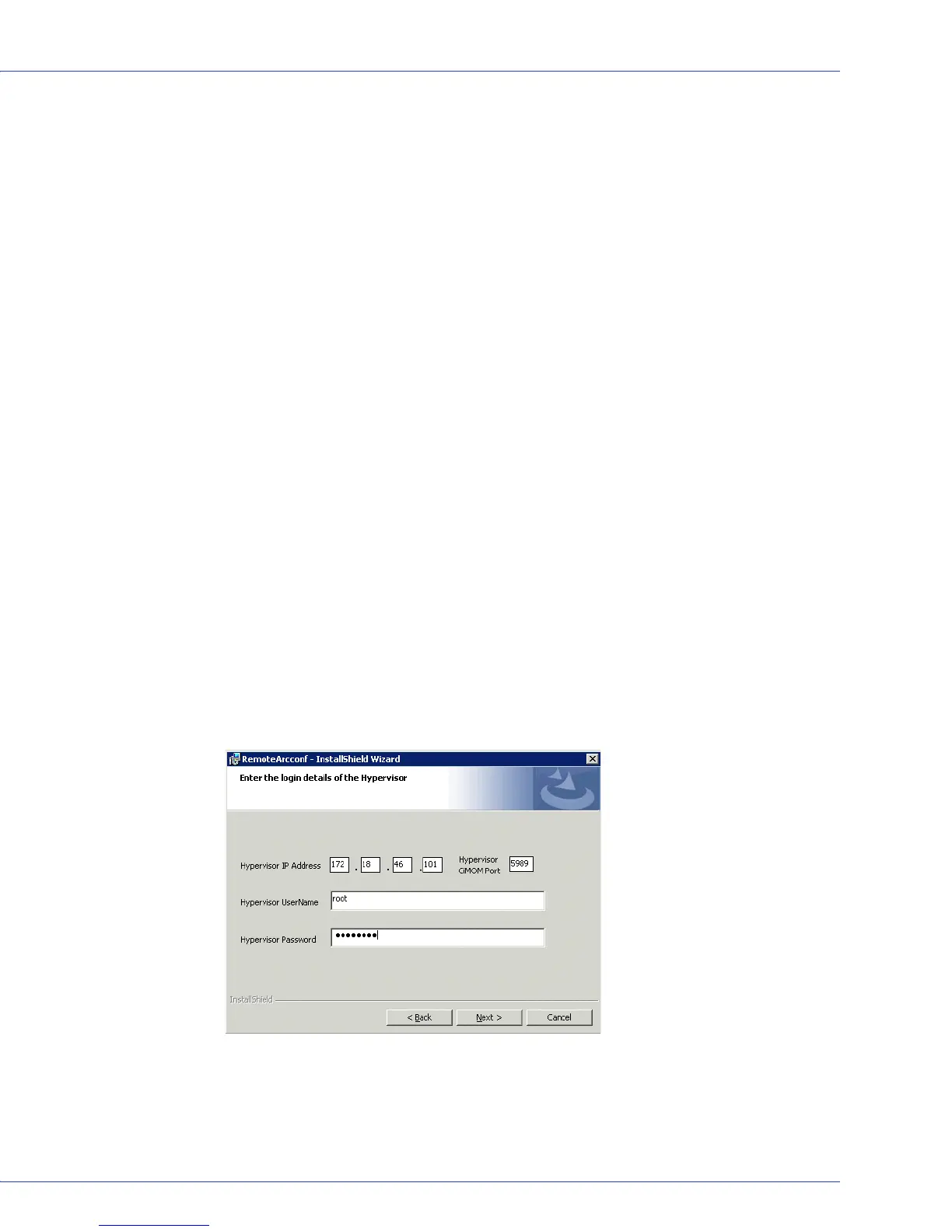
The Hypervisor Credentials window opens.
7 Enter the Hypervisor login credentials: IP address, port, username, password, then click
Next:
Note:
For the CIMOM port, the default value (5989) is recommended for most
installations.
8
Click Install, then Finish.



 To Next Page