CHAPTER 13
246
Navigating the Multitrack View
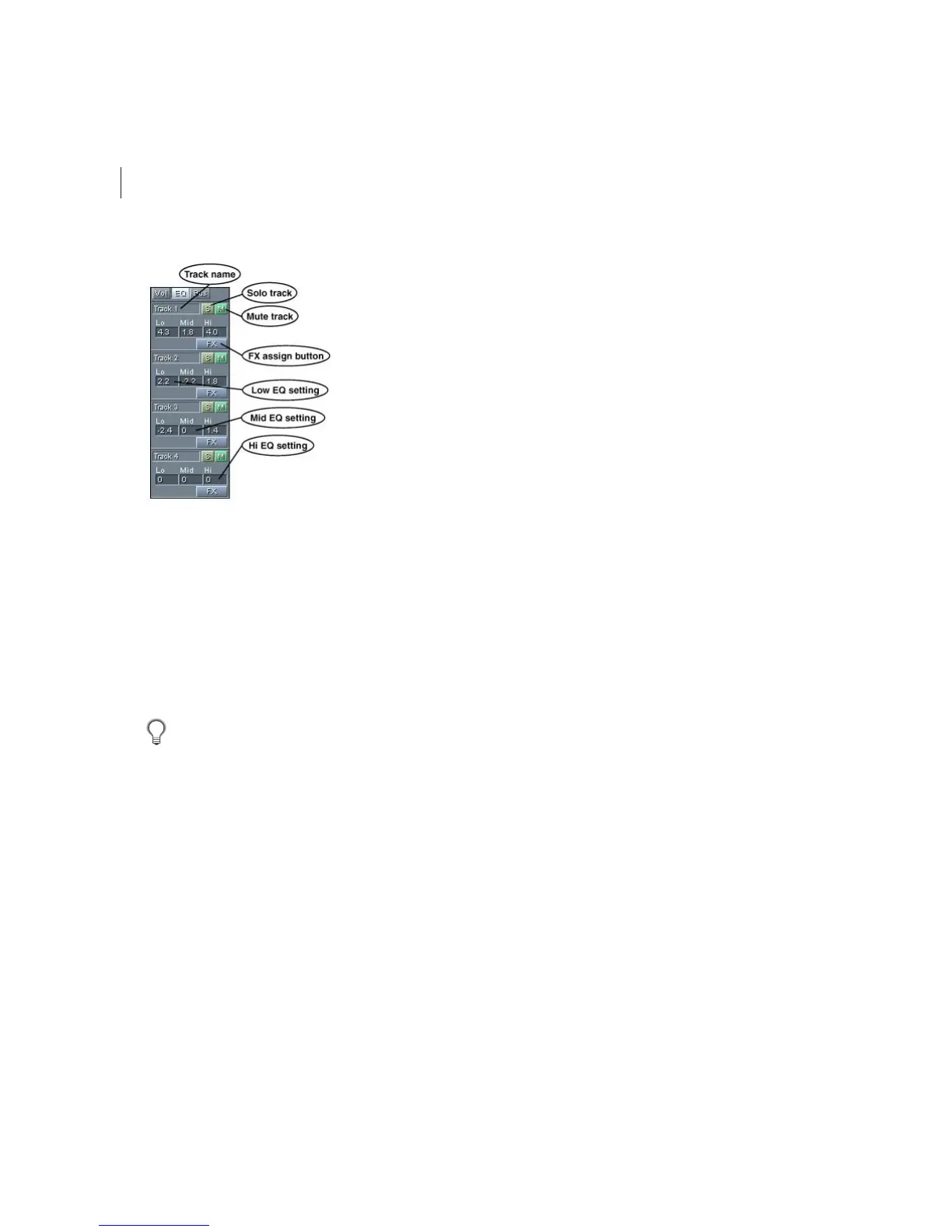
Track Controls set to the EQ Tab
Note: The Track Equalization Fields normally show up only in the EQ area, but will appear under the Vol tab if your Track
Controls area is sized large enough.
EQ / A and EQ / B Buttons These buttons allow you to quickly switch between two different banks of equalization param-
eters. A single-click on the EQ / A button changes it to an EQ / B button, thus bank-switching the EQ settings and
allowing you to A/B two sets of equalization parameters. By default, the setting for the EQ / B button is “flat”, so you can
A/B against “no equalization” at any time by just clicking that button. However, if you make EQ modifications while the
EQ / B button is active, those settings are preserved. This allows you to A/B any two settings you want. To force both
banks to be equal to the current settings, double-click on the EQ / A or EQ / B button.
Right-click on either button to bring up the EQ Presets dialog, which is fully documented later in this chapter.
Wet/Dry Fields If a track’s output is set to a Bus, the Wet/Dry Fields are enabled and display the bus’ wet and dry
percentages. Change the field’s percentages by left-clicking on it and sliding your mouse horizontally or vertically.



 To Next Page